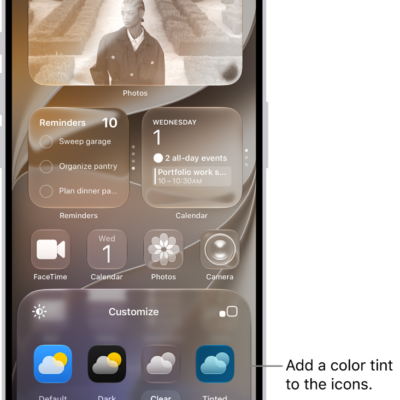
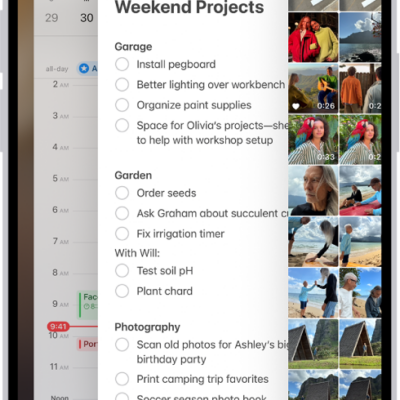
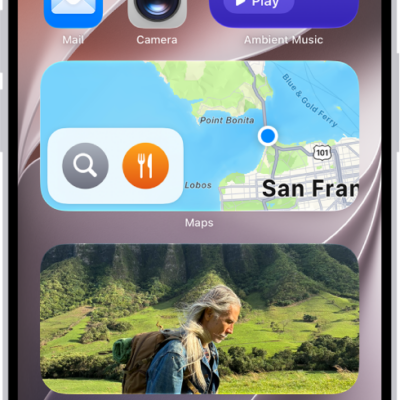
Widgets show you information from an app at a glance, like today’s headlines, weather, reminders, and battery levels. You can add them to your Home Screen, and turn an app icon into a widget. A Smart Stack, a widget with dots next to it, shows the most relevant widget based on the time and your location.
What are widgets?
With widgets, current information from an app is easy to view at a glance, whether it’s today’s headlines, the weather, reminders, or battery levels. You’ll find them in Today View, and you can add them to your Home Screen or Lock Screen to keep that information at your fingertips.
Quick tip: A widget with dots next to it is a Smart Stack. It’s a combined set of widgets that automatically shows the most relevant one at the appropriate time in your day, based on information such as the time, your location, and activity. You can add a Smart Stack to the Home Screen from the widget gallery, then swipe up and down through it to see the widgets inside.
Add a widget to your Home Screen
- Go to the Home Screen and then find the Home Screen page where you want to add the widget.
- Touch and hold the background until the apps begin to jiggle, tap the Edit button, and then tap Add Widget.
- Scroll or search to find the widget you want, tap it, and then swipe through the size and style options.
- When you see the size you want, tap Add Widget.
- While the apps are still jiggling, move the widget where you want it. Then tap the Done button.
Turn an app icon into a widget
An app icon can quickly become a widget.
- Touch and hold the app icon on your Home screen.
- To choose the size of the widget, tap one of the icons at the bottom of the pop-up menu.
To change the widget back to an app icon, touch and hold it, then tap the App Icon button.
Interact with widgets
You can perform tasks by tapping widgets on your Home Screen, Lock Screen, or StandBy. Tap an item in the Reminders widget to check it off, tap the Play button in the Podcasts widget to play an episode, or tap the Home widget to turn on your living room lights—all without opening an app.
Edit a widget on your Home Screen
You can adjust most widgets right from your Home Screen so they display the information you want to see. For example, for a Mail widget, you can tap the mailbox shown in the widget, then choose a different mailbox so the messages in that mailbox are displayed in the widget.
- Touch and hold the widget.
-
Tap Edit Widget (or Edit Stack, if it’s a Smart Stack). Choose options.
For a Smart Stack, you can reorder widgets by dragging them within the stack, drag a widget from the Smart Stack to the Home Screen, or remove a widget by tapping the Remove button in its upper-left corner.
- Tap Done.
View widgets in Today View
To view widgets in Today View, swipe right from the left edge of the Home Screen, then scroll up and down.
View widgets in Today View when iPhone is locked
- Open the Settings app on your iPhone.
- Tap Face ID & Passcode (on an iPhone with Face ID) or Touch ID & Passcode (on other iPhone models).
- Make sure Today View and Search is turned on (below Allow Access When Locked).