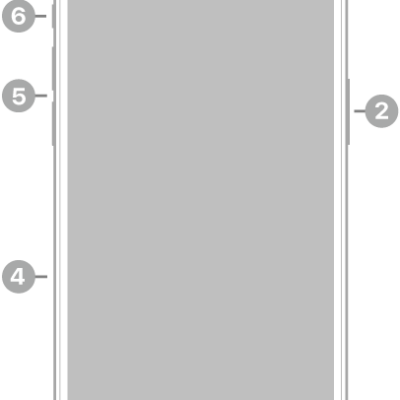
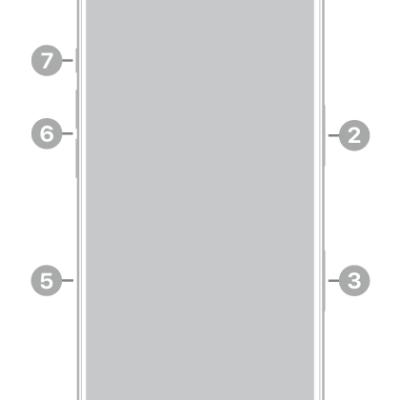
You can use the volume buttons on the side of iPhone to adjust media volume while audio is playing, and ringer and alert volume at other times. You can also adjust the volume in Control Center or Settings.
In Settings, you can set separate volumes for alarms and timers, and for alerts and system sounds. With Change with Buttons off, the volume buttons control only media playback, and you can limit the maximum volume of sound through headphones or the built-in speaker. Siri can turn the volume up or down for you, too.
Use the volume buttons or Siri to adjust volume
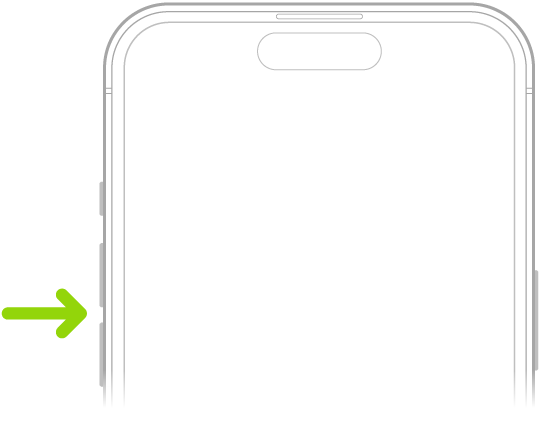
Press the volume up or volume down button on the side of iPhone. The button you press controls the volume for what’s currently playing—media, ringtones, or alerts.
Note: While audio is playing, the volume buttons control media volume. When no audio is playing, they control ringer and alert volume instead.
Siri can also turn the volume up or down.
Siri: Ask Siri something like, “Turn down the volume.”
Adjust the volume in Control Center
In Control Center, you can adjust the volume while iPhone is locked or when you’re using an app.
Open Control Center, then drag the volume slider.
Lock the alert volume
You can stop the volume buttons from changing the volume of alerts and notifications.
- Open the Settings app on your iPhone.
- Tap Sounds & Haptics. Turn off Change with Buttons.
Media playback is the only thing the volume buttons control when the Change with Buttons setting is off.
Limit the speaker and headphone volume
For sound that plays through the built-in speaker on your iPhone or through headphones, you can set a limit on the maximum volume.
- Open the Settings app on your iPhone.
- Tap Sounds & Haptics and then do any of the following:
- Limit speaker volume: Under Built-In Speaker, tap Volume Limit, turn on Limit Maximum Volume and then drag the slider.
- Soften loud sounds from the speaker: Under Built-In Speaker, turn on Reduce Loud Sounds.
- Limit headphone volume: Under Headphones, tap Headphone Safety, turn on Reduce Loud Audio. Drag the slider.
Note: With Screen Time set up for a family member, you can stop them from changing the Speaker Volume Limit level. To do it, go to the Settings app and tap Screen Time. Next, tap Content & Privacy Restrictions, turn on Content & Privacy Restrictions, then tap Speaker Volume Limit and select Don’t Allow.