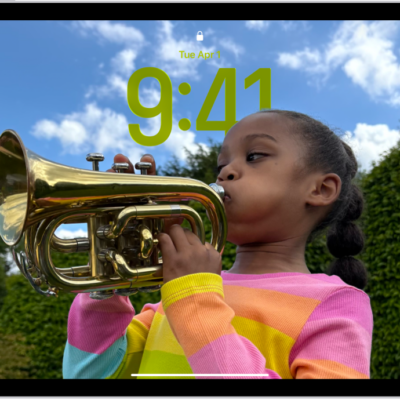
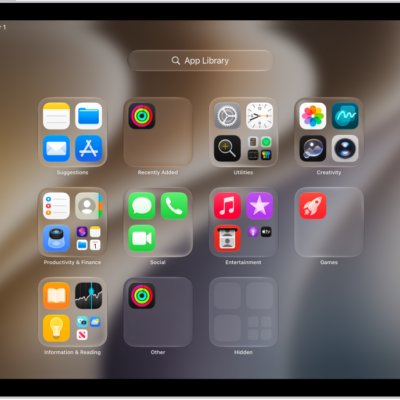
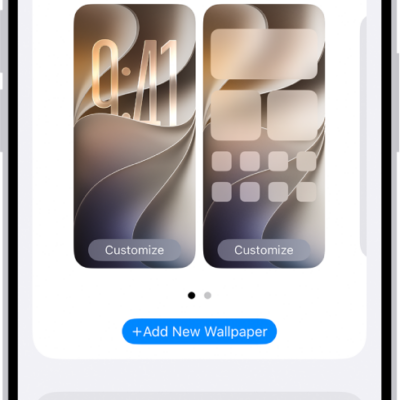
On iPad, choose an image or photo as wallpaper for the Lock Screen or Home Screen. You can choose from dynamic and still images.
You can design your wallpaper with Photos, Astronomy, or Weather, or choose a wallpaper option from one of the featured sets, like Nature or Isle of Skye. You can use it on both the Lock Screen and Home Screen, or change the wallpaper color and blur it so the apps stand out. And you can set your wallpaper to change automatically when you switch to a particular Focus.
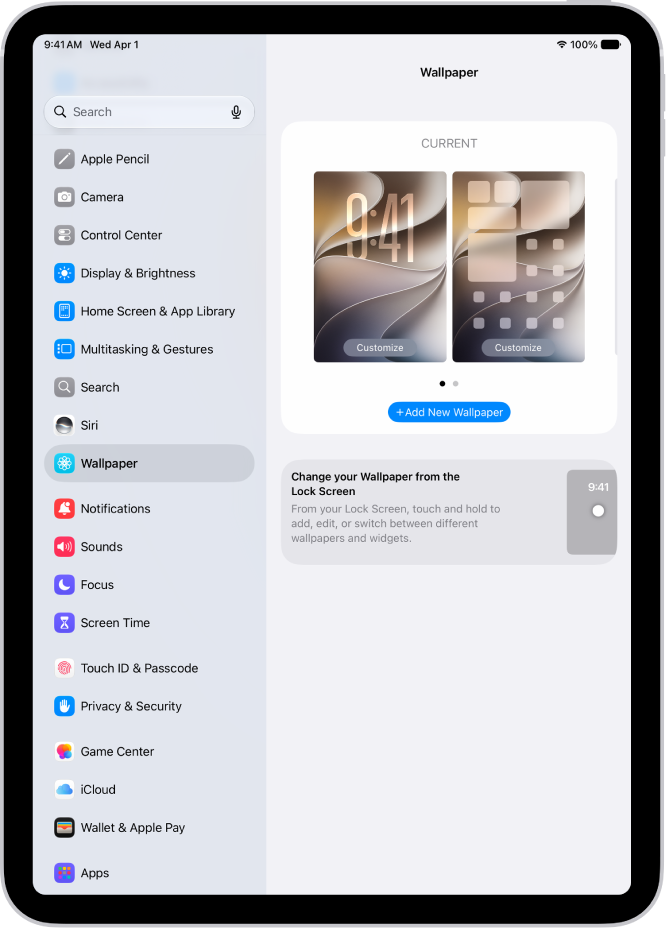
- Start the Settings app on your iPad.
-
Tap Wallpaper, tap Add New Wallpaper, and then do any of the following:
- Tap a button at the top of the wallpaper gallery—for example, Photos, Astronomy, or Weather—to design your wallpaper.
-
Choose a wallpaper option from one of the featured sets (Nature, Isle of Skye, and so on).
Note: If you don’t see wallpaper options you want to use (for example, Weather or Astronomy), scroll down to see more options, then tap Get below the one you like.
-
Tap Add, then choose one of the following:
- Choose whether to use the wallpaper on both the Lock Screen and Home Screen: Tap Set as Wallpaper Pair.
- Make further changes to the Home Screen: Tap Customize Home Screen. Tap a color to change the wallpaper color, tap the Select a Photo button to use a custom photo, or select Blur to blur the wallpaper so the apps stand out.
Quick tip: Link your Lock Screen to a particular Focus, and your wallpaper can change automatically. (See our guide, Link a Focus to your Lock Screen.) When you switch to that Focus, your wallpaper switches, too.
See also