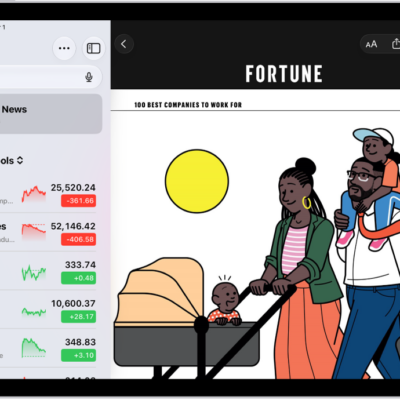
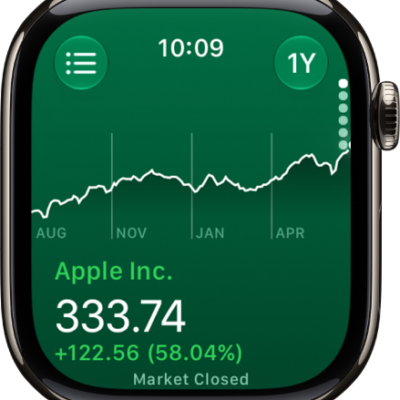
Use the Stocks app to track market activity and view the performance of stocks you follow. For each stock, you can see the most recent price, daily percentage change, market capitalization value, and more. When you first open Stocks, you see your My Symbols watchlist.
Siri: Ask Siri something like, “How are the markets doing?” Learn how to use Siri.
Check stocks
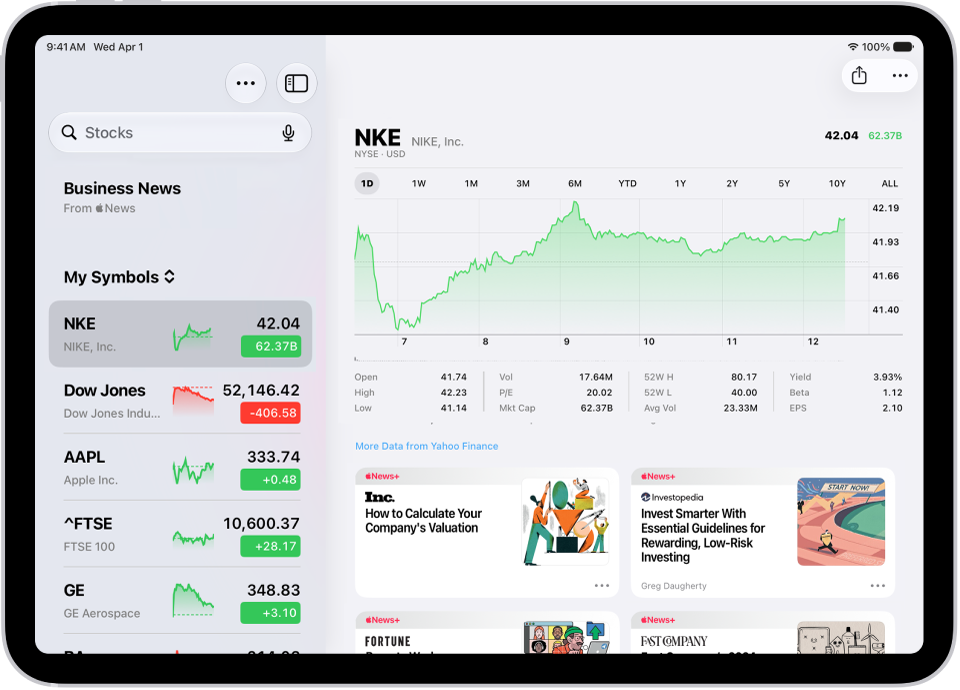
A stock’s daily percentage change, most recent price, market capitalization value, and more are all there to see.
- Start the Stocks app on your iPad.
- Tap a ticker symbol in your watchlist, or use the search field at the top to search for a symbol and tap the symbol in the search results.
More details are in View charts, details, and news, below.
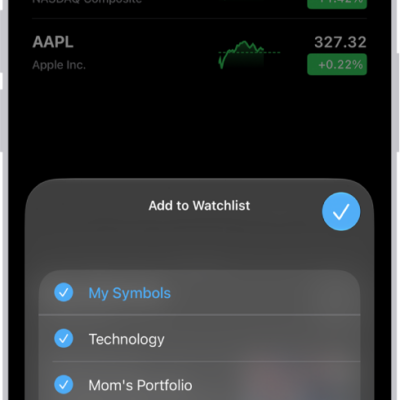
Manage symbols in the My Symbols watchlist
The first time you open the Stocks app, you see a list of ticker symbols called the My Symbols watchlist. You can update and manage it, and create your own watchlists, too.
- Start the Stocks app on your iPad.
-
Do any of the following:
- Add a symbol: In the search field, enter a ticker symbol, company name, fund name, or index. In the search results, tap the Add button. Then tap the Clear text button.
-
Delete a symbol: Swipe left on the symbol in your watchlist and then tap Remove.
Note: If you delete a symbol from the My Symbols watchlist, that symbol is also deleted from your other watchlists (see Manage multiple watchlists).
- Reorder symbols: Tap the More button, tap Edit Watchlist and touch and hold the Reorder button. Drag the symbol to a new position.
- Share a symbol: Swipe left on a symbol in your watchlist, tap Share, and choose a sharing option, such as Messages or Mail.
View charts, details, and news
Interactive charts, performance details, and related news stories are available for the ticker symbols in your watchlist, plus any symbols you search for.
- Start the Stocks app on your iPad.
- Tap a symbol you want to see more details about and then do any of the following:
- View the performance over time: Tap an option from the time range selections at the top of the chart.
- View the value for a specific date or time: Touch and hold the chart with one finger.
- View the difference in value over time: Touch and hold the chart with two fingers.
- View more details: Below the chart, view additional stock details like 52-week high and low, Beta, EPS, and average trading volume.
- Read news: Swipe up to see additional news stories related to the symbol or tap Business News in the sidebar and tap a story.
Quick tip: Touch and hold a symbol in your watchlist, and you get a quick view of its performance.
See also