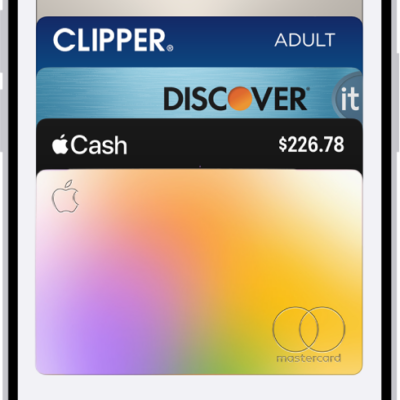
With your physical and virtual card numbers saved in Apple Wallet, you can use AutoFill to automatically fill in payment information in apps and online where Apple Pay isn’t available. You can add, edit, and remove AutoFill cards to manage your saved payment methods.
Your AutoFill cards are saved in iCloud Keychain, so they’re on your other devices signed in to the same Apple Account. And even if your card doesn’t support Apple Pay, you can add its number to Apple Wallet.
Save a physical card number in Apple Wallet
Even if your credit or debit card doesn’t support Apple Pay, you can add the card number to Apple Wallet.
- Start the Settings app on your iPad.
- Tap Wallet & Apple Pay and tap AutoFill Cards.
- Authenticate with Face ID, Touch ID, or your passcode. Tap Add Card.
- Position your card in the frame to scan the information, or enter the card details manually.
Update or remove AutoFill cards
You can edit or delete the payment information and manage your AutoFill cards.
- Start the Settings app on your iPad.
- Tap Wallet & Apple Pay and tap AutoFill Cards.
- Authenticate with Face ID, Touch ID, or your passcode. Tap a card to see the details.
-
Do any of the following:
- Update the card information: Tap Edit.
-
Delete the card information: Tap Remove From AutoFill.
Note: Removing a card from AutoFill doesn’t remove it from Apple Pay.
See a virtual card number
Where Apple Pay isn’t available in apps or on websites, a virtual card number (available for supported cards) keeps your real card number hidden and helps prevent fraud.
- Start the Settings app on your iPad.
- Tap Wallet & Apple Pay, then tap a supported payment card.
- Tap Card Information, then authenticate with Face ID, Touch ID, or your passcode.
- Tap the virtual card number to copy it.
Fill in your payment information during checkout
If Apple Pay isn’t an option, AutoFill can fill in the expiration date, card number, and security code of a saved credit or debit card in Apple Wallet. For a new card, the iPad camera can scan the information.
- During checkout, tap the card number field.
- Do one of the following:
- Choose a card saved in Apple Wallet: Tap a payment card above the onscreen keyboard.
- Use a new card: Tap Scan Card. Position your card in the frame.
See also
- Set up cards in Apple Wallet on iPad
- Make purchases with Apple Pay on iPad
- Fill in personal information in Safari on iPad