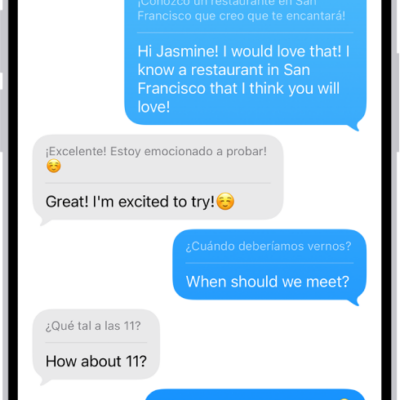
You can catch up on text messages you missed, mark messages as unread, and pin and unpin conversations to prioritize messages in the conversation list.
Away from your iPhone for a while? You can jump straight to the first message you haven’t seen in a conversation. And when you don’t have time to respond, marking a conversation as unread lets you return to it later.
Here’s how to keep track of messages on iPhone.
Catch up on messages you missed
Received messages while your notifications were paused or you were away from your iPhone? Jump to the first message you haven’t seen in the conversation.
- Start the Messages app on your iPhone.
- Open an unread conversation. Then tap the Catch Up button.
The conversation scrolls up to the first unread message.
Mark messages as unread
Mark conversations as unread when you don’t have time to respond, then return to them later.
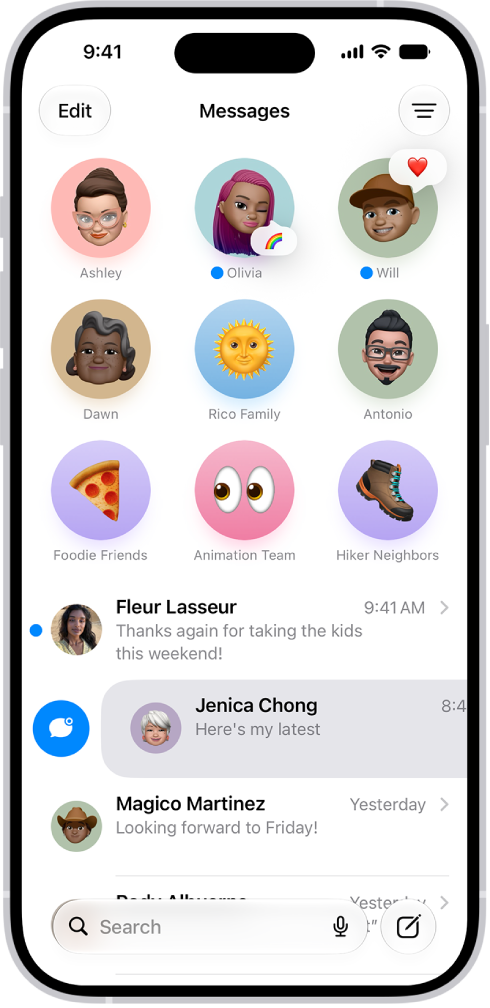
- Start the Messages app on your iPhone.
- In the conversation list, do one of the following:
- Swipe right on a conversation to mark it as unread.
- Drag right and tap the Mark as Unread button.
Quick tip: You can mark several messages as unread at once, too. In the conversation list, tap Edit and tap Select Messages. Select each conversation you want to mark as unread, and then tap Unread at the bottom left.
See a list of your unread messages
- Start the Messages app on your iPhone.
- In the conversation list, tap the Filter button and then tap Unread. A checkmark appears next to Unread, and the icon turns blue to indicate that filtering is on.
- To see both your read and unread messages again, tap the Filter button. Then tap to deselect Unread.
Quick tip: Tap Edit, tap Select Messages, then tap Read All to mark all your unread messages as read.
Pin a conversation
So the people you contact most always come first, you can pin specific conversations at the top of the conversation list, where they appear as larger icons.
- Start the Messages app on your iPhone.
- Touch and hold a conversation, then tap Pin.
Unpin a conversation
Pinned conversations can be unpinned so they no longer appear at the top of the conversation list.
- Start the Messages app on your iPhone.
- Touch and hold a pinned conversation and then do one of the following:
- Drag the message to the bottom of the list, and let go.
- Tap Unpin.
Pin shared items
Within a conversation, you can pin certain shared items, like links or collaboration invitations.
- Start the Messages app on your iPhone.
- Touch and hold a message and then tap Pin.
- To find pinned items, tap the contact or group icon at the top of the conversation and then tap a category (such as Links). Pinned items appear at the top.
To unpin a pinned item, touch and hold it in the message, then tap Unpin. If you’re in the Links or Documents tab, touch and hold the item, tap Show in Conversation, touch and hold it in the message, then tap Unpin.
Turn message summaries on or off
Apple Intelligence summarizes the key points of your conversations, and those summaries replace your message previews automatically. If you’d rather see the most recent message in each conversation, turn off summaries.
Note: Apple Intelligence on iOS 27 or later is available on an Apple Intelligence-enabled iPhone 15 Pro, iPhone 15 Pro Max, or iPhone 16 model or later. Apple Intelligence is not available in all languages or regions. Usage limits may apply.*
- Start the Settings app on your iPhone.
- Tap Apps, then tap Messages.
- Turn Summarize Messages on or off.
- To view message summaries, open the Messages app. Then look for the Summary icon below a name in the conversation list. The text following the symbol is a summary of unread messages in that conversation.
*Apple Intelligence is available with Siri and device language set to Chinese (Simplified), Chinese (Traditional), Danish, Dutch, English, French, German, Italian, Japanese, Korean, Norwegian, Portuguese, Spanish, Swedish, Turkish, or Vietnamese. Some features may not be available in all regions or languages. Some devices may not be available in all regions. Siri AI is available in beta in iOS 27, iPadOS 27, macOS 27, watchOS 27, and visionOS 27 and requires an Apple Intelligence–enabled device set to a supported language. Available in English to start. Siri AI will not be initially available in the EU on iOS, iPadOS, and watchOS. Certain Apple Intelligence features that rely on server-side models are subject to daily usage limits, including but not limited to Siri AI, Intelligent Photo Editing Tools, Image Playground, and AFM 3 Cloud models in Shortcuts. Daily limits may vary by feature, request complexity, system demand, system policies, and other factors. Expanded access to such features will be available for a fee in the future. Use of these features is subject to the Apple Intelligence Terms and Conditions.