On supported models, you can text friends and family via satellite when you’re outside of cellular and Wi-Fi coverage. It’s available in the U.S., Canada, and Japan with iOS 18 or later, and in Mexico with iOS 18.4 or later.
There’s some setup to do before you leave coverage, and you can use either iMessage or SMS via satellite.
Here’s how to send a text message via satellite on iPhone.
Important: To connect with emergency services, use Emergency SOS via satellite.
Before you begin
Before you head outside of cellular or Wi-Fi coverage, do the following so your iPhone can use either iMessage or SMS via satellite:
- Turn on iMessage.
- Check that your SIM is active.
- If you want someone to be able to initiate an SMS conversation via satellite, add them to your Family Sharing group or emergency contacts. Anyone else must first get an SMS message from you (via satellite) before they can reply.
Send and receive messages via satellite
If you try to send a text message while you’re outside of cellular and Wi-Fi coverage, an alert prompts you to connect to your nearest satellite. From there, texts, Tapbacks, and emoji can go back and forth over iMessage and SMS.
- Open the Messages app on your iPhone.
- If you see an alert that you’re outside of cellular and Wi-Fi coverage, tap Use Messages via Satellite.
-
Follow the instructions to connect to a satellite, while remaining aware of your surroundings. You don’t need to raise your phone—just hold it as you normally would, and make sure that you’re outside with a clear view of the sky and the horizon. Heavy foliage or other obstructions may block your connection to a satellite.
Other satellite-enabled services also become available, including Emergency SOS via satellite, Roadside Assistance, and Find My.
-
Enter your message and then tap the Send button. (The Send button is green instead of blue when sending with SMS.)
Sending your message via satellite may take longer than other methods.
When you connect, a green dot and a satellite icon appear on your screen. If your connection weakens, the green dot turns orange, and a left arrow and a right arrow tell you where to find the signal.
If you have cellular or Wi-Fi coverage and use iMessage via satellite to communicate with someone who doesn’t have either, an alert tells you if your contact is accepting messages via satellite. Tap the Send button, then tap Send via Satellite (below the message bubble) to send your message.
How messages via satellite works
To people in your contact list, iPhone sends and receives texts via satellite using iMessage when possible.
If iMessage isn’t available, iPhone falls back on SMS messaging via satellite to reach any mobile phone number. That can happen when any of the following is true of the person you’re texting:
- They don’t have iMessage.
- They’re not in your contacts.
- They haven’t updated their device to iOS 18, iPadOS 18, macOS 15, watchOS 11, visionOS 2, or later.
- You haven’t been in contact with them over iMessage recently (in the last month or so).
When you use iMessage outside of cellular and Wi-Fi coverage, contacts with a cellular or Wi-Fi connection see a status saying you’re receiving messages via satellite, if they’ve recently updated their iOS.
Messages via satellite is free for 2 years after activation, Apple says.
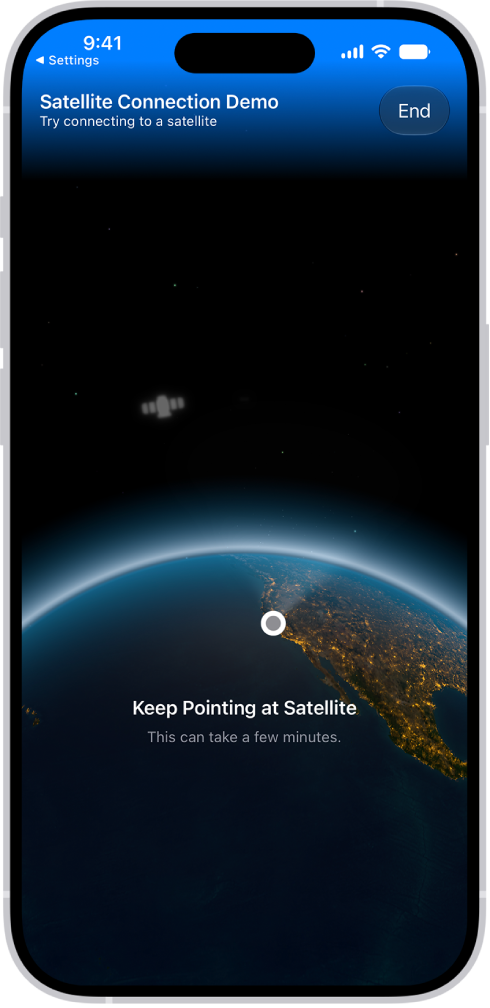
To preview how the feature works, go to Settings > Apps > Messages, then tap Satellite Connection Demo.
Note: Not all carriers support SMS messaging via satellite, and some features may vary. Third parties and affiliates provide the network for satellite connection features.