While using Messages on an iPhone that meets minimum system requirements, you can share your screen or ask to see someone else’s screen. In supported apps, you can also use SharePlay to get together with friends while you watch the latest episode of your favorite show or listen to a new song in real time.
To share your screen, you jump from Messages to FaceTime, bringing apps, webpages, and more into the conversation.
Show someone else what’s on your screen
To share your screen and bring apps, webpages, and more into the conversation, you can jump from Messages to FaceTime.
- Start the Messages app on your iPhone.
- In a conversation with just one other person, tap the FaceTime button.
- Tap Share My Screen.
See another person’s screen
From Messages, you can also jump to FaceTime to see another person’s screen, or even remotely control it.
- Start the Messages app on your iPhone.
- In a conversation with just one other person, tap the FaceTime button.
- Tap Ask to Share Screen.
Use SharePlay to enjoy content together
Right from a supported app like Apple TV or Music, you can start a Messages conversation.
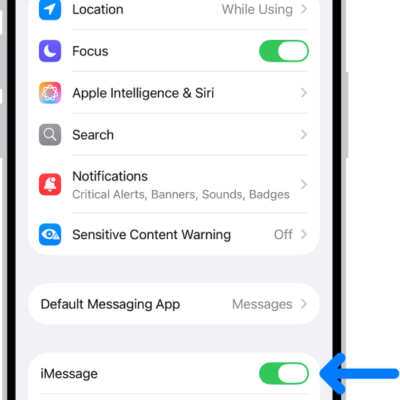
You and your recipients must all be using iMessage to use SharePlay in Messages, and shared playback controls keep everyone in sync.
- In a supported app, find a show, movie, song, album, or other content you want to share. Tap the item to see its details.
- Do one of the following:
- Tap the Share button, then tap SharePlay.
- Tap the More button, tap the Share button, then tap SharePlay.
- Tap the More button next to the content, then tap SharePlay.
- In the To field, enter the contacts you want to share with and tap Messages.
- Tap Start or Play to begin using SharePlay.
To begin viewing or listening, recipients tap the content’s title at the top of the conversation, then tap Open. For everyone who has access to the content, the video starts playing at the same time.
Note: If the shared content requires a subscription, the service may ask those who don’t have access to subscribe, make a transaction, or sign up for a free trial, if available.
When you select content to share and tap the Play button, you can also select Play for Everyone (if it appears) to begin it for everyone in the conversation. (Others on the thread may have to tap Join SharePlay to see the video.) Each person in the conversation can use the playback controls to play, pause, rewind, or fast-forward for everyone, but settings like closed-captioning and volume are controlled separately by each person.
Use Messages when you want no interruptions to the sound of the movie, show, song, or podcast, or tap the FaceTime button to switch to FaceTime when you want to see and hear other people as you chat.
Quick tip: The video can also stream to Apple TV 4K after it starts playing.