Check In can automatically notify a friend that your iPhone has arrived. If you don’t complete your Check In, you choose what details they can see. It’s flexible, too: you can add time to your Check In, or cancel a Check In.
Note: Both the sender and recipient need iOS 17 or later to use Check In.
How Check In works
Use Check In on iPhone, and it can automatically let a friend know your iPhone has arrived. If you don’t successfully complete your Check In, you decide what details they can see.
In the same way, if a friend sends you a Check In and their iPhone hasn’t arrived as expected, you can see their battery percentage, location, cellular signal, and more.
Send a Check In
- Open the Messages app on your iPhone.
- Tap the Compose button and add a recipient, or select an existing conversation.
- Tap the Apps button, tap More, tap Check In, and then tap Edit.
- Choose one of the following:
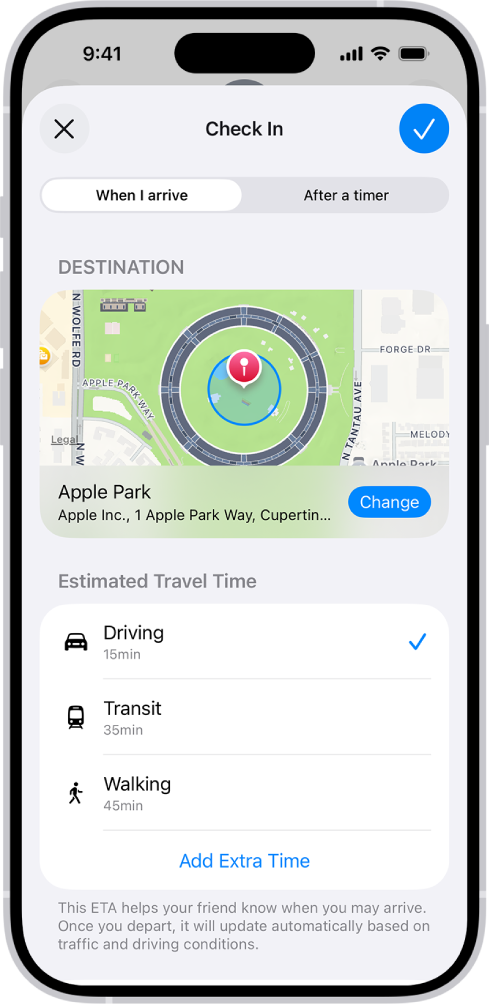
- When I Arrive: Specify your destination, how you’re traveling (driving, transit, or walking), and add extra time if needed. Check In monitors your journey and notifies your friend if your iPhone isn’t progressing for an extended period of time or if it doesn’t reach your destination as expected. When you arrive at your destination successfully, the Check In automatically completes and notifies your friend that your iPhone has arrived.
- After a timer: Specify a period of time—for example, if you’re meeting someone new. If you don’t end the Check In before the time you set, Check In notifies your friend.
- Tap the Send button.
Say your iPhone never reaches your destination, or you don’t cancel the Check In. If you also don’t respond to the Check In prompts, your friend receives the details of your iPhone’s journey.
Note: If you start a Check In and then lose service or your iPhone powers off, your Check In recipient may get a delayed or early notification and have the option to view the iPhone details you shared with them.
Add time to your Check In
If you need extra time, you can add time to your Check In.
- Open the Messages app on your iPhone.
- Open the conversation with the friend you sent a Check In to.
- On the Check In message, tap Details and tap Add Time. Select one of the options.
Cancel a Check In
Once you’ve completed your journey, or if you want to end your session for any reason, cancel your Check In to let your friend know.
- Open the Messages app on your iPhone.
- Open the conversation with the friend you sent a Check In to.
- On the Check In message, tap Details and tap Cancel Check In and confirm.
Choose what details you share
You can change the details you share with your friend during a Check In.
- Open Settings, tap Apps, and then tap Messages on your iPhone.
- Scroll down and tap Check In Data.
- Choose what details you want to share if you don’t complete your Check In as expected:
- Limited: Share your current location, in addition to the network signal and battery details of your iPhone and Apple Watch.
- Full: Share the data above (current location, network signal, and battery details), in addition to the route you’ve traveled and the last time you unlocked your iPhone or removed your Apple Watch.