Learn how to use iPhone 18 Pro or iPhone 18 Pro Max with high quality screenshots! Our comprehensive guide is a useful resource for users who want to get the most out of their brand-new iPhone 18 Pro or iPhone 18 Pro Max! Images are perfect for visual learners, so this guide uses high quality screenshots to show you how to get started with the iPhone 18 Pro and iPhone 18 Pro Max. We walk you step-by-step through how to use basic features such as locking and unlocking your iPhone, all the way to advanced features such as using Siri AI. Whether you are new to the iPhone or have just upgraded to the 18 Pro or 18 Pro Max, this guide helps you unlock your phone’s full functionality and maximize your use and enjoyment of it.
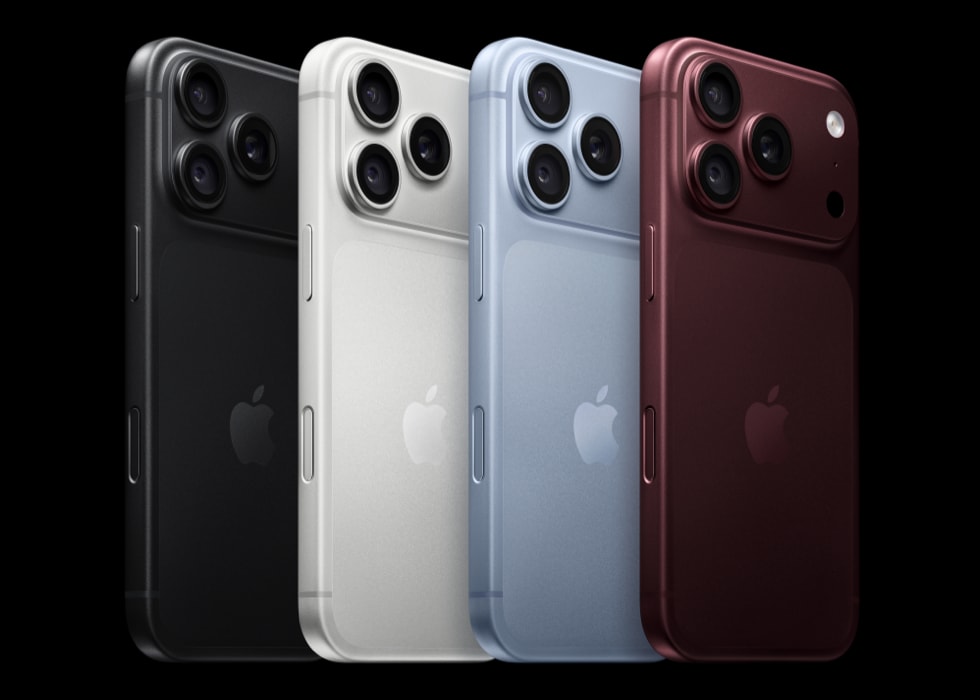
Turn iPhone 18 Pro on or off
There are multiple ways to turn your iPhone 18 Pro on and off–you can use the buttons on the side of your iPhone, or you can use the controls in Settings and Control Center.
Turn on iPhone 18 Pro
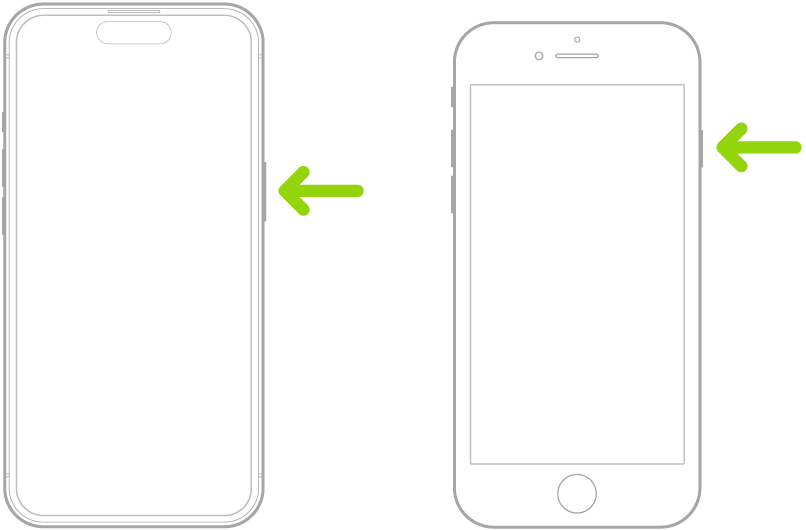
Press and hold the side button until the Apple logo appears.
Turn off iPhone 18 Pro
Simultaneously press and hold the side button and either volume button until the sliders appear, then drag the Power Off slider.
Turn off iPhone 18 Pro in Control Center
- Open Control Center by swiping down from the top right of the screen.
-
Touch and hold
 in the top-right corner of your screen.
- Drag the slider to turn off iPhone.
Turn off iPhone 18 Pro in Settings
-
Go to the Settings app
 on your iPhone.
- Tap General, scroll down, then tap Shut Down.
- Drag the slider to turn off iPhone.
Wake, unlock, and lock iPhone 18 Pro
iPhone turns off the display to save power, locks for security, and goes to sleep when you’re not using it. You can quickly wake and unlock iPhone 18 Pro when you want to use it again.
Wake iPhone 18 Pro
To wake iPhone 18 Pro, do one of the following:
- Press the side button.
- Raise iPhone.
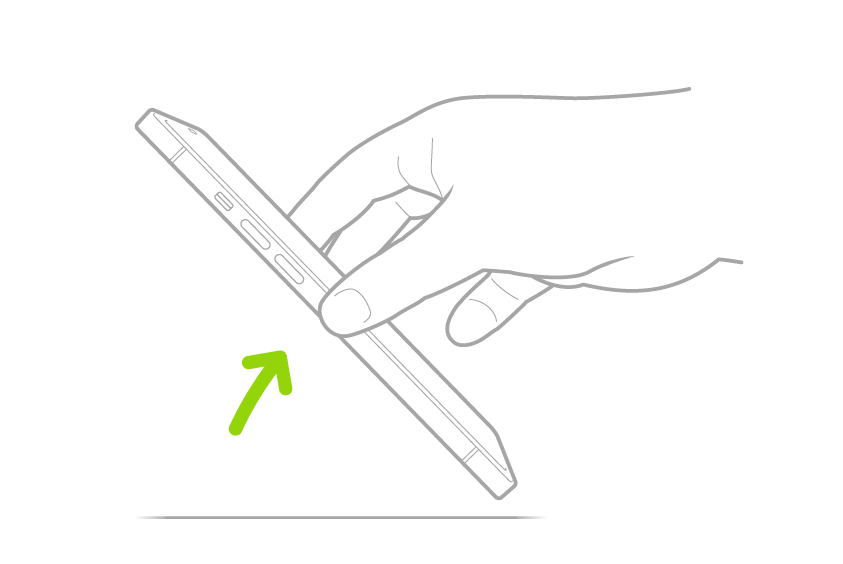
Note: To turn off Raise to Wake, go to the Settings app , then tap Display & Brightness.
- Tap the screen.
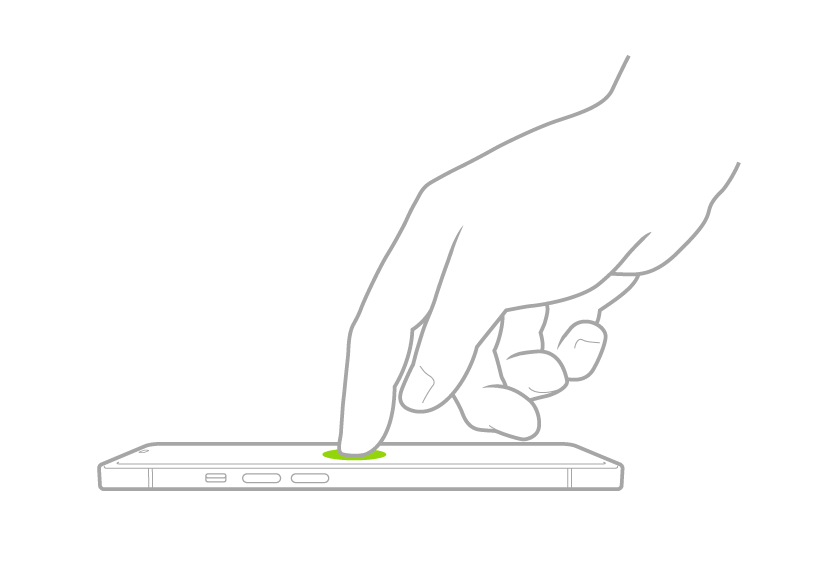
Unlock iPhone 18 Pro with Face ID
If you didn’t set up Face ID when you first set up your iPhone 18 Pro, go to Settings > Face ID & Passcode > Set up Face ID, then follow the onscreen instructions. Then follow these steps:
- Tap the screen or raise iPhone to wake it, then glance at your iPhone.
The lock icon animates from closed to open to indicate that iPhone is unlocked.
- Swipe up from the bottom of the screen.
Note: To lock iPhone again, press the side button. iPhone locks automatically if you don’t touch the screen for a minute or so. However, if Attention Aware Features is turned on, iPhone won’t dim or lock as long as it detects attention. To turn it on or off, go to the Settings app , then tap Face ID & Passcode.
Unlock iPhone 18 Pro with a passcode
If you didn’t create a passcode when you set up iPhone 18 Pro, go to Settings > Face ID & Passcode, tap Turn Passcode On, then follow the onscreen instructions. Then follow these steps:
- Swipe up from the bottom of the Lock Screen.
- Enter your passcode.
Lock iPhone 18 Pro
You can lock iPhone 18 Pro using the following methods:
- Manually: Press the side button.
- Automatically: iPhone locks on its own if you don’t interact with it for a certain amount of time.
When iPhone locks, the display turns off unless you’ve turned on the Always On Display.
Learn gestures for iPhone 18 Pro
Here’s a handy reference to the gestures you use for interacting with an iPhone 18 Pro or iPhone 18 Pro Max:
| Gesture | Description |
|---|---|
| Go to the Home Screen | Swipe up from the bottom edge of the screen to return to the Home Screen at any time. |
| Quickly access controls | Swipe down from the top-right corner to open Control Center; touch and hold a control to reveal more options. To add or remove controls, go to the Settings app, then tap Control Center. |
| Open the App Switcher | Swipe up from the bottom edge, pause in the center of the screen, then lift your finger. To browse the open apps, swipe right, then tap the app you want to use. |
| Switch between open apps | Swipe up from the bottom edge, then swipe right or left. |
| Use Siri | Just say “Siri” or “Hey Siri.” Or press and hold the side button while you ask a question or make a request. |
| Use Apple Pay | Double-click the side button to display your default card for Apple Pay, then glance at iPhone to authenticate with Face ID. |
| Use Accessibility Shortcut | Triple-click the side button. |
| Take a screenshot | Simultaneously press and quickly release the side button and volume up button. |
| Use Emergency SOS (all countries or regions except India) | Simultaneously press and hold the side button and either volume button until the sliders appear and the countdown on Emergency SOS ends, then release the buttons. |
| Use Emergency SOS (in India) | Quickly press the side button 3 times until the sliders appear and the countdown on Emergency SOS ends.
If you’ve turned on Accessibility Shortcut, simultaneously press and hold the side button and either volume button until the sliders appear and the countdown on Emergency SOS ends, then release the buttons. |
| Turn off | Simultaneously press and hold the side button and either volume button until the sliders appear, then drag the top slider to power off. Or go to the Settings app, tap General, then tap Shut Down. |
| Force restart | Press and release the volume up button, press and release the volume down button, then press and hold the side button until the Apple logo appears. |
Use the Action button, side button, and other controls on your iPhone 18 Pro
Learn about the buttons and other controls on your iPhone 18 Pro and iPhone 18 Pro Max:
- Side button: Use the side button to turn off your iPhone.
- Volume buttons: Use the volume up/down buttons to adjust the volume when listening to music, watching videos, or playing games. When you’re not using other apps, the buttons will adjust the ringer volume.
- Action button: You can choose what you want this button to do, including opening the Camera app or turning on the flashlight. By default, the Action button turns Silent mode on or off.
- Camera Control: Use the Camera Control to quickly open your iPhone 18 Pro camera, capture photos or videos, and access camera settings.
Use the Lock Screen
The Lock Screen appears when you turn on or wake iPhone 18 Pro. From the Lock Screen, you can see notifications, open Camera and Control Center, get information from your favorite apps at a glance, control media playback, and more.
You can quickly access useful features and information from the Lock Screen, even while iPhone 18 Pro is locked.
Go to the Lock Screen, then do any of the following:
- Open Camera: Swipe left. You can touch and hold
 , then lift your finger.
 - Open Control Center: Swipe down from the top-right corner of your iPhone 18 Pro.
- See earlier notifications: Swipe up from the center.
- View more widgets: Swipe right. You can interact with widgets on the Lock Screen and the Home Screen to perform tasks–for example, tap an item in the Reminders widget to check it off, or tap the Play button in the Podcasts widget to play an episode.
- Control media playback: Use the playback controls (Now Playing) on the Lock Screen to play, pause, rewind, or fast-forward media playing on your iPhone.
Use the Dynamic Island on iPhone 18 Pro
On iPhone 18 Pro and iPhone 18 Pro Max, you can check alerts and Live Activities–such as a Voice Memo recording in progress, an AirDrop connection, and directions from Maps–in the Dynamic Island on the Home Screen or in an active app whenever your iPhone is unlocked. On iPhone 18 Pro models, the Dynamic Island can show up to three Live Activities at the same time.
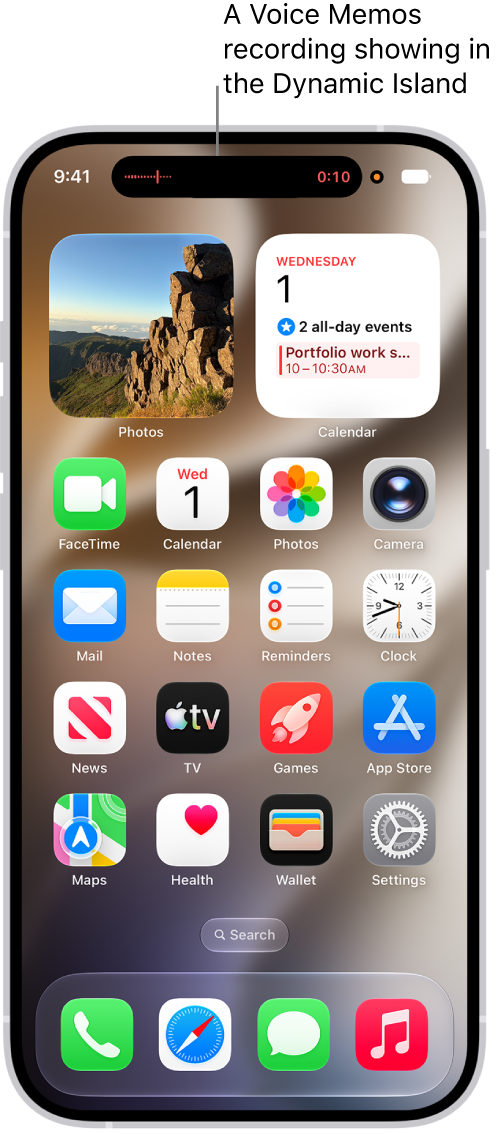
You can do any of the following in the iPhone 18 Pro Dynamic Island:
- Expand the activity to see more detail: Touch and hold the activity.
- Collapse the activity to make the Dynamic Island smaller: Swipe the expanded activity up.
- Switch between two activities: Tap the activity you want to view.
- Move between activities: On iPhone 18 Pro models, the Dynamic Island can show up to three Live Activities at the same time. Swipe across it to move between them.
Personalize your iPhone 18 Pro
Customize the look of app icons on Home Screen
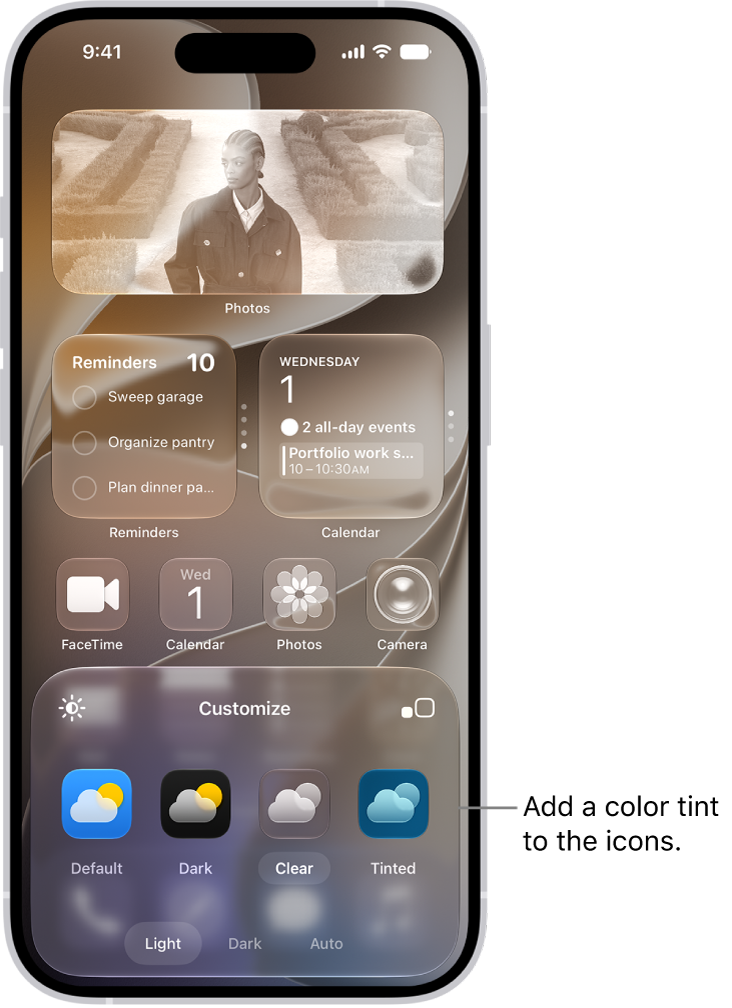
You can change how app icons look on your iPhone 18 Pro Home Screen–adjust their size, apply a color tint, or switch between light and dark appearances.
- Go to the Home Screen.
- Touch and hold the Home Screen background until the icons begin to jiggle.
-
Tap
 , then choose Customize.
-
Do any of the following:
-
Make the icons larger: Tap
 . In large size, the names of the apps disappear.
- Choose a dark appearance: Tap Dark. To show icons and widgets with a dark appearance at night and a light appearance during the day, tap Auto.
- Give the icons a clear look: Tap Clear to make the icons translucent, then choose Light, Dark, or Auto.
- Add a color tint: Tap Tinted. Use the sliders to choose the color and saturation (or use the eyedropper to select a color in your wallpaper). Then choose Light, Dark, or Auto.
-
Make the icons larger: Tap
Change the wallpaper on iPhone 18 Pro
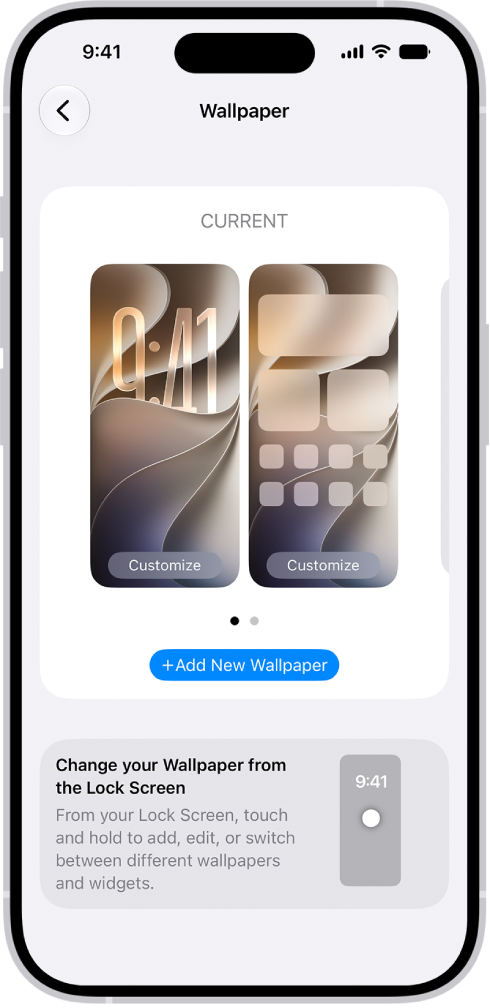
On iPhone 18 Pro, you can change the wallpaper on the Lock Screen and the Home Screen. You can set your wallpaper in Settings or through the wallpaper gallery from your Lock Screen.
-
Go to the Settings app on your iPhone.
-
Tap Wallpaper, tap Add New Wallpaper, then do any of the following:
- Tap a button at the top of the wallpaper gallery–for example, Photos, Emoji, or Color–to design your wallpaper.
- Choose a wallpaper option from one of the featured sets (for example, Nature).
Note: If you don’t see wallpaper options you want to use (for example, Weather or Astronomy), scroll down to see more options, then tap Get below the one you like.
-
Tap Add, then do one of the following:
- Choose to use the wallpaper on both the Lock Screen and Home Screen: Tap Set as Wallpaper Pair.
-
Make changes to the Home Screen: Tap Customize Home Screen. Tap a color to change the wallpaper color, tap
 to use a custom photo, or select Blur to blur the wallpaper so the apps stand out.
Add a widget to your iPhone 18 Pro Home Screen
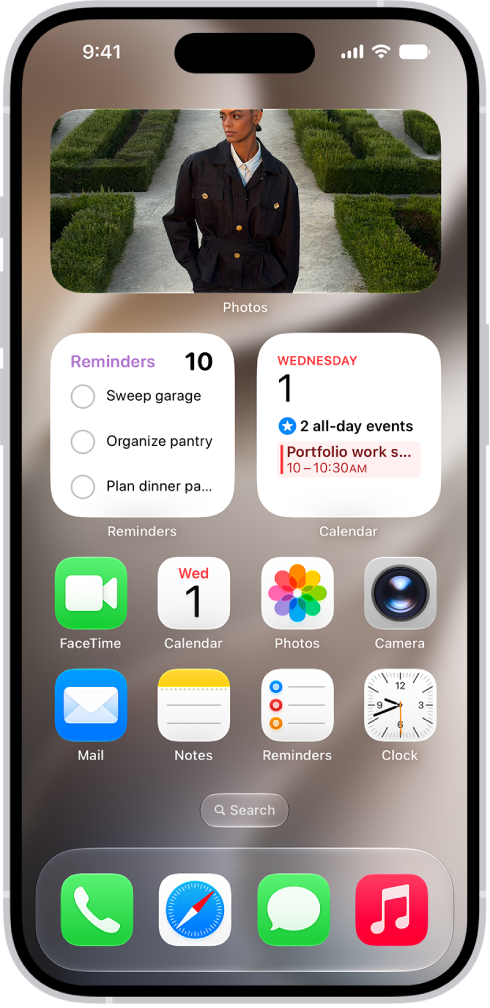
Widgets give you an easy way to view current information from an app at a glance–today’s headlines, weather, reminders, battery levels, and more. You can add widgets to your iPhone 18 Pro Home Screen or Lock Screen to keep this information at your fingertips.
- Go to the Home Screen, then find the Home Screen page where you want to add the widget.
-
Touch and hold the background until the apps begin to jiggle, tap , then tap Add Widget.
- Scroll or search to find the widget you want, tap it, then swipe through the size and style options.
- When you see the size you want, tap Add Widget.
-
While the apps are still jiggling, move the widget where you want it, then tap
 .
.
Change iPhone 18 Pro sounds and vibrations
You can change the sounds iPhone plays when you get a call, message, and alert.
Haptic feedback is the vibration you feel on your iPhone when you perform some actions, such as when you touch and hold any icon on the Home Screen.
To change ringtone and vibration settings on iPhone 18 Pro:
-
Go to the Settings app on your iPhone 18 Pro.
-
Tap Sounds & Haptics, then do any of the following below Ringtone:
- Change your ringtone: Tap Ringtone, then tap a ringtone to preview it and select it.
- Adjust ringer volume: Drag the volume slider.
- Change the haptic pattern: Tap Haptics, then choose a pattern or tap Create New Vibration to record your own.
- Control ringer volume with buttons: Turn Change with Buttons on or off.
You can also change the sounds iPhone plays for certain people. Go to the Contacts app  , tap a person’s name, tap Edit, then choose a ringtone and text tone.
Adjust the screen brightness and color on iPhone 18 Pro
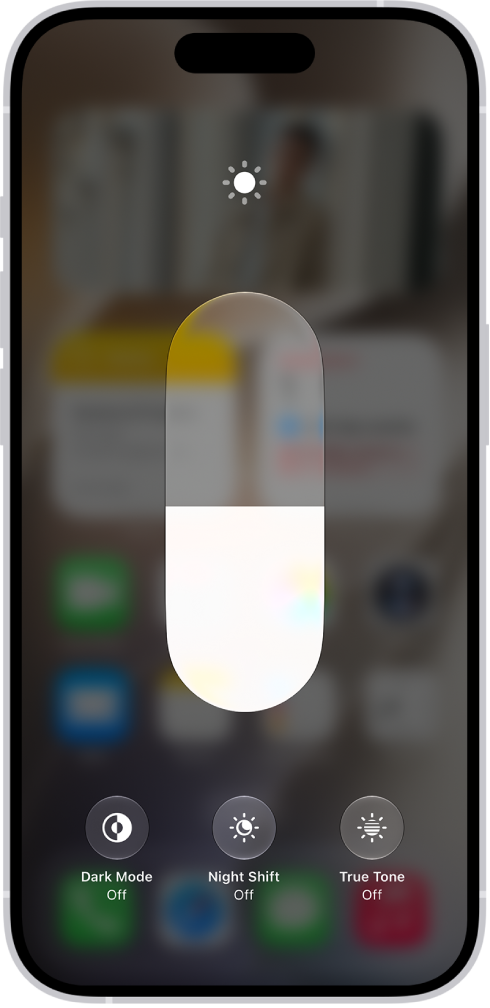
On iPhone, you can make your screen dimmer or brighter (dimming the screen extends battery life). You can also adjust the screen brightness and color manually or automatically with Dark Mode.
To make your iPhone 18 Pro screen dimmer or brighter, do one of the following:
- Open Control Center by swiping down from the top right of your screen, then drag
 up or down.
 - Go to the Settings app , tap Display & Brightness, then drag the slider.
Dark Mode gives the entire iPhone 18 Pro experience a dark color scheme that’s perfect for low-light environments. With Dark Mode on, you can use your iPhone 18 Pro while, for example, reading in bed, without disturbing the person next to you.
Do any of the following:
- Open Control Center by swiping down from the top right of the screen, touch and hold , then tap
 to turn Dark Mode on or off.
 - Go to the Settings app , tap Display & Brightness, then select Dark to turn on Dark Mode, or select Light to turn it off.
Use your Apps
Open apps on iPhone 18 Pro
You can quickly open apps from one of your Home Screen pages (like the one shown below) or your App Library.
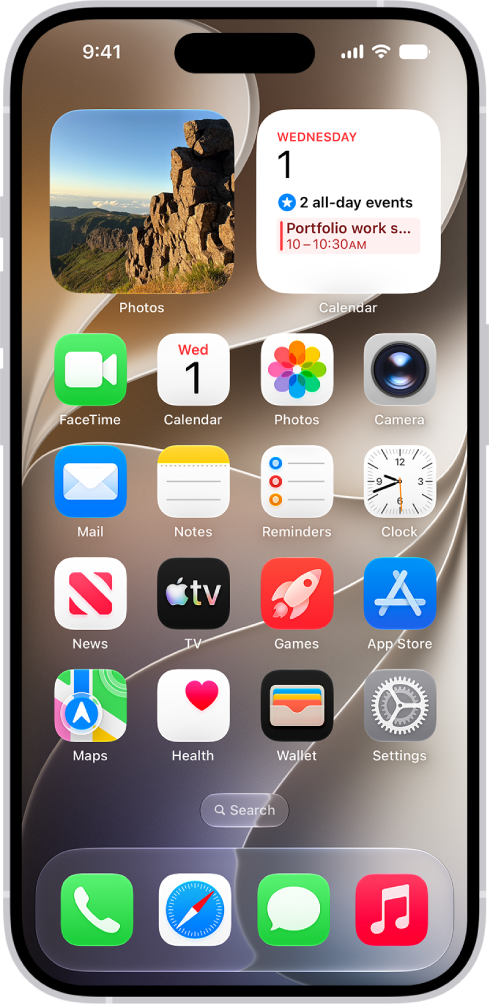
- To go to the Home Screen, swipe up from the bottom edge of the screen.
- Swipe left to browse apps on other Home Screen pages.
- Swipe left past all your Home Screen pages to see App Library, where your apps are organized by category.
- To open an app, tap its icon.
- To return to App Library, swipe up from the bottom edge of the screen.
Quit and reopen an app on iPhone 18 Pro
If an app isn’t responding, you can quit it and then reopen it to try and resolve the issue.
Note: iPhone automatically manages how apps run in the background, so quitting apps you’re not using doesn’t prolong battery life.
- To quit the app on iPhone 18 Pro, open the App Switcher by swiping up from the bottom of the screen, pausing in the center of the screen, then lifting your finger. Swipe right to find the app, then swipe up on the app.
- To reopen the app, go to the Home Screen or App Library, then tap the app.
Switch between open apps
You can quickly switch from one open app to another on your iPhone 18 Pro. When you switch back, you can pick up right where you left off.
- To see all your open apps, swipe up from the bottom of the screen, pause in the center of the screen, then lift your finger.
- To browse the open apps, swipe right, then tap the app you want to use.
To quickly switch between open apps on an iPhone 18 Pro, swipe right along the bottom edge of the screen.
Use Phone, Messages and FaceTime
Make a call on iPhone 18 Pro
Making a phone call on iPhone 18 Pro is easy.
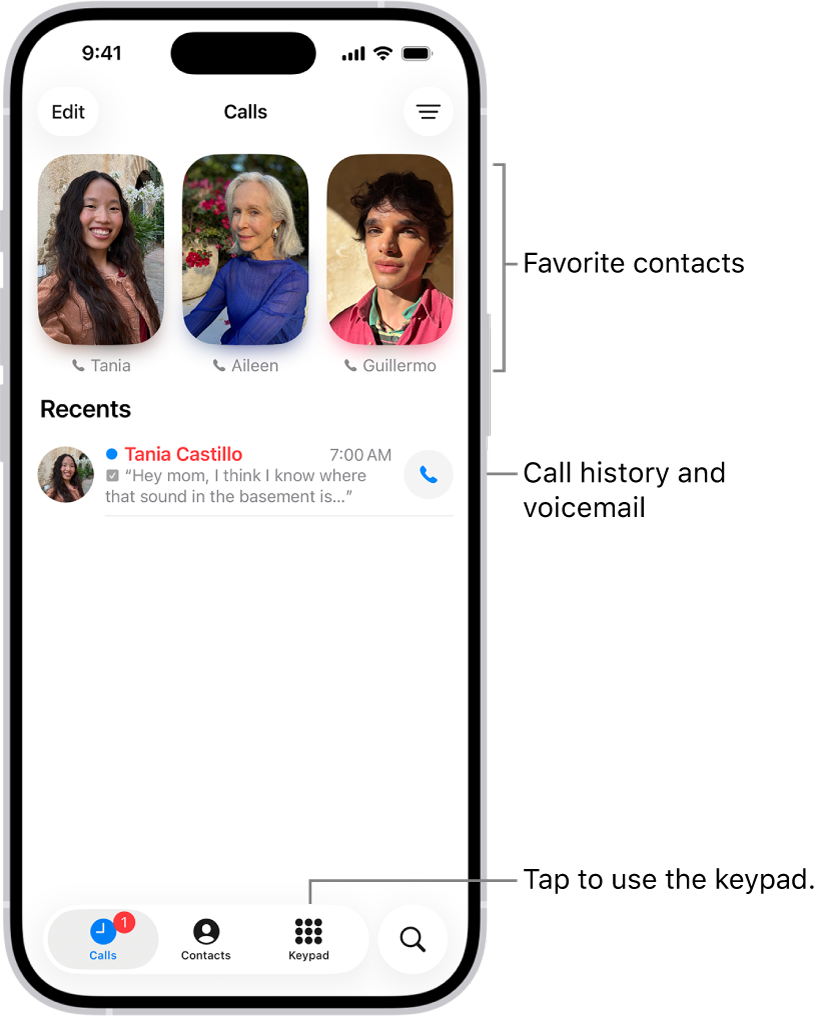
Siri: Ask Siri to call or dial a number. Speak each digit separately–for example, “four one five, five five five….” For the 800 area code in the U.S., you can say “eight hundred.”
Or without using Siri:
-
Go to the Phone app
 on your iPhone.
-
Tap Keypad
 , then do any of the following:
- Use a different line: On models with Dual SIM, tap the line at the top, then choose a line.
-
Enter the number using the keypad: If you make a mistake, tap
 .
.
-
Redial the last number: Tap
 to see the last number you dialed, then tap to call that number.
- Paste a number you’ve copied: Tap the phone number field above the keypad, then tap Paste.
- Enter a soft (2-second) pause: Touch and hold the star (*) key until a comma appears.
- Enter a hard pause (to pause dialing until you tap the Dial button): Touch and hold the pound (#) key until a semicolon appears.
- Enter a “+” for international calls: Touch and hold the “0” key until “+” appears.
-
Tap to start the call.
To end the call, tap  .
.
Make FaceTime calls on iPhone 18 Pro
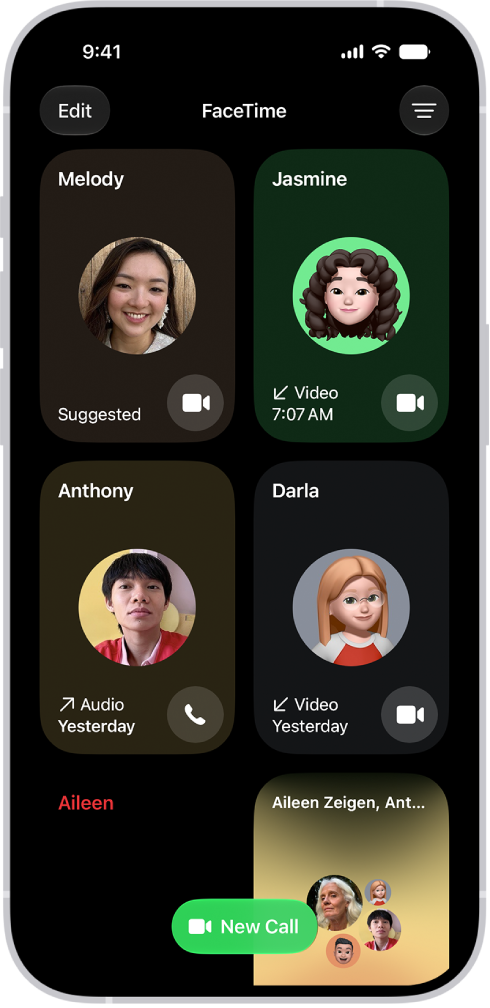
With an internet connection, you can make and receive calls in the FaceTime app.
-
Go to the FaceTime app
 on your iPhone.
- Tap New Call.
-
Enter the name, number, or email of the person you want to call. Alternatively, you can tap
 to open Contacts and add people from there, or tap a suggested contact.
-
Tap FaceTime to make a video call or to make an audio call.
Send and reply to messages on iPhone 18 Pro
You can send text messages, images, and much more. You can reply within a conversation or to specific comments in a thread. You can even use Siri to listen and respond to your messages.
Siri: Ask Siri something like, “Read my last message from Antonio.”
Start a conversation
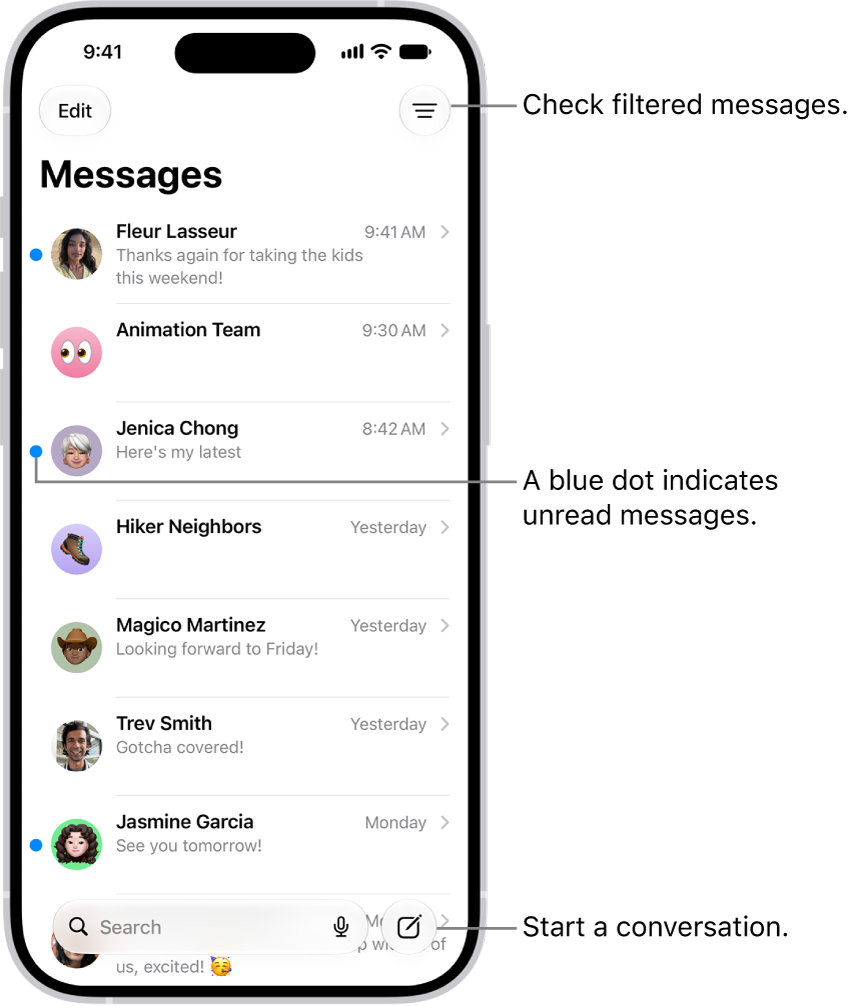
You can send a text message to one or more people to start a new conversation.
-
Go to the Messages app
 on your iPhone.
-
In the conversation list, tap
 at the bottom of the screen.
- Tap the To field, then enter the phone number, contact name, or Apple Account of each recipient.
To choose recipients from your contacts, tap  in the To field.
-
Do any of the following:
- Tap the text field above the keyboard, then type your message.
-
Tap
 or
or  to add emoji.
-
Tap
 to dictate text in the language of your keyboard.
-
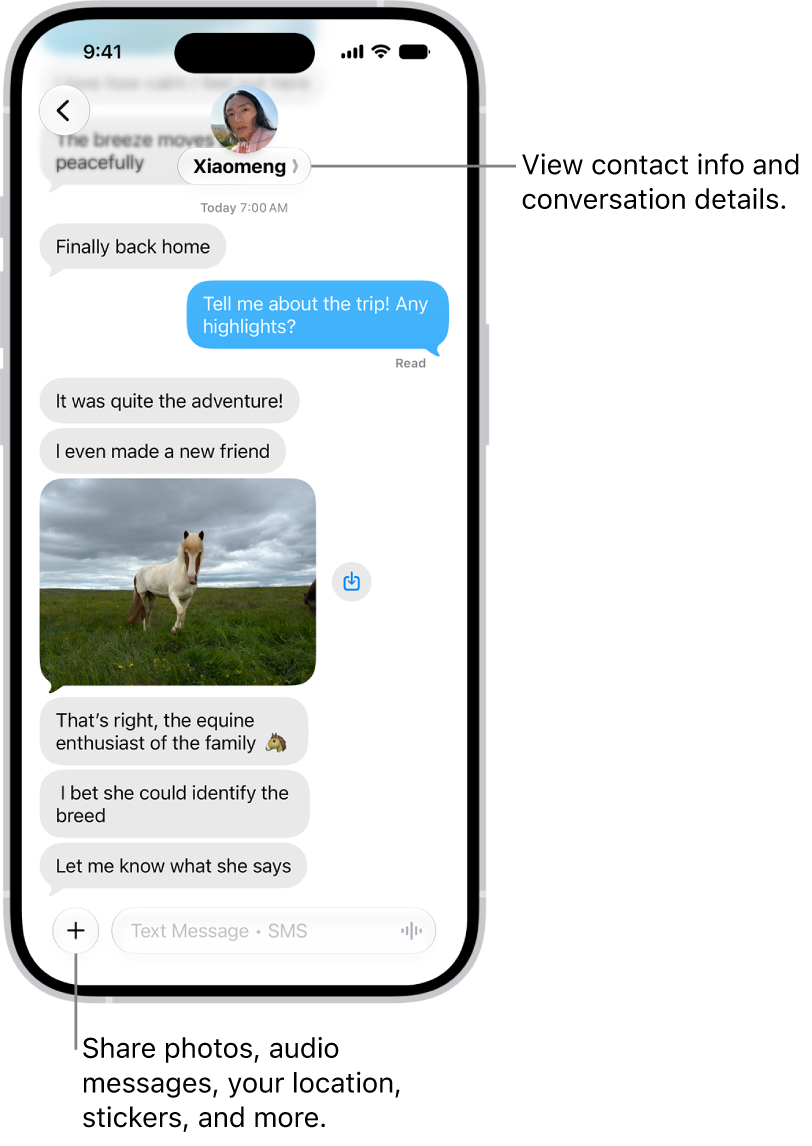
Tap
 (to the left of the text field) to send photos, videos, stickers, location, and more.
-
Tap
 to send.
To return to the conversation list from a conversation, tap  .
.
Reply to a message
Messages are grouped by conversation in the conversation list. A dot indicates you haven’t yet read one or more messages in that conversation.
-
Go to the Messages app on your iPhone.
- Go to the conversation that you want to participate in.
-
Tap the text field, create your message, then tap to send your message.
Use Camera on iPhone 18 Pro
Take a photo
-
Open Camera
 on your iPhone 18 Pro.
- Tap the Shutter button or press either volume button to take a photo.
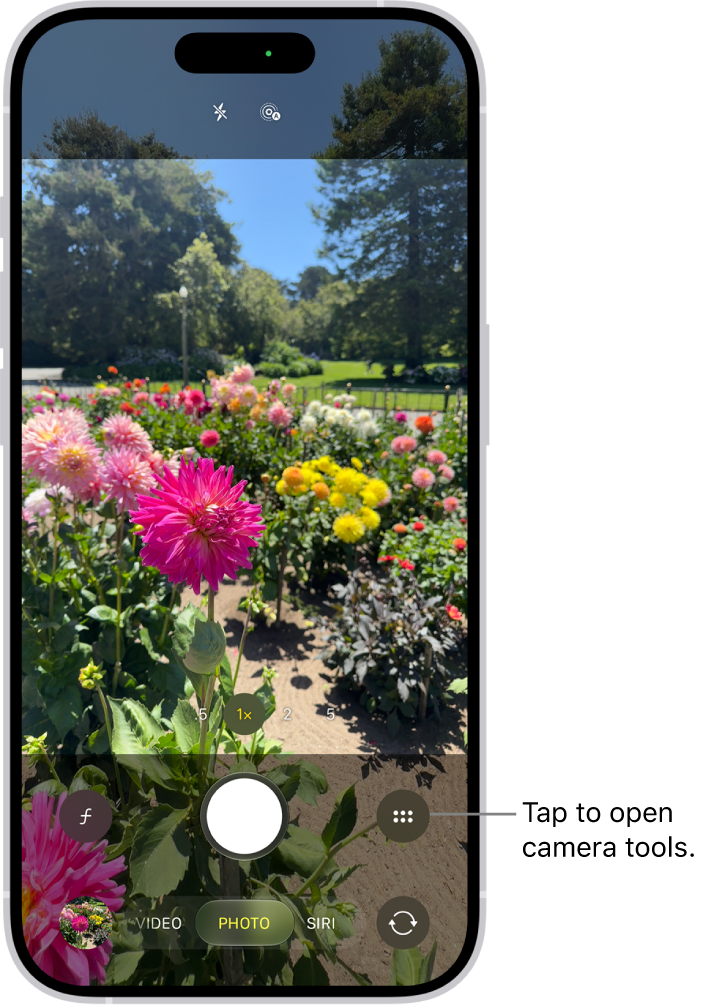
You can also click the Camera Control button to open Camera, then click it again to take a photo.
Take a selfie with your iPhone 18 Pro camera
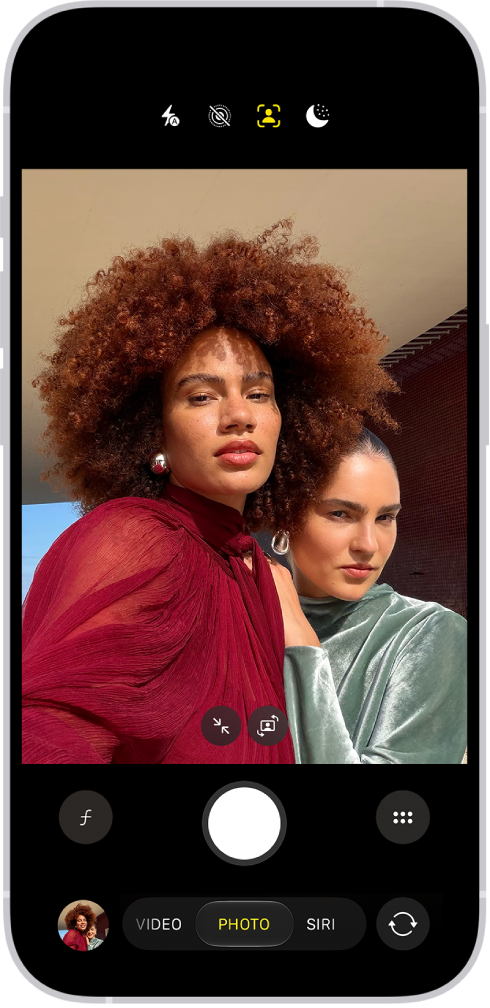
Use the front-facing camera on your iPhone 18 Pro to take a selfie. You can take selfies in Photo mode or Portrait mode.
-
Open Camera on your iPhone.
-
Tap
 to switch to the front-facing camera.
-
Before taking the selfie, you can do any of the following:
-
Tap
 to increase the field of view; tap
  to return to the original view.
-
Tap
 to rotate the frame from portrait to landscape on supported models; tap
  to return to portrait.
-
Tap
- Tap the Shutter button, press either volume button, or click the Camera Control to take the selfie.
Use Siri AI on iPhone 18 Pro
Siri AI (Beta) is your conversational AI assistant with entirely new capabilities, including personal context understanding, onscreen awareness, and broad world knowledge. With Siri AI, you also have Siri mode in Camera, which allows you to search, ask questions, and take action based on what’s around you, and a dedicated Siri app that brings all your conversations in one place. These new capabilities make Siri a more capable assistant by allowing you to find what you need and get more done.

Turn on Siri AI on iPhone 18 Pro
-
Go to the Settings app on your iPhone 18 Pro.
-
Tap Siri, then do one of the following:
- If Siri is off: Tap “Turn on Siri,” then tap “Try Siri AI (Beta).”
- If Siri is on: Tap “Try Siri AI (Beta).”
- Follow the onscreen instructions.
Find what you need
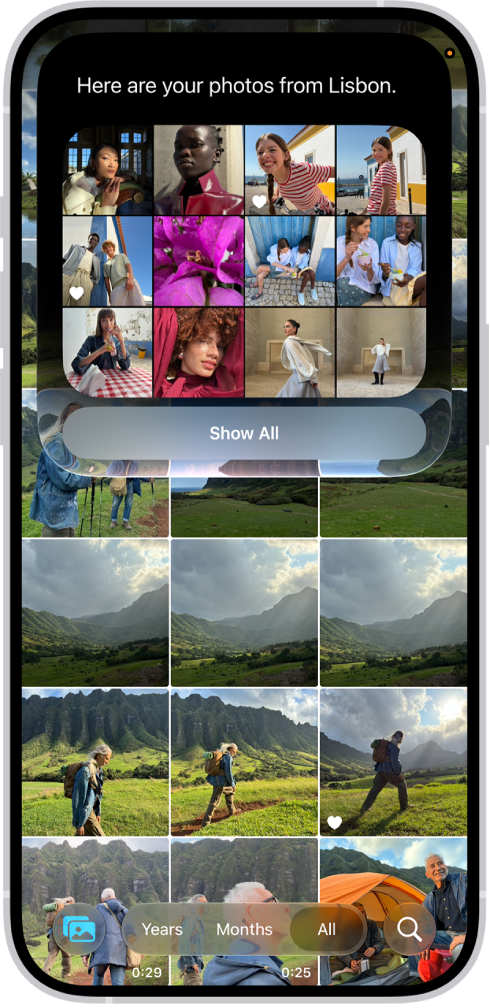
Siri AI can search your photos, mail, messages, calendar, and more to find exactly what you’re looking for. Ask Siri to find a photo from years ago, a recommendation from a family member, and details about your friend’s flight itinerary from your email or calendar.
 Siri AI: Activate Siri, then say something like, “Find photos from my trip to Lisbon” or “What time should I leave to pick up Antonio?”
Get more done
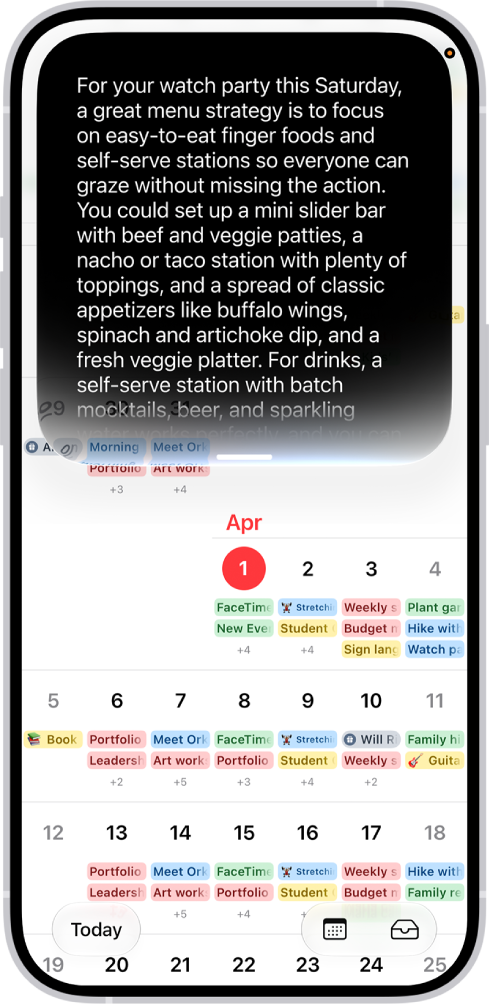
With onscreen awareness and an understanding of your personal context, Siri AI helps you get more done. Ask Siri to plan a menu for an event or add ingredients from a recipe to your shopping list. Siri can also take action in more apps and even make suggestions for what you might want to do next.
Siri AI: Activate Siri, then say something like, “Plan a menu for my watch party on Saturday.” Swipe down on the Siri response to see the full menu and make follow-up requests, like “Send this to the fantasy league group chat.”
Ask about any topic
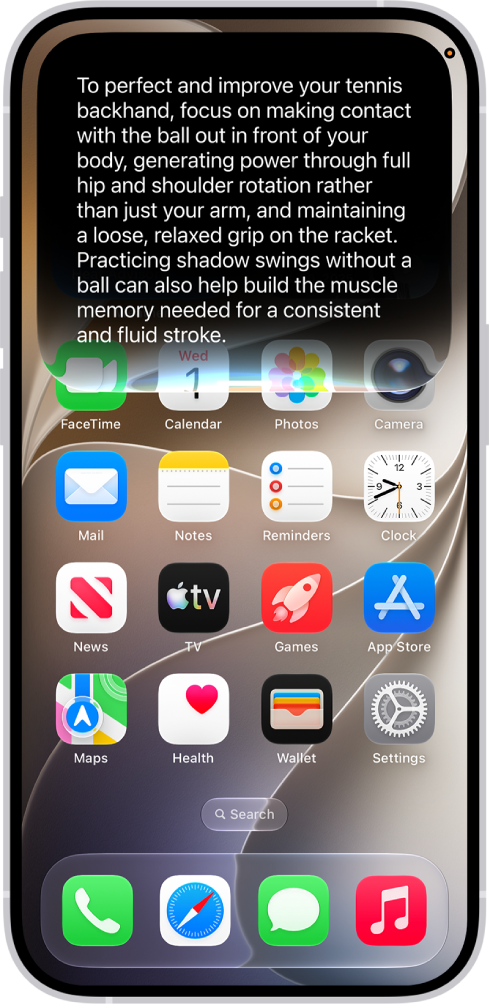
Siri AI has broad world knowledge, which is combined with your personal context to give you detailed, up-to-date, and relevant insights to your questions. Ask about virtually any topic–from finding the perfect weekend activity to do with family to details about the world around you.
Siri AI: Activate Siri, then say something like, “Give me some tips on how to improve my tennis backhand” or “When will cherry blossoms reach peak bloom this year?”
Learn about what’s on your screen
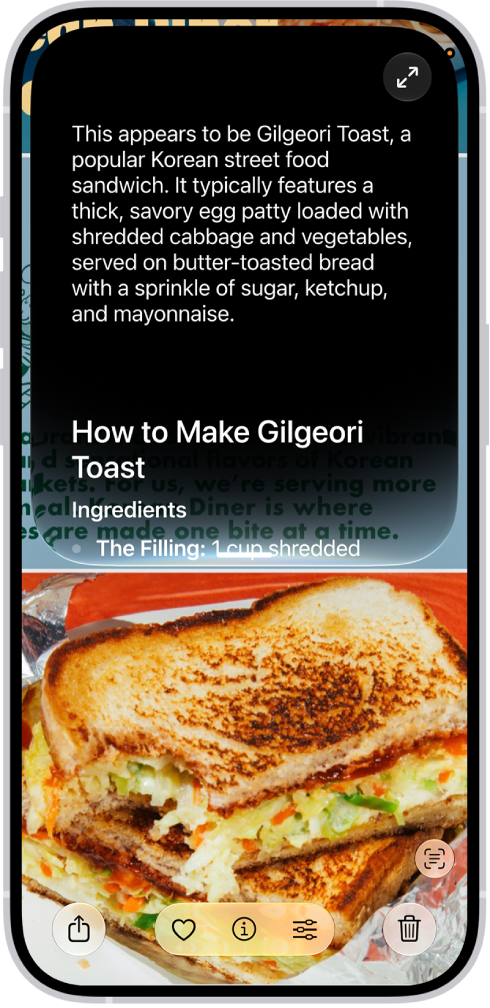
Ask Siri about content on your iPhone screen–like an image or PDF–to get answers, search, or take action.
Siri AI: Activate Siri, then say something like, “What is this and how do I make it?” Swipe down on the Siri response to see the recipe and make follow-up requests, like “Add the ingredients to my shopping list.”
Discover and take action on the world around you
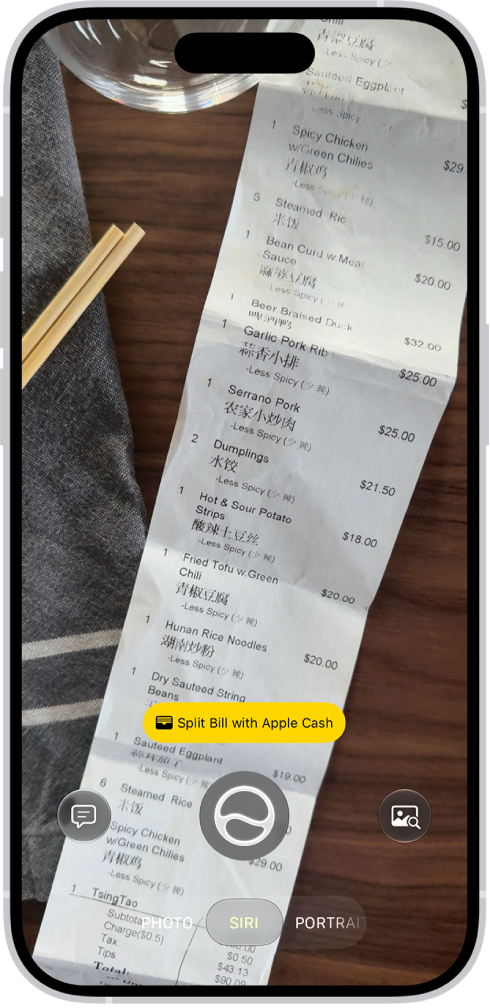
Siri mode in Camera uses Visual Intelligence to let you quickly identify something, ask questions, search based on what’s in your camera frame, or take quick actions–like splitting a bill with friends when you get the check or quickly importing a card to Apple Wallet.
Siri AI: On your iPhone with Camera open, tap Siri to switch to Siri mode, or click and hold the Camera Control when your iPhone is locked. Point your iPhone camera at something around you, then tap  to ask a question. You can also tap a suggestion–for example, while pointing the camera at a check, tap “Split Bill with Apple Cash” when it appears, then follow the onscreen instructions.
Write with Siri
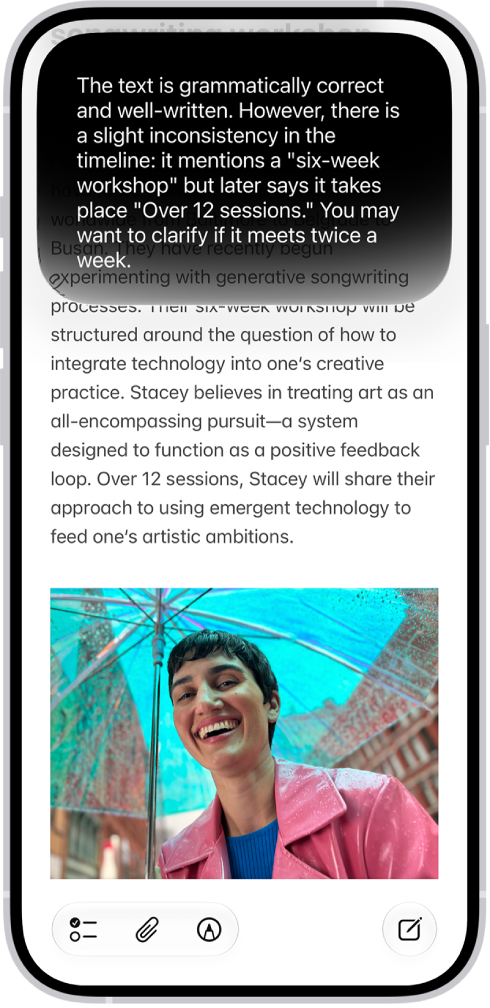
Siri AI can generate a draft from scratch, summarize information, and provide feedback on what you’ve written–just describe what you want. For example, ask Siri to proofread a note or to write an itinerary for an upcoming trip.
Siri AI: Activate Siri, then say something like, “How’s this sound?” or “Write a day-by-day itinerary for a 3-day trip to New York.” Swipe down on the Siri response to continue to revise or ask follow-up questions.
Keep the conversation going
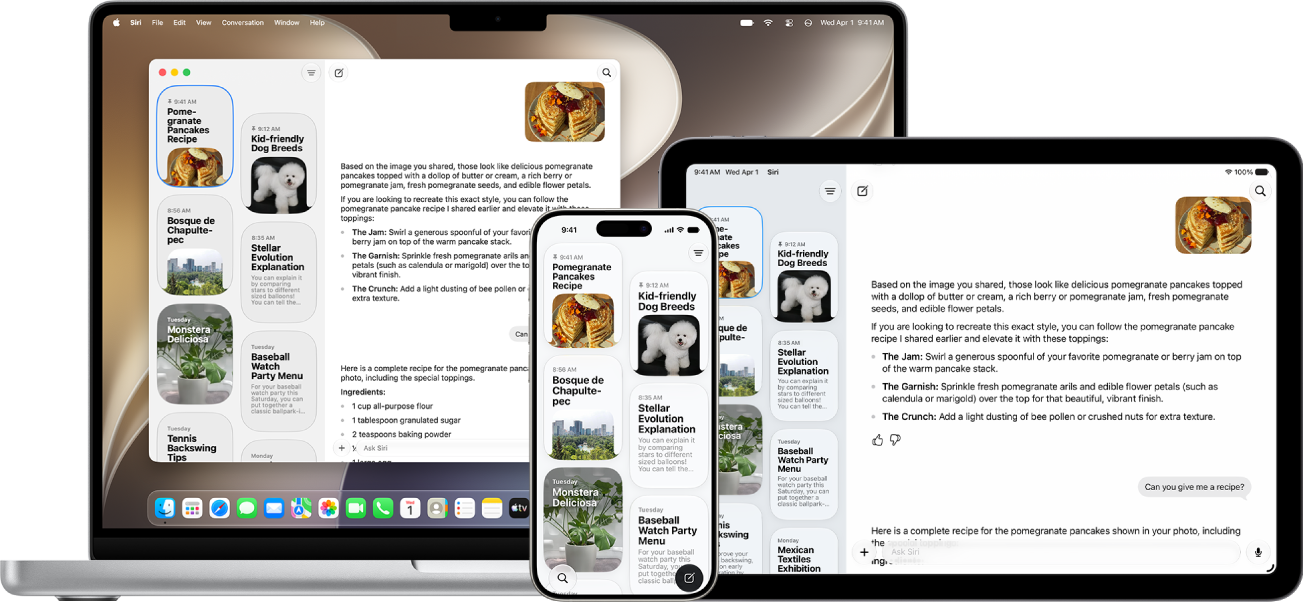
The Siri app brings all your conversations in one place, allowing you to pick up where you left off or start new conversations.
Siri AI: Go to the Siri app  on your iPhone, then select a conversation or tap
  to start a new one.
View and respond to notifications on iPhone 18 Pro
Notifications help you keep track of what’s new–they let you know if you missed a call, if the date of an event moved, and more.
To see your notifications in Notification Center, do any of the following:
- On the Lock Screen: Swipe up from the middle of the screen.
- On other screens: Swipe down from the top-left corner. Then you can scroll up to see older notifications, if there are any.
To close Notification Center, swipe up from the bottom with one finger.
When you have multiple notifications in Notification Center or on the Lock Screen, they’re grouped by app, which makes them easier to view and manage. Notifications from some apps may also be grouped by organizing features within the app, such as by topic or thread. Grouped notifications appear as stacks, with the most recent notification on top.
Do any of the following:
- To expand a group of notifications to see them individually: Tap the group. To close the group, tap Show Less.
- To view a notification and perform quick actions if the app offers them (on supported models): Touch and hold the notification.
- To open a notification’s app: Tap the notification.
Charge the iPhone 18 Pro battery

The battery icon shows the battery level or charging status. When you’re syncing or using iPhone, it may take longer to charge the battery.
Charge the battery
To charge iPhone 18 Pro, do any of the following:
- Connect iPhone 18 Pro to a power outlet using the charging cable (included) and an Apple USB power adapter or other compatible power adapter (sold separately).
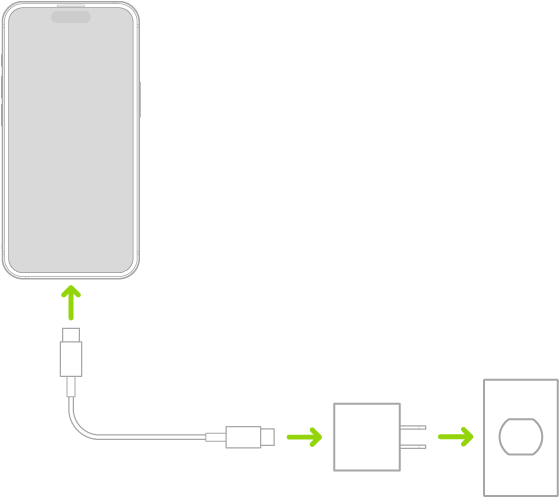
- Place iPhone 18 Pro face up on MagSafe Charger (connected to Apple 20W USB-C power adapter or other compatible power adapter) or on a Qi-certified charger. (MagSafe Charger, power adapters, and Qi-certified chargers are sold separately.)
Show the iPhone 18 Pro battery percentage
You can view how much charge remains in your iPhone 18 Pro battery in the status bar.
-
Go to the Settings app on your iPhone.
- Tap Battery, then turn on Battery Percentage.
On an iPhone 18 Pro, the battery percentage appears inside the battery symbol on the status bar.
Tip: On iPhone 18 Pro, you can also swipe down from the top-right corner to quickly view the battery percentage in Control Center.