While you’re going about your day, you can use the apps on your iPhone to get directions, make purchases, and control accessories in your home. You can also silence notifications while you’re driving or working, or allow only specific notifications related to what you’re focused on.
It can start before you’re even out of bed. StandBy can show useful information while iPhone is charging.
And if you forgot to turn off the lights, you can do it from iPhone.
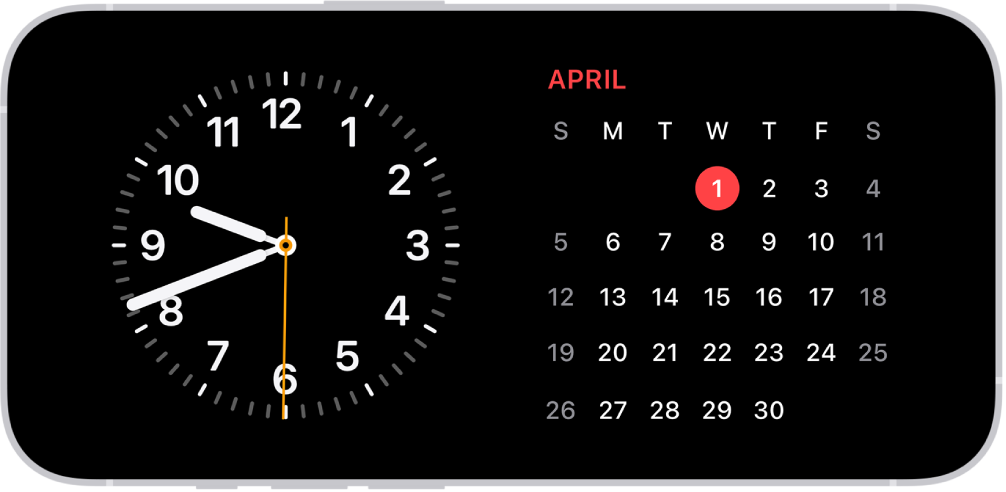
Start the day with the info you need
While iPhone is charging, you can put it in StandBy to view useful and timely information at a glance. You can use your iPhone as a bedside clock that displays the time, temperature, and other information you might want to see when you wake up in the morning, or before you go to bed.
To use StandBy, connect iPhone to a charger, lay it on its side (in landscape orientation), then tap the screen.
Know before you go
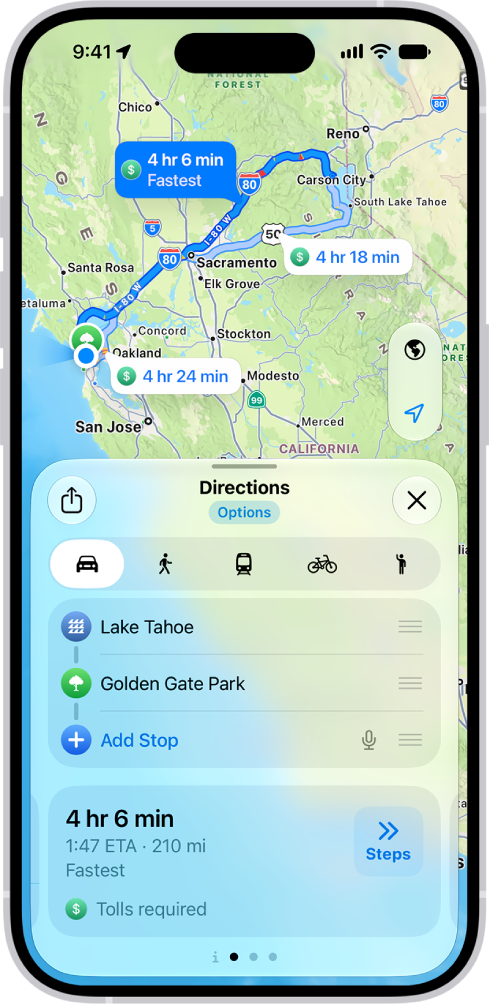
If you drive to the same place regularly, like work or school, Maps learns your preferred route there and lets you know about traffic delays or road closures before you head out.
Set up a virtual wallet
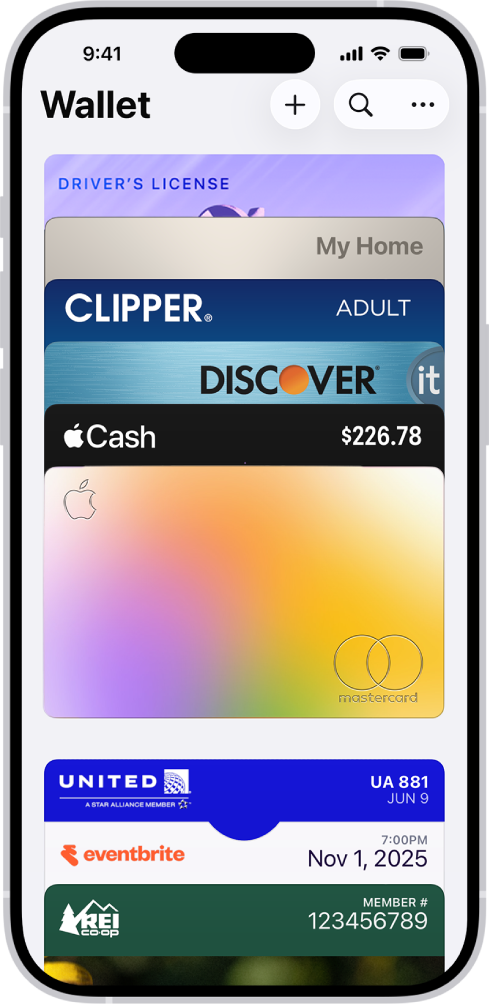
The Wallet app on your iPhone can hold your credit and debit cards, transit passes, event tickets, and more. Add a credit or debit card to Wallet, and you can make secure payments in stores and online, plus send and receive money from friends and family.
To add your first card, open the Wallet app, tap the Add Card button, then follow the onscreen instructions.
Stay focused
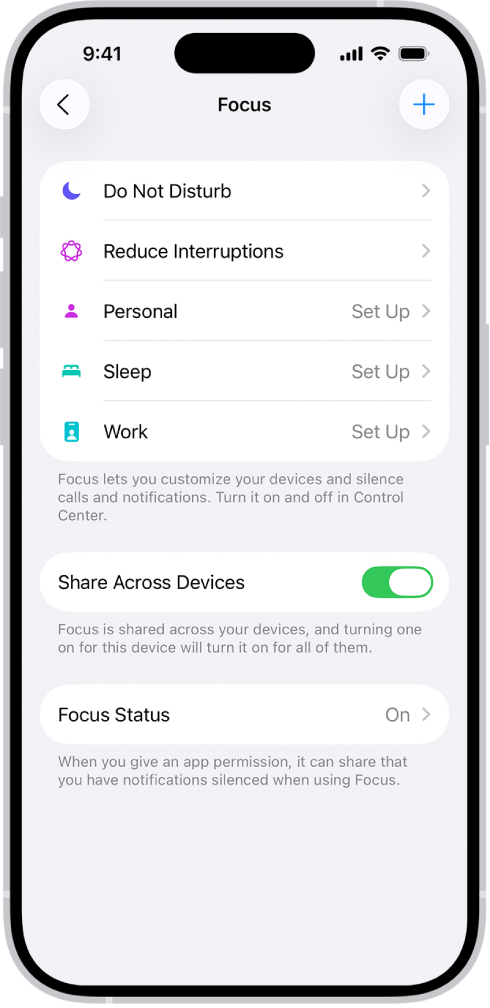
Driving, working, or just need to step away from your iPhone? A Focus can temporarily silence notifications that don’t fit what you’re doing and tell other people you’re busy.
Go to the Settings app , tap Focus, then choose the Focus you want to use, or tap the Add button.
Reminders when you need them
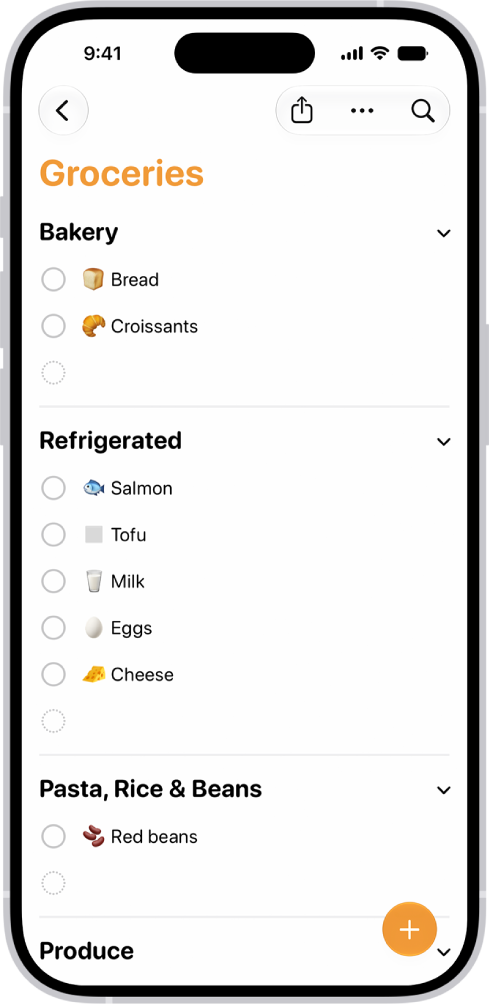
The Reminders app is handy for to-do lists for projects around the house, and for grocery lists that sort items into categories. It can also remind you about something when you arrive at a certain location.
To create your first reminder, open the Reminders app, then tap the New Reminder button.
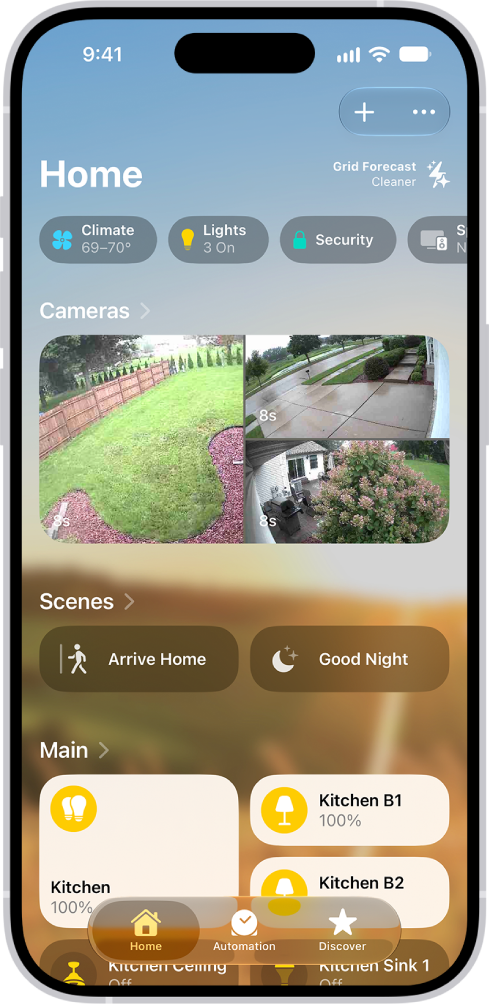
Forgot to turn off the lights?
From anywhere, you can securely control Apple Home-enabled accessories, like thermostats, lights, and smart TVs, with the Home app on iPhone. Automations can simplify your normal routines, too, like turning on your entryway lights automatically when you arrive home at night.
To add your first Works with Apple Home accessory, open the Home app, tap the Add button, then tap Add Accessory.
These guides show more ways iPhone fits into your day:
- Use StandBy to view information at a distance while iPhone is charging
- Get driving directions in Maps on iPhone
- Set up cards and passes in Wallet on iPhone
- Set up a Focus on iPhone
- Get started with Reminders on iPhone
- Intro to Home on iPhone
Not all features are available for all iPhone models, Apple notes.