Security Keys for your Apple Account is an optional security feature designed for people, such as celebrities, journalists, and members of government, who want extra protection from targeted attacks on their account, including phishing and social engineering scams.
A security key is a small third-party hardware device that you can connect to your iPhone and use to verify your identity when signing in to your Apple Account. The physical key replaces the six-digit verification codes normally used in two-factor authentication, which keeps this information from being intercepted or requested by an attacker.
Set up security keys
You’ll need to set up at least two security keys so one can serve as a backup if the other is lost, damaged, or stolen. Your account can have up to six paired keys.
- Start the Settings app on your iPhone.
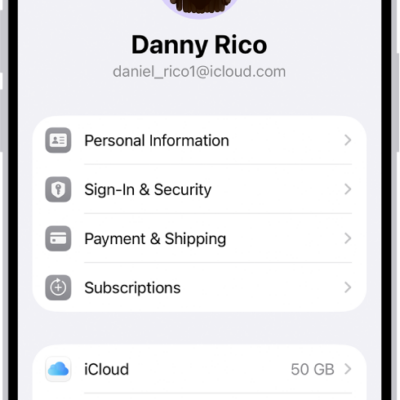
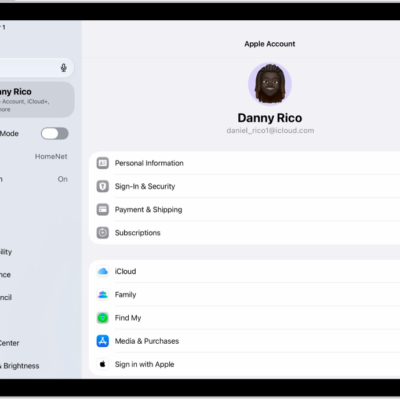
- Tap your name and tap Sign-In & Security.
- Tap Two-Factor Authentication, tap Security Keys, and then tap Add Security Keys and follow the onscreen instructions.
Sign in to a device, website, or app using a security key
- When prompted, insert your security key (if it’s an NFC key, hold or place it near the top of your iPhone).
- Follow the onscreen instructions.
Use a security key to reset your Apple Account password
If you forget your Apple Account password, you can reset it with a security key that’s paired with your account.
- Start the Settings app on your iPhone.
- Tap your name and tap Sign-In & Security. If you aren’t already signed in to your Apple Account on your iPhone, first use your paired security key to sign in.
- Tap Change Password, then follow the onscreen instructions.
Use a security key to unlock your Apple Account
If you fail to sign in to your Apple Account six times in a row, or your iPhone spots other signs of suspicious activity, you’ll get an onscreen notification that your Apple Account is locked. Your security key can unlock it.
- Start the Settings app on your iPhone.
- Tap your name and tap Sign-In & Security.
- Tap Unlock Account and then follow the onscreen instructions to unlock your Apple Account.
- If you think your account might have been locked because someone else knows your password, tap Change Password and enter a new one.
- Tap Done.
Remove security keys
Your Apple Account can have up to six security keys paired with it. Once you hit that limit, removing one or more of your paired keys makes room to pair additional keys. At any time, you can replace keys you’ve removed.
- Start the Settings app on your iPhone.
- Tap your name and tap Sign-In & Security.
- Tap Security Keys.
- To remove all keys, tap Remove All Keys, then tap Remove.
To remove individual keys, tap the ones you want to remove, then tap Remove Key. Note: If you remove all security keys from a device, the device reverts to using six-digit verification codes for two-factor authentication.