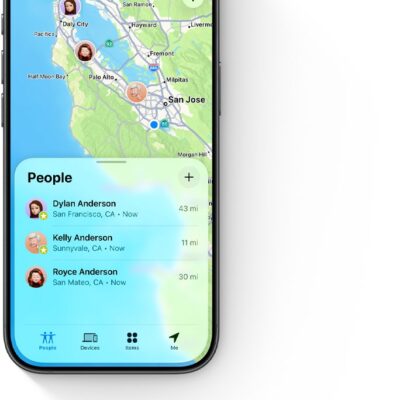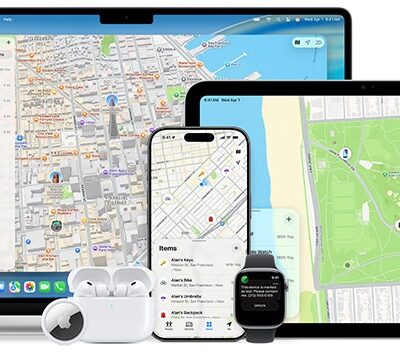





You might encounter one of two situations that provide no location information—or the wrong location—for yourself (or someone you’re allowed to follow).
A router that moved house
Apple relies on a combination of satellite navigation signals, cellular tower communication, and Wi-Fi positioning to estimate the location of a given device. That’s not always the correct location when a Wi-Fi router you’re near has been moved from its previous location.
Apple continuously grabs information about the strength and publicly broadcast information of any Wi-Fi router from all its devices that have internet connectivity and from its Apple Maps capture vehicles as they drive around the world. (Some countries prohibit some or all of this information gathering.)
But there’s a scenario in which a relocated router retains its old location in Apple’s database, because every device near it connects to the router over Wi-Fi.
This happened to a friend’s mother who lives in a rural location. A router belonging to one of her kids was moved to her house and suddenly her iPhone said she was at the router’s old home.
Let’s say the router is in Utah and a person moves to rural Kentucky, far enough away from a road that their Wi-Fi router isn’t picked up in a short enough period by people or vehicles passing by.
Whenever the router’s owner connects to the internet, their cellular equipped devices default to Wi-Fi if they’re within range; this also means they don’t capture GPS or cellular tower information to update the location, which is instead derived from the most powerful Wi-Fi signal nearby.
Apple doesn’t offer any direct way to report a moved router, but there’s a way you can try to push this into their database:
- With Wi-Fi enabled on a cellular device, open Apple Maps.
- With a blue dot showing your current location in the wrong place, swipe down and tap Report an Issue.
- Tap Report Street Issue.
- Move the dot to your correct current location. Tap “Something else.”
- Type a comment that explains your Wi-Fi router has moved.
- For extra points, find the BSSID (unique hardware ID) of your router and enter that, too. Hold down the Option key on a Mac while selecting the Wi-Fi menu and the router’s BSSID appears in a list of technical details.
- Click Send.
You can also disable Wi-Fi on a cellular device near the router for periods of time, allowing it to upload sufficient new locations about the router that Apple’s Wi-Fi positioning database updates.
No location at all
Sometimes Find My simply breaks: location isn’t provided even with all the right switches flipped. Everything will appear set up correctly on devices, and disabling and re-enabling the service doesn’t fix the problem. The only solution I’ve found is backing up an iPhone or iPad, erasing it, and performing a restore.