




You can turn on and set up your new iPhone 18 Pro or iPhone 18 Pro Max with an internet connection. You can also set up iPhone 18 Pro by connecting it to your computer. If you have another iPhone, an iPad, or an Android device, you can transfer your data to your new iPhone 18 Pro.
Prepare for setup
To make setup as smooth as possible, have the following items available:
- An internet connection through a Wi-Fi network (you may need the name and password of the network) or cellular data service through a carrier (not required for iPhone 18 Pro models)
- Your Apple Account and password; if you don’t have an Apple Account, you can create one during setup
- Your credit or debit card account information, if you want to add a card to Apple Pay during setup
- Your previous iPhone or a backup of your device, if you’re transferring your data to your new iPhone 18 Pro
Tip: If you don’t have sufficient storage space to back up your device, iCloud will provide enough storage to complete a temporary backup, free of charge, for up to three weeks from the purchase of your iPhone. On your previous device, go to the Settings app  , tap General, then tapTransfer or Reset [device]. Tap Get Started, then follow the onscreen instructions.
- Your Android device, if you’re transferring your Android content
Turn on and set up your iPhone 18 Pro
- Press and hold the side button until the Apple logo appears.
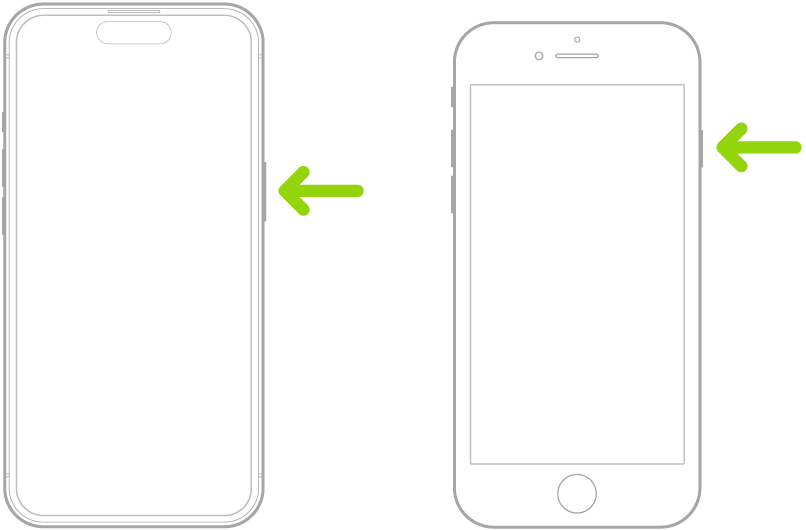
If iPhone 18 Pro doesn’t turn on, you might need to charge the battery.
Tip: If you’re blind or have low vision, you can triple-click the side button to turn on VoiceOver, the screen reader. You can also double-tap the screen with three fingers to turn on Zoom.
-
Do one of the following:
- Set up with another device: If you have another iPhone or iPad with iOS 11, iPadOS 13, or later, you can use it to automatically set up your new iPhone 18 Pro. Bring the two devices close together, then follow the onscreen instructions to securely copy many of your settings, preferences, and iCloud Keychain. You can then restore the rest of your data and content to your new device from your iCloud backup.
Or, if your other device has iOS 12.4, iPadOS 13, or later, you can transfer all your data wirelessly from your previous device to your new iPhone 18 Pro. Keep your iPhone 18 Pro near the other device and plugged into power until the migration process is complete.
- _Set Up Manually:_ If you don't have another device, tap Set Up Without Another Device, then follow the onscreen setup instructions.Move from an Android device to iPhone
If you have an Android device, you can transfer your data with the Move to iOS app when you first set up your new iPhone 18 Pro.
Note: If you already completed setup and want to use Move to iOS, you must erase your iPhone and start over, or move your data manually.
- On your device with Android version 4.0 or later, download the Move to iOS app.
-
On your iPhone 18 Pro, do the following:
- Follow the setup assistant.
- On the Transfer Your Apps & Data screen, tap From Android.
-
On the Android device, do the following:
- Turn on Wi-Fi.
- Open the Move to iOS app.
- Follow the onscreen instructions.
See also: How to Use iPhone 18 Pro and iPhone 18 Pro Max: A Beginner’s Guide