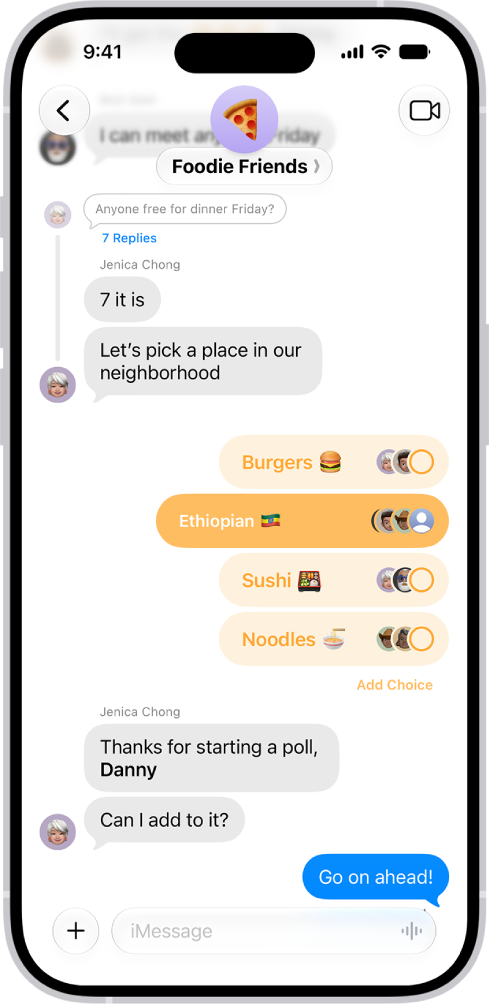
You can send a poll in any iMessage conversation to decide what to eat, which movie to see, where to travel, when to meet, and more. Everyone in the conversation can contribute options and watch as votes come in.
You start one from the Add button in a conversation, and with Apple Intelligence, you can even create a suggested poll quickly. You can also add an option to a poll, vote, and check on the results of a poll.
Note: Starting, seeing, or voting in a poll requires iMessage on iOS 26, iPadOS 26, macOS 26, watchOS 26, or visionOS 26 or later. Anyone who can’t see it gets a message saying a poll was sent to the group.
Start a poll
- Start the Messages app on your iPhone.
- In a conversation, tap the Add button, then tap Polls.
-
Tap each row to add options.
A poll can have up to 12 options.
- Tap the Send button.
Quickly create a suggested poll with Apple Intelligence
- Start the Messages app on your iPhone.
- Open a conversation or start a new message.
- Mention several options in the conversation.
-
When Apple Intelligence detects that a poll might come in handy, the Create a Poll button appears—tap it to create the suggested poll.
Tap the Send button to send the poll to everyone in the conversation who can participate in the poll. Those who can’t participate receive a message that you sent a poll.
Note: Apple Intelligence on iOS 27 or later is available on an Apple Intelligence-enabled iPhone 15 Pro, iPhone 15 Pro Max, or iPhone 16 model or later. Apple Intelligence is not available in all languages or regions. Usage limits may apply.*
Vote in a poll
- Start the Messages app on your iPhone.
- Open a conversation with a poll in it.
-
Tap an option to add your vote.
Tap again to remove your vote. You can vote for none or all of the options.
Add an option to a poll
Regardless of who started the poll, anyone participating in it can add other options.
- Start the Messages app on your iPhone.
- Open a conversation with a poll in it.
- Tap Add Choice, then enter another option.
- Tap the Send button to add the option to the poll.
Note: Options are added without any votes, so tap to vote for any option you add.
Check on the results of a poll
You can see who hasn’t voted yet, or how people voted.
- Start the Messages app on your iPhone.
- Open a conversation with a poll in it.
- Touch and hold the poll and tap Poll Details.
*Apple Intelligence is available with Siri and device language set to Chinese (Simplified), Chinese (Traditional), Danish, Dutch, English, French, German, Italian, Japanese, Korean, Norwegian, Portuguese, Spanish, Swedish, Turkish, or Vietnamese. Some features may not be available in all regions or languages. Some devices may not be available in all regions. Siri AI is available in beta in iOS 27, iPadOS 27, macOS 27, watchOS 27, and visionOS 27 and requires an Apple Intelligence–enabled device set to a supported language. Available in English to start. Siri AI will not be initially available in the EU on iOS, iPadOS, and watchOS. Certain Apple Intelligence features that rely on server-side models are subject to daily usage limits, including but not limited to Siri AI, Intelligent Photo Editing Tools, Image Playground, and AFM 3 Cloud models in Shortcuts. Daily limits may vary by feature, request complexity, system demand, system policies, and other factors. Expanded access to such features will be available for a fee in the future. Use of these features is subject to the Apple Intelligence Terms and Conditions.