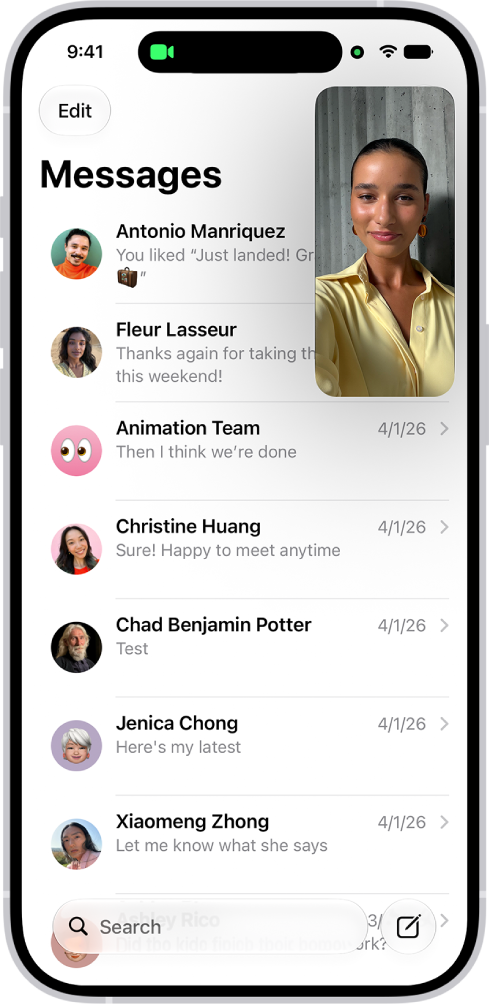
With Picture in Picture, you can watch a video or use FaceTime while you use other apps. The video window scales down to a corner of your screen, and you can resize it, move it to a different corner, hide it off the edge of the screen, or return to a full video screen.
Note: Picture in Picture only works with supported apps and videos, so if you don’t see the option, the app or video may not support it.
Start Picture in Picture
While watching a video, tap the Minimize Video button in the video window.
With the video window scaled down to a corner of your screen, you can see the Home Screen and open other apps.
Manage the Picture in Picture window
When you see the video window, you can do any of the following:
- Resize the video window: To make the small video window larger, pinch open. To shrink it again, pinch closed.
- Show and hide controls: Tap the video window.
- Move the video window: Drag it to a different corner of the screen.
- Hide the video window: Drag it off the left or right edge of the screen.
- Close the video window: Tap the Close button.
- Return to a full video screen: Tap the Restore Full Screen button in the small video window.
Tag: iPhone