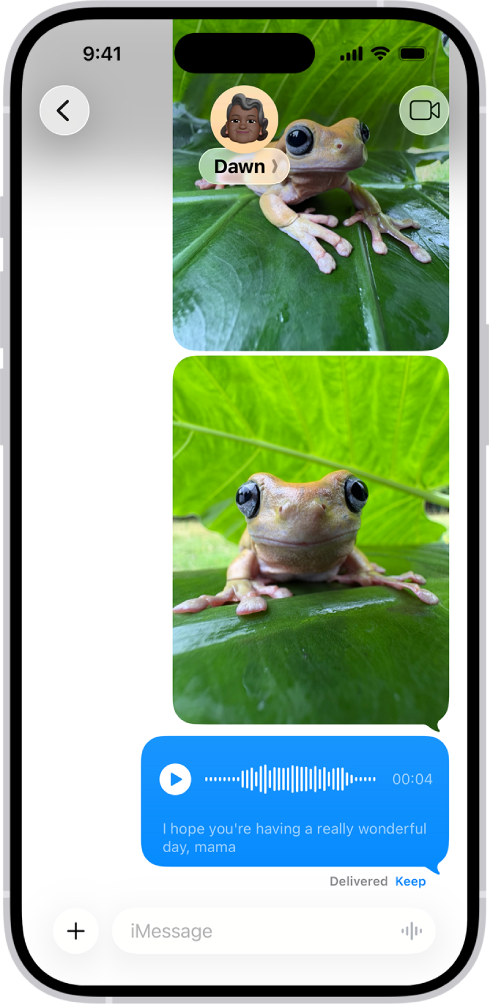
You can record and send audio messages, along with transcripts of what’s said in the message. Audio messages are automatically deleted to save space on your iPhone, but if you want to save them, you can.
With Raise to Listen, you can play and reply to an audio message just by moving your iPhone. It’s quick. You can also listen to or reply to a recorded audio message, and switch to FaceTime from Messages.
Note: Audio message transcription is available in select languages.
Record and send an audio message
Instead of writing a text message, record an audio message, which can be played right in the Messages conversation.
- Start the Messages app on your iPhone.
- In a conversation, tap the Add button.
- Tap Audio, then begin speaking.
-
Tap the Stop button to pause or end your recording. Then do any of the following to your message:
- Send it: Tap the Send button.
- Listen to review it: Tap the Play button.
- Add to the end of it: Tap the Continue Recording button (with the message duration).
- Cancel it: Tap the Close button.
-
Tap Keep to save an incoming or outgoing audio message on your iPhone.
Otherwise, the recording is deleted from the conversation—on your iPhone only—2 minutes after you send or listen to it. Recipients can play your recording any time after they receive it. To save it, they need to tap Keep within 2 minutes after listening to it.
Quick tip: For quicker follow-up audio messages, touch and hold the Record Audio button in the text field.
Audio messages are transcribed automatically in the language set in the sender’s Settings.
Always keep audio messages
- Start the Settings app on your iPhone.
- Tap Apps, then tap Messages.
- Tap Expire (below Audio Messages) and tap Never.
Listen to or reply to a recorded audio message
- Start the Messages app on your iPhone.
- Open a conversation with an audio message and tap the Play button to play it.
- Do any of the following:
- Slide right and left on the audio message to fast-forward or rewind.
- Touch and hold the Play button or the Pause button to adjust the playback speed.
- Tap Keep to save an audio message in the conversation.
To save the message in the Voice Memos app , touch and hold the audio message, then tap Save to Voice Memos.
Use Raise to Listen
When you receive an audio message, moving your iPhone lets you play and reply to it. Do either of these:
- Play an audio message: Raise your iPhone to your ear.
- Reply to an audio message: Lower your iPhone and raise it to your ear again, then speak after you hear a tone. Tap the Send button to send your reply.
Turn off Raise to Listen
You can turn the feature off if you’d rather audio messages didn’t play when you raise your iPhone to your ear.
- Start the Settings app on your iPhone.
- Tap Apps, then tap Messages.
- Turn off Raise to Listen.
Switch to FaceTime from Messages
You can quickly make an audio or video call instead of sending a message by switching to FaceTime. In a Messages conversation, tap the FaceTime button.