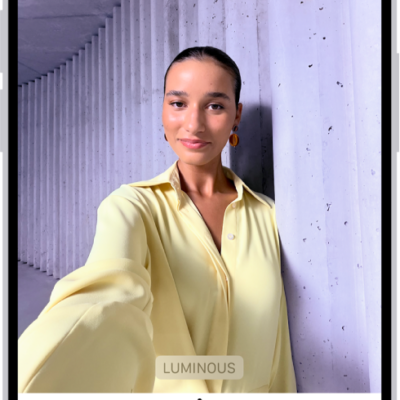
You can save the last camera mode, filter, lighting, depth, and Live Photo settings you used, so they’re not reset the next time Camera opens. Preserve Settings lets you choose which settings to keep, like the last camera mode you used, such as Portrait or Pano.
- Open Settings, tap Camera, and then tap Preserve Settings.
- Turn on any of the following:
- Camera Mode: Save the last camera mode you used, such as Portrait or Pano.
- Photographic Style: Save the last used Photographic Style (on supported models).
- Creative Controls: Save the last settings you used for a light setting.
- Depth Control: Save the last depth control setting you used in Photo, Portrait, and Cinematic modes.
- Macro Control: Preserve the Auto Macro setting rather than automatically using the Ultra Wide camera to capture macro photos and videos (on supported models).
- Exposure Adjustment: Save the exposure control setting (on iPhone 11 and later).
- Lens Aperture: Save the last aperture setting you used (on iPhone 18 Pro models).
- Night Mode: Save the Night mode setting rather than reset to Auto (on supported models).
- Portrait Zoom: Save the Portrait mode zoom rather than reset to the default lens (this setting is on by default on supported models).
- Action Mode: Keep the Action Mode setting turned on rather than reset to off (on supported models).
- ProRAW & Resolution Control: Save the Apple ProRAW setting (on supported models).
- Apple ProRes: Save the Apple ProRes setting (on supported models).
- Live Photo: Save the Live Photo setting. This setting is on by default.
Tag: camera