iPhone can provide subtitles, closed captions, and transcriptions so you can follow along more easily with audio and video. On supported models, you can also get automatic subtitles, including in another language.
In a supported app, subtitles and closed captions can be turned on when they’re available, and you can customize how they look. You can also choose accessible captions, like subtitles for the deaf and hard of hearing (SDH). Subtitles transcribed from spoken audio are labeled in the list of subtitles, too.
Note: Generated subtitles and viewing subtitles in multiple languages is supported on iOS 27 or later and is available on iPhone 15 Pro, iPhone 15 Pro Max, and iPhone 16 models or later. Generated subtitles are available in English (U.S. and Canada) when the content doesn’t include them.
Turn on subtitles and captions in supported apps
If subtitles and closed captions are available, you can turn them on when you play video content in a supported app. iPhone usually shows standard subtitles and captions, though you can also choose special accessible captions if they’re available, such as subtitles for the deaf and hard of hearing (SDH).
Note: In supported apps, subtitles may appear automatically. The list of subtitles labels the ones transcribed from spoken audio “Transcribed” and the ones translated into another language “Translated”.
- While playing video content, tap the More Controls button. Tap Subtitles.
- Choose from the list of available subtitles and captions.
Customize the subtitles and captions in supported video apps
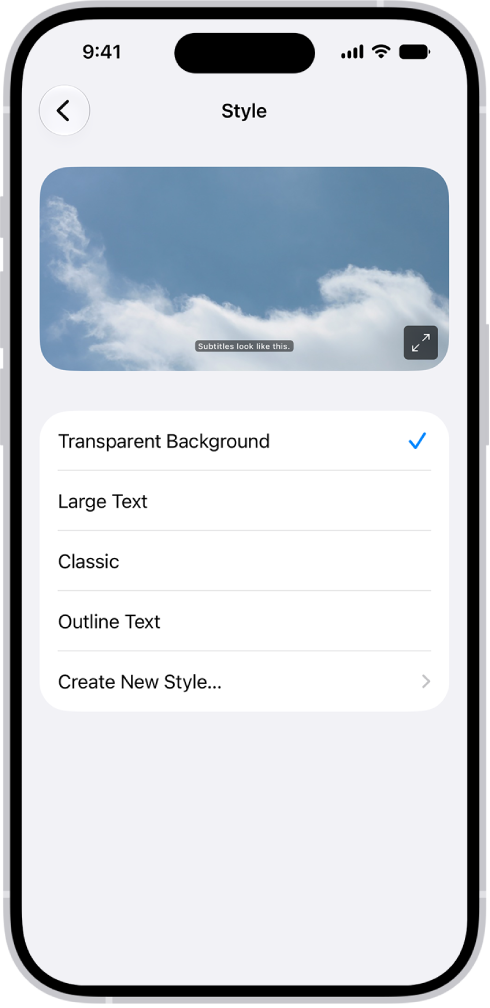
- Open Settings, tap Accessibility, and then tap Subtitles & Captioning.
- If you prefer closed captioning or subtitles for the deaf and hard of hearing when available, turn on Closed Captions + SDH.
- Tap Style and choose an existing caption style or create a new style based on the following:
- Font, size, and color
- Background color and opacity
- Text opacity, edge style, and highlight
Manage when subtitles automatically appear
In a supported app, subtitles may appear automatically if the video is in another language, if your iPhone is muted, or if you skip back a few seconds. Generated subtitles from videos in Photos and Messages can show up automatically, too.
- Start the Settings app on your iPhone.
- Tap Accessibility, tap Subtitles & Captioning, and tap Automatic Subtitles.
- Do any of the following:
- Automatically show subtitles in your preferred language: Turn on When Languages Don’t Match.
- Automatically turn on subtitles when volume is muted: Turn on Show When Muted.
- Temporarily turn on subtitles when you skip back in a video: Turn on Show on Skip Back.
View generated subtitles in another language
Using on-device translation, your iPhone can generate subtitles in another language in supported apps. For that to work, the video needs English subtitles, and you need to have added more than one preferred language in Settings. Then you can view the subtitles translated into one of your other languages.
- While playing video content, tap the Captions button.
- Tap Languages, then choose the language you’d like to view subtitles in.