The Home app provides a secure way to control your smart home accessories—such as lights, locks, smart TVs, thermostats, window shades, and smart plugs. You can also use the intercom and watch video streams from your HomeKit Secure Video cameras.
The available controls depend on the type of accessory, and a scene lets you control multiple accessories at once. And with more than one home set up, you can pick which one to view.
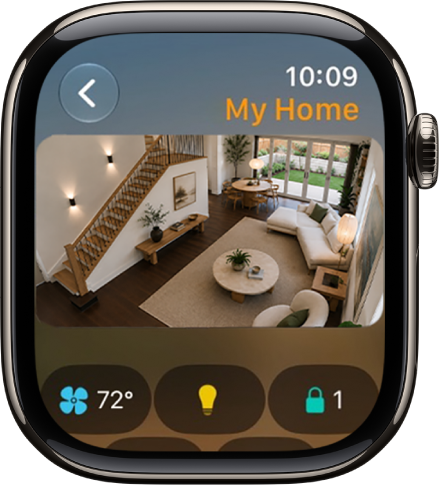
Note: Before you can control your home from Apple Watch, you need to set it up in the Home app.
View and control accessories and scenes
- Start the Home app on your Apple Watch.
- Scroll to see video streams from your cameras, categories (Climate, Lights, Security, Speakers and TV, or Energy), scenes, and accessories.
-
Do any of the following:
-
Control an accessory: Tap the accessory.
The available controls depend on the type of accessory. For example, with some lightbulbs, you can adjust the brightness.
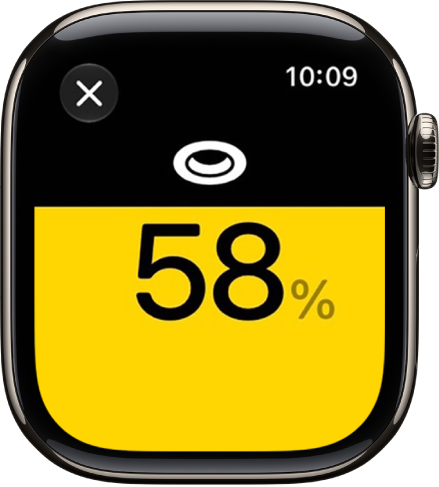
- Control multiple accessories at once: Tap a scene.
- View the Grid Forecast: Tap the Energy category.
-
Control an accessory: Tap the accessory.
Send and receive intercom messages
- Start the Home app on your Apple Watch.
- Swipe down and tap the Intercom button.
- Say something like, “Who ate the last piece of pizza?”
- Tap Done.
View a different home
With more than one home set up, you choose which one to view on your Apple Watch.
- Start the Home app on your Apple Watch.
- Tap the Back button to see the list of homes and tap a home.
See also
Tag: Home