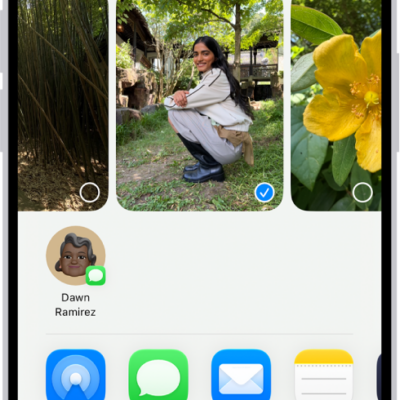
In the Photos app, you can browse your photos, view Live Photos, and share your favorite shots.
You can browse memories, Featured Photos, and albums you’ve synced to your Apple Watch, and even see an entire photo album at once.
Here’s how to view photos and Memories on Apple Watch.

Browse photos in the Photos app on Apple Watch
Go to the Photos app on your Apple Watch and use these actions to browse your photos.
- Tap a memory, Featured Photos, or an album you’ve synced to your Apple Watch.
- Tap a photo to view it.
- Swipe left or right to see other photos.
- Turn the Digital Crown to zoom, or drag to pan a photo.
- Double-tap to fill the screen or see the entire image.
- Zoom all the way out to see the entire photo album.

View a Live Photo on Apple Watch
Look for the Live Photo symbol in the bottom-left corner of a photo, then touch and hold the photo.
Share a photo
While viewing a photo in the Photos app on your Apple Watch, tap the Action button, then choose a sharing option.
You can choose a different photo album; read our article, Choose a photo album and manage storage.
See also
Tag: Photos