With iPhone and a computer, you can transfer files using an external storage device, a file server, or a cloud storage service like iCloud, Box, or Dropbox.
An external storage device can be a USB drive or SD card, and you can access it and change its formatting. You can also connect to a computer or file server instead.
Here’s how to transfer files from iPhone to a storage device, a server, or the cloud.
Transfer files with an external storage device
-
Connect your iPhone or computer to an external storage device, such as a USB drive or SD card.
To connect to iPhone, you might need a cable adapter.
Note: If an alert appears on iPhone asking whether to trust this computer, select Trust.
- Use a supported app (like Files or Pages) to copy files to the storage device.
- Disconnect the storage device and then connect it to the device where you want the copied files to appear.
- Copy the files to the connected device.
Access an external storage device
For a connected external storage device, you can rename it, erase it, and get information about it.
- Start the Files app on your iPhone.
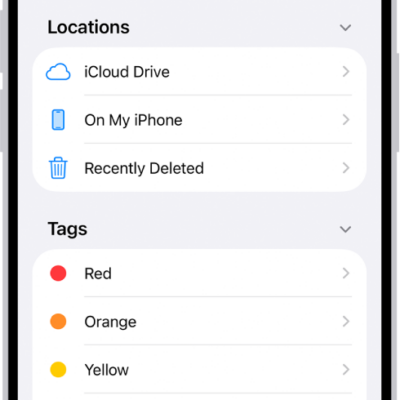
- Tap Browse.
- Touch and hold the name of the storage device below Locations and then do any of the following:
- Rename the storage device: Tap Rename [device].
- Erase the storage device: Tap Erase.
- Get information about the storage device: Tap Get Info.
Change the formatting of an external storage device
On iPhone models with a USB-C port, the Files app can quickly change an external drive’s format to ExFAT, MS-DOS (FAT), or APFS (Apple File System).
- Start the Files app on your iPhone.
- Tap Browse.
- Touch and hold the name of the storage device below Locations. Tap Erase.
- Select a format for the device—for example, APFS, ExFAT, or MS-DOS (FAT)— then tap Erase again.
Connect to a computer or file server
- Start the Files app on your iPhone.
- Tap Browse.
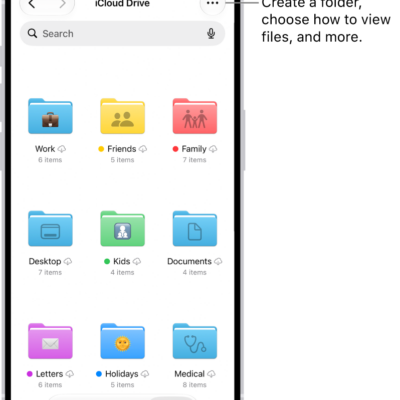
- Tap the More button.
- Tap Connect to Server.
-
Enter a local hostname or a network address, then tap Connect.
Tip: After you connect to a computer or file server, it appears in the Recent Servers list on the Connect to Server screen. To connect to a recent server, tap its name.
-
Select how you want to connect:
- Guest: You can connect as a Guest user if the shared computer permits guest access.
- Registered User: If you select Registered User, enter your user name and password.
- Tap Next and then select the server volume or shared folder in the Browse sidebar (below Shared).
To disconnect from the file server, tap the Eject button next to the server in the Browse sidebar.
Transfer files with a cloud storage service like Box or Dropbox
Note: Subscription fees might apply.
- On your iPhone or computer, follow the instructions from your cloud storage service to upload the files you want to share.
- To access your shared files on iPhone, open the Files app, tap Browse at the bottom of the screen, and then tap the name of the storage service below Locations.
To access the shared files on a computer, follow the service’s instructions.
Keep selected files downloaded
If there are files you always want to be able to access on your iPhone, you can keep them downloaded. Any changes you make to them while offline sync with iCloud once you’re back online.
- Start the Files app on your iPhone.
- Locate a file you want to keep downloaded.
- Touch and hold the file you want to keep downloaded. Then tap Keep Downloaded in the menu that opens.
When Keep Downloaded doesn’t appear in the menu, that means the file is already on your iPhone.