On the Home Screen, in App Library, in Control Center, and in apps, you can use Quick Actions menus, see previews, and more. In Photos, you can preview an image and see a list of options. In Mail, there’s a preview of the message contents and a list of options, too.
Perform quick actions from Control Center, the Home Screen, and App Library
On the Home Screen and in Control Center and App Library, touch and hold apps to open Quick Actions menus.
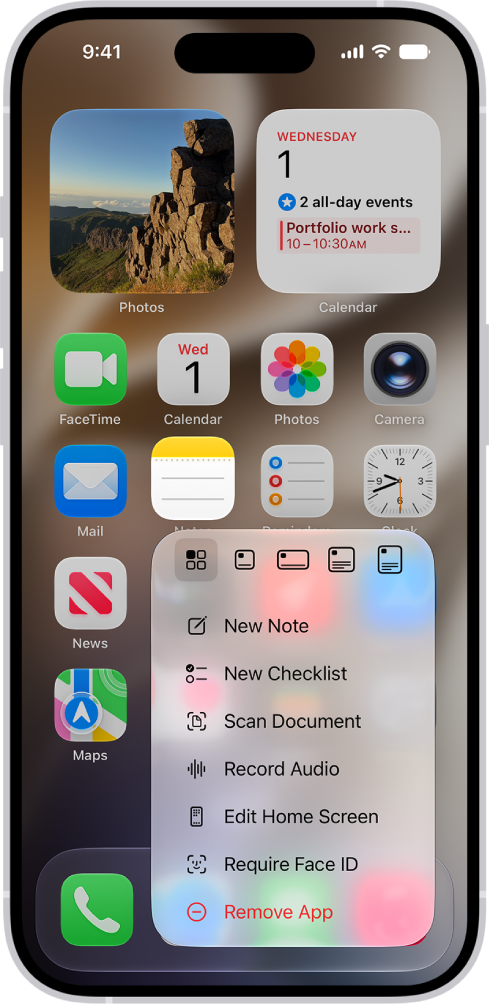
Here are a few examples:
- Touch and hold Camera, then choose Selfie.
- Touch and hold Maps, then choose Send My Location.
- Touch and hold Notes, then choose New Note.
Note: Touch and hold an app too long before choosing a quick action, and all of the apps start to jiggle. If that happens, tap Done on an iPhone with Face ID, or on other iPhone models, press the Home button, and then try again.
See previews and other Quick Actions menus
- In Photos, touch and hold an image to preview it and see a list of options.
- In Mail, touch and hold a message in a mailbox to preview the message contents and see a list of options.
- Open Control Center, then touch and hold an item like Camera or the brightness control to see options.
- On the Lock Screen, touch and hold a notification to respond to it.
- When typing, touch and hold the Space bar with one finger to move the insertion point.
Tag: Home Screen