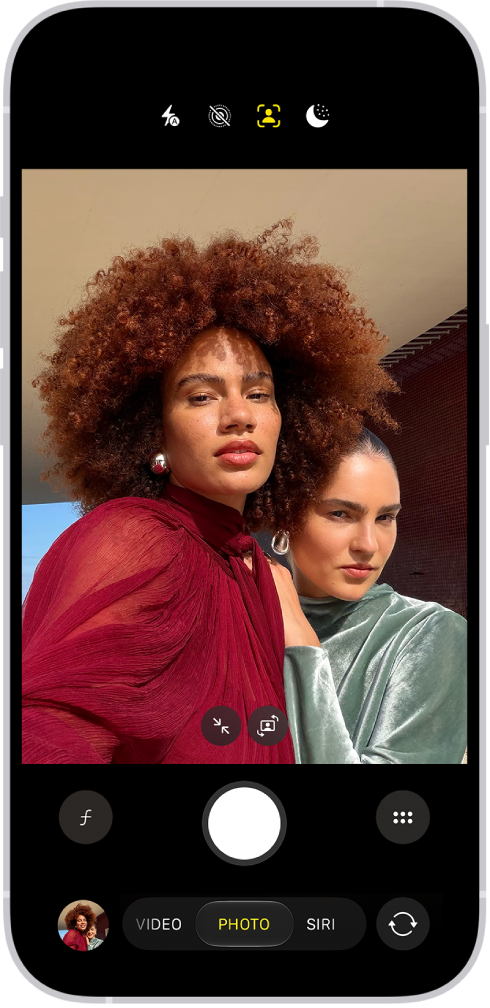
Use the front-facing camera on your iPhone to take a selfie. You can take selfies in Photo mode or Portrait mode.
You can increase the field of view with Selfie Zoom, use Center Stage to automatically zoom or rotate the frame, and even mirror the front camera, so the selfie captures the shot as you see it in the frame.
Here’s how to take a selfie with your iPhone camera.
Take a selfie
- Open Camera on your iPhone.
- Tap the Camera Chooser Back-Facing button to switch to the front-facing camera.
- Before taking the selfie, you can do any of the following:
- Tap the Selfie Zoom Zoomed In button to increase the field of view; tap the Selfie Zoom Zoomed Out button to return to the original view.
- Tap the Change Aspect Ratio button to rotate the frame from portrait to landscape on (supported models); tap the Change Aspect Ratio button to return to portrait.
- Tap the Shutter button, press either volume button, or click the Camera Control to take the selfie.
Automatically zoom or rotate the frame with Center Stage for photos
When the camera detects faces in a group selfie, supported models can automatically zoom and rotate the frame.
Quick tip: You’ll get the best results when everyone is within 10 feet of the camera and looking at it.
- Open Camera on your iPhone.
- Tap the Camera Chooser Back-Facing button to switch to the front-facing camera.
- To make adjustments, tap the Chrome Auto Smart Framing Label On Off button and turn the following on or off:
- Auto Zoom: Automatically expands the frame when a face is detected at the edge of the frame.
- Auto Rotate: Automatically rotates the frame to landscape to accommodate more people in the frame.
- Tap the Shutter button, press either volume button, or click the Camera Control to take the selfie.
The first time you use Center Stage for photos, Auto Rotate is off and Auto Zoom is on. Any changes you make to these settings are saved.
Note: If you tap either the Selfie Zoom Zoomed In button or the Selfie Rotate button and zoom or rotate the frame manually, the Center Stage settings you selected turn off, and you’ll need to repeat the steps above to turn them back on.
Mirror the front camera
To take a selfie that captures the shot as you see it in the front-facing camera frame, rather than reversing it, go to Settings > Camera, then turn on Mirror Front Camera.