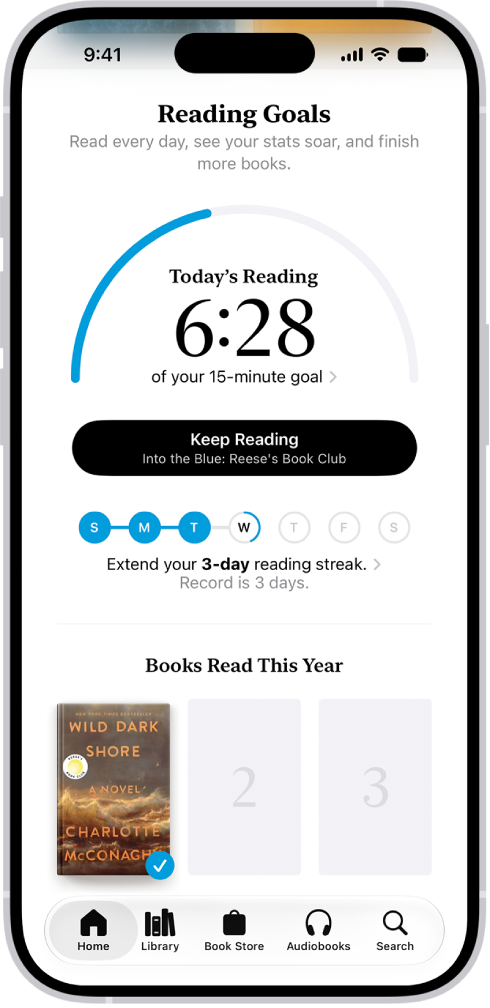
The Books app helps you keep track of how many minutes you read each day, and how many books and audiobooks you finish each year. You can customize your goals to spend more time reading, set new reading streaks, and receive encouragement to reach your goals.
You can change your daily and yearly reading goals, turn coaching notifications on or off, or clear reading data. You can even turn off reading goals entirely.
Note: Apple Books isn’t available in all countries or regions.
Change your daily reading goal
If you don’t customize your daily reading goal, it’s 5 minutes per day. Adjust it depending on how many minutes you want to read each day.
- Start the Books app on your iPhone.
- Tap Home, then tap the reading goals button.
-
Tap the reading goal timer, then tap Adjust Goal.
Note: To count PDFs toward your reading goal, go to Settings > Apps > Books, then turn on Include PDFs below Reading Goals.
- Slide the counter up or down to set the minutes per day that you want to read and tap Adjust Goal.
Change your yearly reading goal
Once you finish a book, its cover appears below Books Read This Year. Your yearly reading goal is three books per year by default, though you can raise or lower it depending on how many books you want to finish.
- Start the Books app on your iPhone.
- Tap Home, then tap the reading goals button.
- Tap a book cover or a cover placeholder. Tap Adjust Goal.
- Slide the counter up or down to set the books per year that you want to read. Then tap Adjust Goal.
Quick tip: You can mark a book in your library as finished. Tap the More Info button below its cover, then tap Mark as Finished.
Turn on coaching notifications
To help you reach your reading goals, Books can send you encouragement and nudges, which you can turn on or off.
- Start the Books app on your iPhone.
- Tap Home and tap your account button.
- Tap Notifications, then turn on Coaching.
- Tap the Close button.
Turn off reading goals notifications
When you achieve a reading goal or set a reading streak, Books notifies you, and these notifications can also be turned off.
- Start the Books app on your iPhone.
- Tap Home and tap your account button.
- Tap Notifications, then turn off Goal Completion.
- Tap the Close button.
Turn off reading goals
- Start the Settings app on your iPhone.
- Tap Apps, tap Books, and then turn off Reading Goals.
With Reading Goals turned off, the Home tab’s reading indicators are hidden, and reading notifications stop.
Clear reading data
You can clear reading data such as reading streaks, reading goals, and time spent reading.
- Start the Settings app on your iPhone.
- Tap Apps and tap Books. Then tap Clear Reading Goals Data.