You can make a screen recording to capture what’s happening on your iPhone screen and save it as a video. You can even turn on the microphone to add audio.
Recording starts after a 3-second countdown, and your screen recordings are saved to your photo library automatically. The Screen Recording control is in Control Center, and you can review your screen recordings with your other media types in the Photos app.
Note: Recording your screen and using screen mirroring at the same time isn’t possible, and some apps might not let you record their content.
Record the iPhone screen
-
Swipe down from the top-right corner of the screen to open Control Center.
If you don’t see the Screen Recording control, add it to Control Center.
- Tap the Screen Recording button and then wait for the 3-second countdown to start recording.
- Swipe up to dismiss Control Center and then perform the action you want to record.
-
To stop recording, do one of the following:
- If your iPhone has a Dynamic Island: Tap the red circle. Then tap the Stop Screen Recording button.
- For all other models: Tap the timer (highlighted in red) in the top left of the screen. Tap Stop.
Take a screen recording with audio
- Swipe down from the top-right corner of the screen to open Control Center.
- Touch and hold the Screen Recording button, tap Microphone to turn it on, and tap Start Recording.
- Wait for the 3-second countdown, then start recording.
Review your screen recordings
Screen recordings are automatically saved to your photo library.
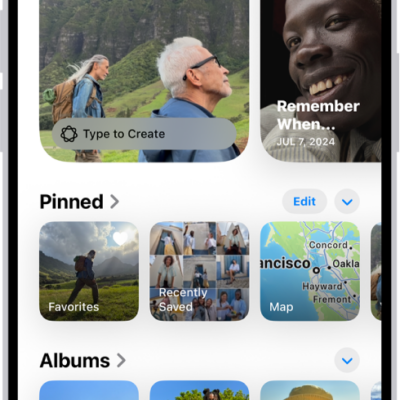
- Open the Photos app on your iPhone.
- Tap Collections, scroll down to Media Types, and then tap Screen Recordings.
Tag: Photos