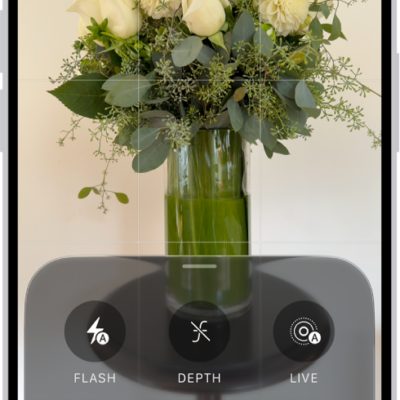
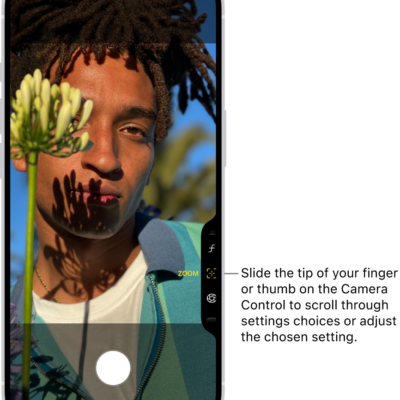
You can apply a depth-of-field effect that keeps your subject, whether people, pets, or objects, sharp while creating a beautifully blurred foreground and background. You can also apply and adjust different lighting effects to your portraits.
Background blur can be adjusted, too, along with where the Portrait Lighting sits and how intense it is, to sharpen eyes or brighten and smooth facial features.
Here’s how to take portraits with your iPhone camera.
Take a portrait
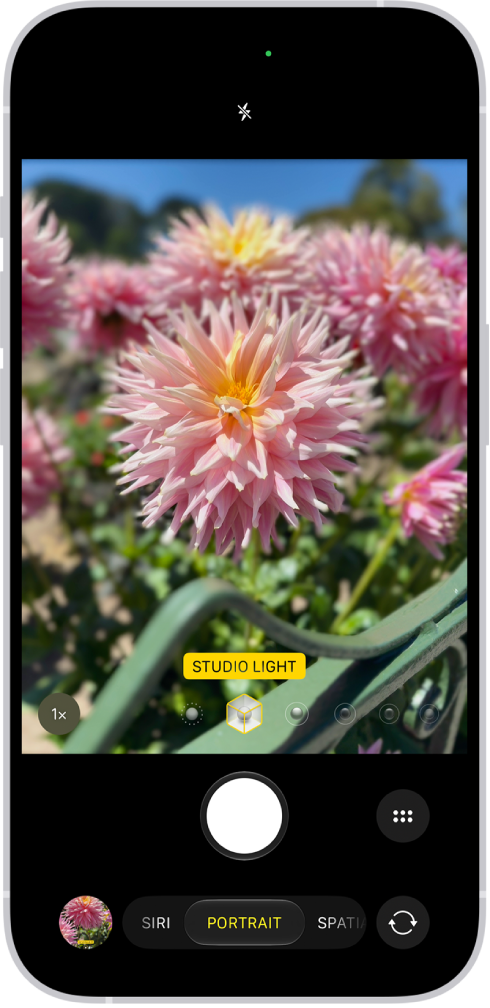
- Open Camera on your iPhone.
- Do any of the following:
- Swipe left to select Portrait mode.
- Tap the Depth button (if a face is detected in the camera frame; on supported models).
- Use the Camera Control to select Portrait mode.
- Drag the Portrait Lighting control to choose a lighting effect:
- Natural Light: Sharp focus with a blurred background
- Studio Light: Bright, clean lighting
- Contour Light: Dramatic shadows with highlights and lowlights
- Stage Light: Spotlight effect against a black background
- Stage Light Mono: Stage Light effect in black and white
- High-Key Light Mono: Grayscale subject on a white background
- Tap the Shutter button or click the Camera Control on (supported models) to take the portrait.
After you take the portrait, you can remove the effect if you want to see the image without it. In the Photos app, open the photo, tap the Edit button, then tap Portrait to turn the effect on or off.
When the Depth button appears as you take photos in Photo mode, your iPhone captures depth information. That means you can add the portrait effect later, even if you didn’t use it for the original photo.
Night mode turns on for supported models when you take portraits with the wide (1x) lens in low-light situations.
Adjust the background blur
To adjust the level of background blur in your portraits, use the Depth Control slider.
- Open Camera on your iPhone.
- Swipe left to select Portrait mode or stay in Photo mode and tap the Depth Off button on (supported models).
- Tap the Camera Controls button or swipe up from Portrait mode at the bottom of the screen.
- Tap Depth and drag the Depth Control slider below the frame right or left to adjust the effect.
- Tap the Camera Control Status button to close the Depth Control slider.
You can also use the Camera Control to adjust the background blur on supported models.
To fine-tune the background blur effect after you capture a portrait, use the Depth Control slider in the Photos app.
Adjust the Portrait Lighting
You can virtually adjust the Portrait Lighting’s position and intensity to sharpen eyes or brighten and smooth facial features.
- Open Camera on your iPhone.
- Swipe left to select Portrait mode or stay in Photo mode and tap the Depth Off button on (supported models).
- Drag the Portrait Lighting control to choose a lighting effect.
- Tap the Camera Controls button or swipe up from Portrait mode at the bottom of the screen.
- Tap Intensity and drag the slider below the frame right or left to adjust the effect.
- Tap the Dismiss Portrait Effect Intensity Control button to close the Portrait Lighting slider.
Once you’ve captured a portrait, you can edit the Portrait Lighting levels in the Photos app.