In the Translate app, use the camera view to translate text around you—for example, a restaurant menu or street signs. You can also translate text in photos from your photo library.
As you move the camera, text is translated in real time, and you can choose a different language. When you freeze the image, you can zoom in to see the overlaid translations, and copy, save, or play a translation.
Note: Translation is available for supported languages.
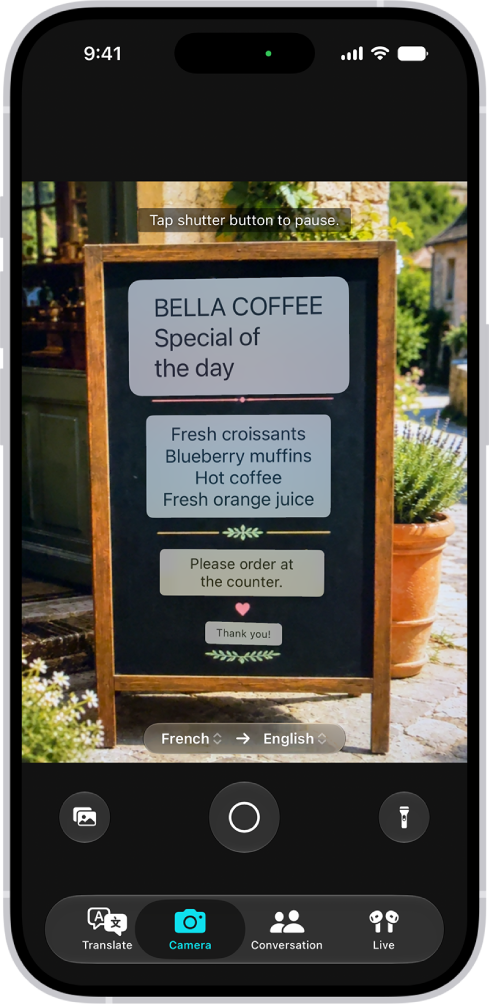
Translate text around you with the camera
- Open the Translate app on your iPhone.
-
Tap Camera and then hold your iPhone so that the text appears on the screen.
Note: As you move the camera, text is translated in real time.
-
Tap the Take Picture button to freeze the image and then do any of the following:
- Switch languages: Tap a language and then choose a different one.
- Get a closer look: Zoom in to see the overlaid translations.
- Copy, save, or play the translation: Tap an overlaid translation to see the details. Tap an option.
Translate text in a photo from your library
- Open the Translate app on your iPhone.
- Tap Camera, tap the Photo Library button, and then select a photo that contains text.
- Do any of the following:
- Switch languages: Tap a language and then choose a different one.
- Share or save the translated image: Tap the Share button, then choose an option.
Tag: camera