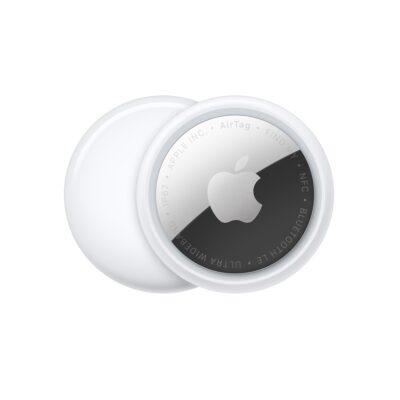
You can register an AirTag to your Apple Account using your iPhone. When you attach it to an everyday item, like a keychain or a backpack, you can use the Find My app to locate it if it’s lost or misplaced.
AirTag can only be registered to one Apple Account at a time, but you can share an AirTag with others. You can also get notified if you leave your AirTag behind, and add supported third-party products to Find My.
Here’s how to add an AirTag in Find My on iPhone.
Add an AirTag
- Remove the product wrapping and battery tab from the AirTag and then hold it near your iPhone.
-
Go to the Home Screen on your iPhone.
Note: To retry pairing, turn your screen off and back on.
- Tap Connect on the screen of your iPhone.
- Choose a name from the list or choose Custom Name to type a name and select an emoji. Tap Continue.
- Tap Continue to register the item to your Apple Account. Then tap Finish.
You can also register an AirTag in the Find My app. Tap the Add button, then choose Add AirTag.
Before you can add an item that’s registered to someone else’s Apple Account, they need to remove it.
Change the name or emoji of an AirTag
- Open the Find My app on your iPhone.
- Tap Items, tap the AirTag whose name or emoji you want to change, and then tap the More button.
- Tap Change Name and Emoji.
- Choose a name from the list or choose Custom Name to type a name and select an emoji.
- Tap the Done button.
View more details about an AirTag
When you add an AirTag to your Apple Account, the Find My app shows more details about it.
- Open the Find My app on your iPhone.
- Tap Items, tap the AirTag you want to see more details about, and tap the More button.
- Tap the address of the AirTag to see the model, serial number, and the firmware version.
When the battery level is low, a message appears below the AirTag’s location. There’s also a low battery indicator next to its name in the Items list.