There are multiple ways to transfer photos, videos, and other files between your iPhone and other devices like an iPad, Mac, or Windows device.
You can transfer files wirelessly with features like AirDrop or apps like Mail and Messages, or you can connect your iPhone to a computer or an external storage device with a cable, and then transfer or sync files. You can also use iCloud to store your files, photos, videos, and more, and keep everything up to date on all your devices where you’re signed in to the same Apple Account.
Important: Transferring, sharing, or syncing may be restricted for some types of data, such as files saved in an app’s proprietary format, files saved in older software versions, and files protected by copyrights.
Transfer files from your iPhone wirelessly
You can use AirDrop to quickly share a file, photo, or other item from your iPhone with a nearby Apple device.
Another way to transfer files from your iPhone to another device is to send the file as an attachment in the Mail or Messages app.
- Send a file as an email attachment:
- Send a file as an attachment in Messages:
Transfer files by connecting your iPhone with a cable
With a cable, you can connect your iPhone to your Mac or Windows device to transfer files to a file server, an external storage device, or your computer. To transfer files to your Mac or Windows device, you’ll use the Finder, Apple Devices, or iTunes, depending on your computer’s model and operating system.
Note: You can only transfer files from iPhone apps that support file sharing.
- Transfer files with your Mac (macOS 10.15 or later): Use the Finder.
- Transfer files to your Windows device (Windows 10 or later): Use Apple Devices for Windows.
- Transfer files to your Mac (macOS 10.14 or earlier) or Windows device (Windows 7 or earlier): Use iTunes.
- Transfer files to a storage device, a file server, or a service like Box or DropBox:
Sync your iPhone with other devices
Connecting your iPhone to your Mac or Windows device also lets you sync supported content, such as music, movies, TV shows, and more. Say you add a movie to your iPhone. When you sync, that movie appears on your computer, too.
Syncing files to your Mac or Windows device works through the Finder, Apple Devices, or iTunes. The one you need depends on the model and operating system of your computer.
- Sync content with your Mac (macOS 10.15 or later): Use the Finder.
- Sync content with your Windows device (Windows 10 or later): Use Apple Devices for Windows.
- Sync content with your Mac (macOS 10.14 or earlier) or Windows device (Windows 7 or earlier): Use iTunes.
Automatically keep your files in sync with iCloud
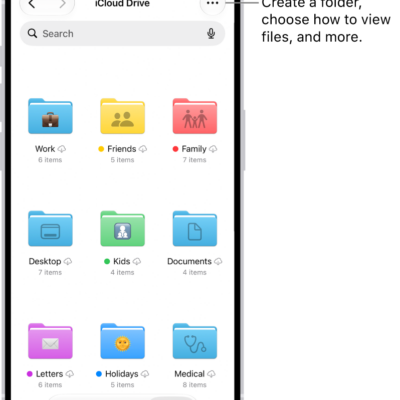
When you store your files, photos, videos, and more in iCloud, you can access them on all your devices and supported web browsers and keep them in sync. Change a file on a device signed in to your Apple Account, and that change shows up on every device signed in to the same Apple Account.
Note: You’ll need OS X 10.10 (or later) or Windows 7 (or later). Your iPhone, your computer, and any supported web browsers you might be using also need to be signed in to the same Apple Account.