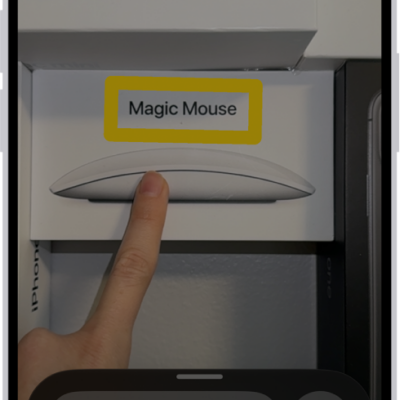
You can personalize the Magnifier app to show your most frequently used controls for easy access. You can also create custom activities for recurring tasks and customize settings of live scene descriptions.
Up to two of your controls can be primary controls, which appear on the main screen when Magnifier opens. You can also set your preferred controls for an activity.
Here’s how to customize controls in Magnifier on iPhone.
Add or remove controls
- Open the Magnifier app on your iPhone.
-
Tap the Settings button and then do any of the following: Show or hide Ask Magnifier, Capture, or Detection Mode: Tap Ask Magnifier, Capture, or Detect, then turn Show in Control Panel on or off.
- Add or remove other controls: Tap the Insert button or the Remove button next to a control.
You can choose up to two primary controls.
Primary controls appear on the main screen when you open Magnifier.
If you add more than two controls, you can swipe up on the control panel at the bottom of the screen to access secondary controls.
Reorder other controls: Drag the Reorder button next to a control to move it up or down.
| Control | Description |
|---|---|
| Brightness | Adjust the brightness. |
| Contrast | Adjust the contrast. |
| Filters | Apply a color filter. When you add the Filters control, you can select just the filters you use most often. |
| Flashlight | Turn on the flashlight. |
| Focus Lock | Lock the magnifier focus. |
| Cameras | Switch between the front and rear cameras, or choose Close-up when you need to see something very small that’s very close to the camera. Note: Close-up is available on iPhone 13 Pro and iPhone 13 Pro Max or later. |
| Capture Mode | Switch between modes for taking single photos, multiple photos, or for taking photos of documents. |
Set your preferred controls for an activity
For recurring tasks or situations, you can save the controls you use as activities, then switch between different activities as needed.
An activity for reading a menu at a restaurant is one example.
- Open the Magnifier app on your iPhone.
- Tap the Activities button. Tap Save Current Settings As New Activity to create a new activity using the current controls.
- Enter a name for the activity and then tap the Done button.
Customize settings for Ask Magnifier
Ask Magnifier isn’t available on devices without Apple Intelligence.
Note: Apple Intelligence on iOS 27 or later is available on an Apple Intelligence-enabled iPhone 15 Pro, iPhone 15 Pro Max, or iPhone 16 model or later.
Apple Intelligence is not available in all languages or regions, Apple says.
Usage limits may apply.* Go to the Magnifier app on your iPhone.
-
Tap the Settings button and tap Ask Magnifier.
Do one of the following: Input: Choose whether to speak or type your questions by default.
Default Question: Turn on to ask the same question automatically each time you open Ask Magnifier.
You can use the default question (“What is this?”) or enter your own.
Customize settings for live scene descriptions
- Open the Magnifier app on your iPhone.
- Tap the Settings button and then tap Detect.
- Tap Scenes and then turn on any combination of Labels or Speech feedback.
-
To return to the live Magnifier lens, tap the Back button, tap it again, and then tap the Done button.
*Apple Intelligence is available with Siri and device language set to Chinese (Simplified), Chinese (Traditional), Danish, Dutch, English, French, German, Italian, Japanese, Korean, Norwegian, Portuguese, Spanish, Swedish, Turkish, or Vietnamese.
Some features may not be available in all regions or languages.
Some devices may not be available in all regions.
Siri AI is available in beta in iOS 27, iPadOS 27, macOS 27, watchOS 27, and visionOS 27 and requires an Apple Intelligence–enabled device set to a supported language.
Available in English to start.
Siri AI will not be initially available in the EU on iOS, iPadOS, and watchOS.
Certain Apple Intelligence features that rely on server-side models are subject to daily usage limits, including but not limited to Siri AI, Intelligent Photo Editing Tools, Image Playground, and AFM 3 Cloud models in Shortcuts.
Daily limits may vary by feature, request complexity, system demand, system policies, and other factors.
Expanded access to such features will be available for a fee in the future.
- Use of these features is subject to the Apple Intelligence Terms and Conditions.