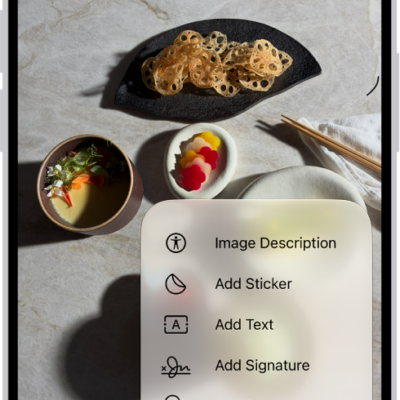
You can fill out forms and sign documents that you receive on your iPhone. After you complete a form, you can add your signature and share it with others.
You can also use AutoFill to quickly fill out forms with information you saved in the Contacts app and other sources. And in supported apps, Markup lets you add your signature to a document or create multiple signatures, which you sign with your finger. You can also enter info from another contact, such as a parent or spouse.
Fill out forms and add signatures
-
Open the form or document on your iPhone.
If prompted, open the document in the Files app, then tap Save.
- Tap the AutoFill button, tap a blank field, and then enter text using the onscreen keyboard. Continue to tap and enter text in blank fields.
-
If a prompt appears, you may be able to fill several related fields all at once instead of one at a time. Review the suggested info, tap any field to change it and tap Fill to complete the form.
Tip: If you complete your My Card in the Contacts app, AutoFill quickly completes supported forms and documents. You can also tap “Choose other” to enter info from another contact, such as a parent, spouse, or caregiver.
-
To add beyond existing blank fields, tap the Add button and then do one of the following:
- Add your signature: Tap Add Signature, sign your name with your finger and then tap Done. Drag your signature where you want it to appear on the document.
- Add new text: Tap Add Text Form Box and drag the text box where you want it on the form. Then enter text using the onscreen keyboard. Use the formatting tools to change the color and font.
- When you’re done, tap the Menu button. Tap Export, Print, or the Share button to share the completed document. Tap the Back button to save it.
AutoFill suggestions appear above the keyboard as you type in iOS 27 and later.
Add your signature with Markup
The Markup tools let you add your signature to images and documents in supported apps such as Notes and Photos.
- In a supported app on your iPhone, tap the Markup button or Markup.
- In the Markup toolbar, tap the Add button and then tap Add Signature.
- Tap an existing signature, or add a new one, as below.
- With the signature selected, do any of the following:
- Move the signature: Drag it.
- Resize the signature: Drag any blue dot along its bounding box.
Add a signature
Once you create a signature, iPhone saves it for the next time you add a signature with Markup. You can also create multiple signatures, like a nickname or initials, and delete signatures.
- In a supported app on your iPhone, tap the Markup button or Markup.
-
In the Markup toolbar, tap the Add button and then tap Add Signature.
If you already have a signature, tap Add or Remove Signature, then tap the Add button.
-
Use your finger to sign.
To redo your signature, tap Clear, then sign your name again.
Tip: Rotate your iPhone to have more space to sign.
- To label your signature, tap the Menu button next to New Signature at the top of the screen and select a label, such as given name, nickname, or initials.
- To save and place your signature, tap the Done button.
Delete a signature
- In a supported app on your iPhone, tap the Markup button or Markup.
- In the Markup toolbar, tap the Add button and then tap Add Signature.
- Tap Add or Remove Signature. Tap the Delete button next to the signature you want to delete.
- To save and place your signature, tap the Done button.