In supported apps, such as Notes and Photos, you can use the Markup tools to add text, shapes, stickers, and image descriptions to your images and documents.
You can move or resize a shape, and adjust its border color, border width, fill color, and opacity. You can even draw geometrically perfect shapes, like lines and arcs, and VoiceOver reads the custom image descriptions you add.
Here’s how to add text, shapes, stickers, and more with Markup on iPhone.
Note: Tap the Markup button or Markup if the Markup toolbar doesn’t appear in a supported app. And if the toolbar is minimized, tap the minimized version.
Add text
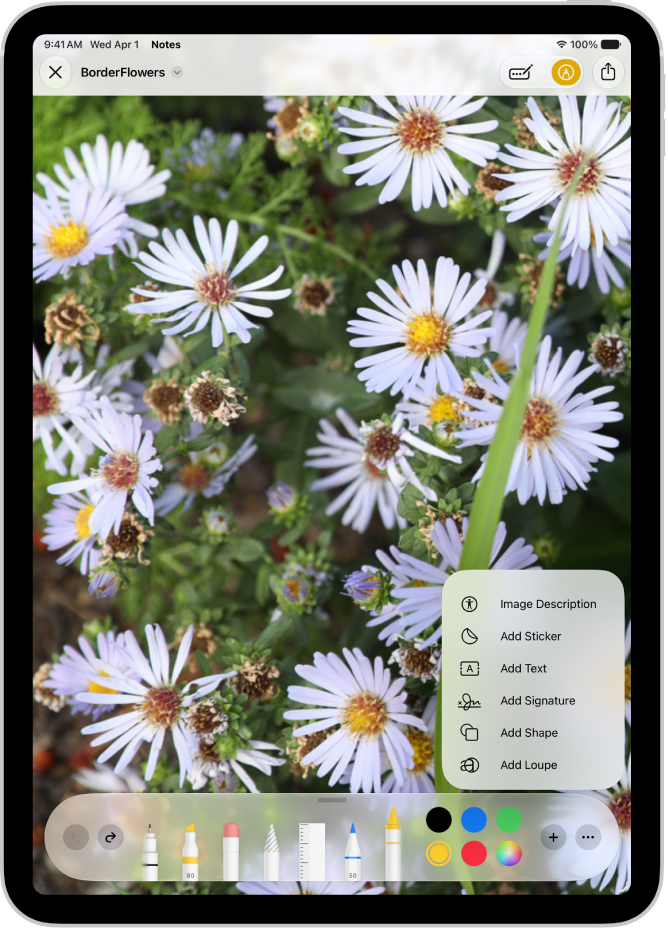
- In the Markup toolbar, tap the Add button. Tap Add Text.
- Tap the text box. Then use the keyboard to enter text.
- To adjust the text’s font, size, justification, style, or color, tap the tools.
- To cut, copy, duplicate, or delete the text box, tap the More button.
- When you’re done, tap outside the text box.
- To close the Markup toolbar, tap the Markup button or Done.
Add a shape
- In the Markup toolbar, tap the Add button. Tap Add Shape.
- Tap the shape you want to add. Then do any of the following:
- Move the shape: Drag it.
- Resize the shape: Drag any dot along the shape’s outline.
- Adjust the shape’s direction or dimension: Drag any green dot along the shape’s outline.
- Adjust the shape’s border color, border width, fill color, and opacity: Tap an option in the Markup toolbar.
- Cut, copy, duplicate, share, or delete: Tap the More button next to the shape. Then tap an option.
- When you’re done adjusting the shape, tap the screen.
- To close the Markup toolbar, tap the Markup button or Done.
Quick tip: To adjust shapes up close, pinch the screen open and zoom in on the document. Drag two fingers to pan while you’re zoomed in, and pinch closed when you want to zoom back out.
Draw a shape
If you need geometrically perfect shapes for diagrams and sketches, Markup can draw lines, arcs, and more.
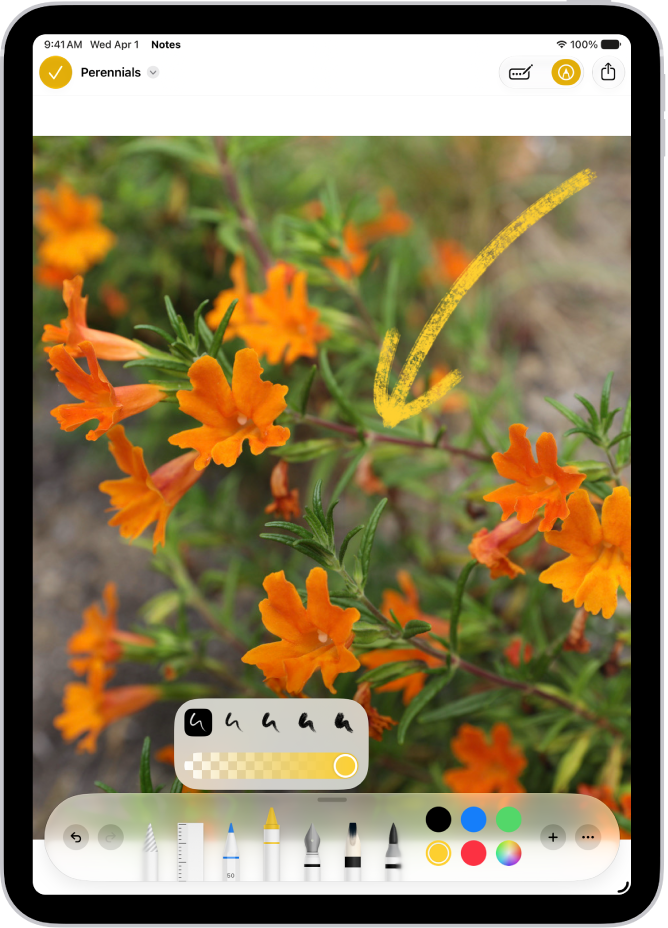
- In the Markup toolbar, tap a drawing tool.
- Draw a shape in one stroke with your finger. Pause.
A perfect version of the shape snaps into place, replacing the drawing. (If you prefer to keep the freehand shape, tap the Undo button.)
You can draw squares, circles, rectangles, triangles, and pentagons, plus straight lines, arrows, arcs, and continuous lines with 90-degree turns. Chat bubbles, hearts, stars, and clouds are available, too.
Add a sticker with Markup
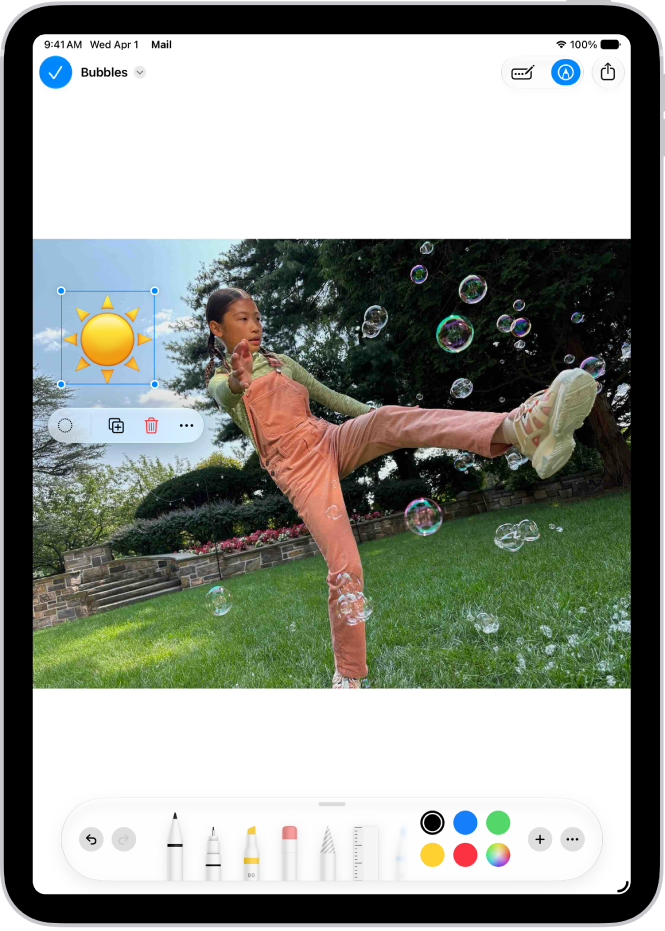
To add stickers from your sticker collection to documents and images, use Markup.
- In the Markup toolbar, tap the Add button and tap Add Sticker.
- Touch a sticker and then drag it onto your document or photo.
- Tap to select the sticker and then do any of the following:
- Adjust its angle: Use two fingers to rotate it.
- Adjust its size: Drag a blue dot on the bounding box of the sticker.
Sticker packs are available to download from the App Store. You can also make stickers in any supported app, or create Live Stickers by lifting subjects from your photos or in the Messages app.
Add custom image descriptions
Markup can add descriptions to images in supported apps, such as Photos, and VoiceOver reads those custom descriptions when you use the Image Explorer.
- In the Markup toolbar, tap the Add button, then tap Image Description.
- Enter your description, then tap the Done button.