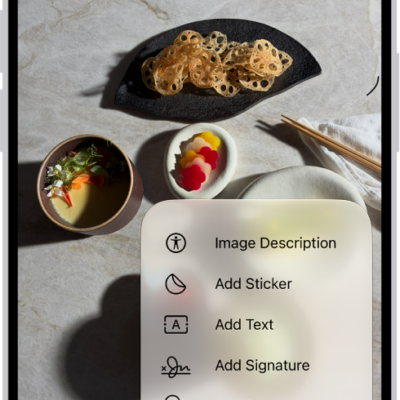
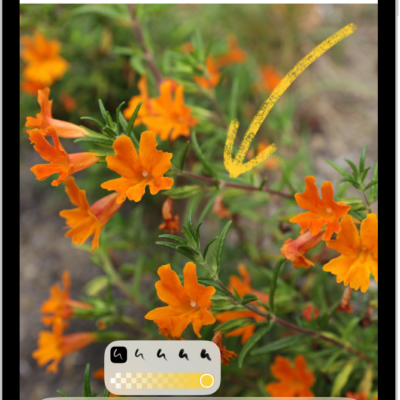
In supported apps such as Notes and Photos, you can use the Markup tools to draw and sketch in your documents and images. You can also use the Markup tools to annotate screenshots, PDFs, and more.
You can draw or handwrite with the pen, marker, or pencil tool, and change the line weight as you go. You can pick a color, draw straight lines with the ruler, and show or hide the Markup toolbar whenever you need it.
Note: When the Markup toolbar is missing in a supported app, tap the Markup button or Markup. A minimized toolbar opens again when you tap its minimized version.
Show and hide the Markup toolbar
To show the Markup toolbar in a supported app, tap the Show Handwriting Tools button or Markup.
To hide the toolbar, tap the Show Handwriting Tools button or the Done button.
Draw or handwrite
- In the Markup toolbar, tap the pen, marker, or pencil tool. Then draw or handwrite with your finger.
- Do any of the following in the toolbar:
- Change the line weight: Tap the selected drawing tool, then tap an option.
- Change the opacity: Tap the selected drawing tool and drag the slider.
- Change the color: Tap the Color Picker button, tap Grid, Spectrum, or Sliders, and then choose a color.
Draw straight lines
- In the Markup toolbar, tap the Ruler tool. Do any of the following:
- Move the ruler: Drag the ruler with one finger.
- Change the angle: Touch and hold the ruler with two fingers. Then rotate your fingers.
- Draw a line along the edge of the ruler.
- To hide the ruler, tap the Ruler tool in the toolbar again.
Edit or move a drawing
- In the Markup toolbar, tap the Lasso tool (between the eraser and ruler).
- Touch and hold a group of strokes or circle multiple drawings and then do any of the following in the formatting tools that appear near the selection:
- Change the color: Tap the Set Fill button.
- See editing options: Tap the More button. Then tap Cut, Copy, Duplicate, and more.
- To move the drawing, touch and hold it until it lifts up and drag it to a new location.
Erase part or all of your drawing
- In the Markup toolbar, tap the eraser tool.
- Do any of the following:
- Erase pixels: Scrub over what you want to remove with your finger.
- Erase a group of strokes: Tap the eraser tool, tap Object Eraser, and touch the grouped strokes with your finger.
- To switch between the erasers, tap the eraser tool again and choose Pixel Eraser or Object Eraser.
Tag: Markup