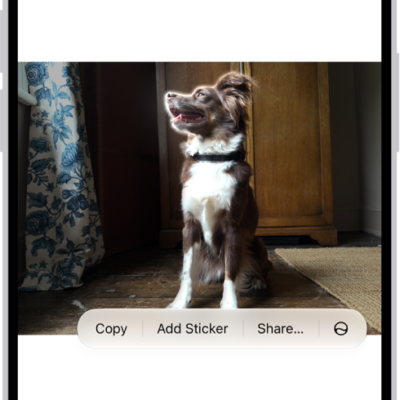
In the Photos app, you can make stickers from the subjects in your photos and animated stickers from the subjects in your Live Photos. Then use your stickers to decorate messages, photos, notes, and more.
Your stickers appear in the stickers menu, which you can open from the onscreen keyboard or the Markup tools. You can delete a sticker you no longer want, too.
Here’s how to make stickers from your photos on iPad.
Turn a photo or Live Photo into a sticker
You can turn a photo’s main subject into a sticker.
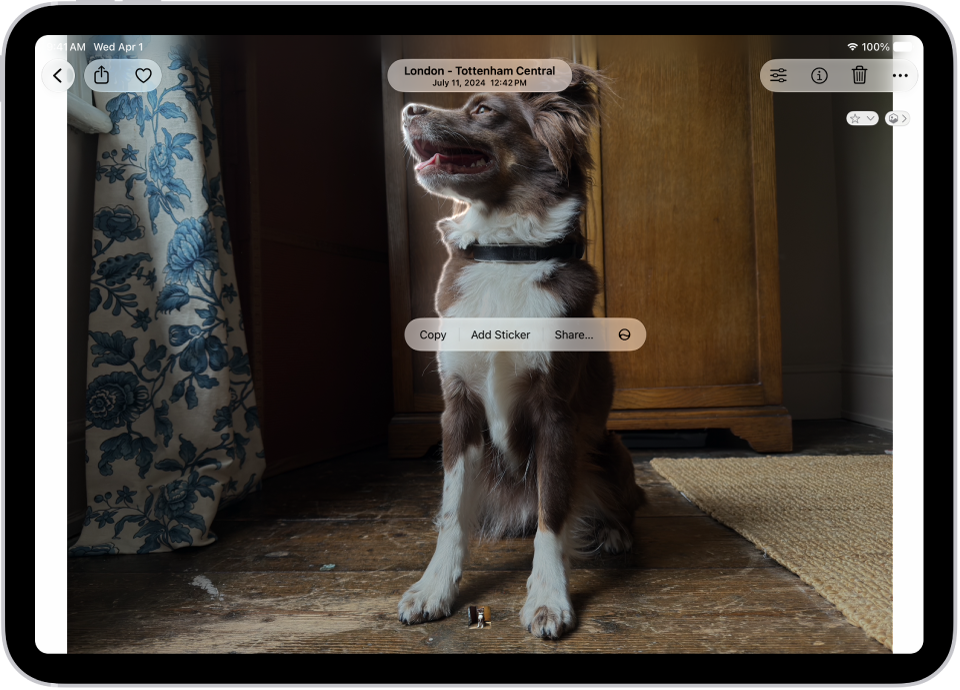
- Start the Photos app on your iPad.
- Tap a photo to open it in full screen.
- Touch and hold the subject and then let go.
-
Tap Add Sticker.
The sticker appears in your stickers menu, which you can access when you use the iPad onscreen keyboard or Markup tools.
- Tap Add Effect to apply a visual effect such as Outline, or Comic, or turn the Live Photo animation on or off.
Quick tip: Stickers you’ve created can decorate a photo, too. See our guide, Edit photos and videos.
Delete a sticker
- Start the Photos app on your iPad.
- Open a photo and then tap the Edit button.
- Tap the Markup button, then tap the Add button.
- Tap Add Sticker, touch and hold the sticker you want to delete, and tap Remove.
Stickers sync with iCloud, so you’ll have them on each iPhone, iPad, Mac, and Apple Vision Pro device that’s signed in to the same Apple Account.
See also