You can view events across the span of a month, week, or multiple days, or view a list of upcoming events. In Month view, there’s a choice of a single bar indicator for the events on each day, a bar indicator for each event, or event titles.
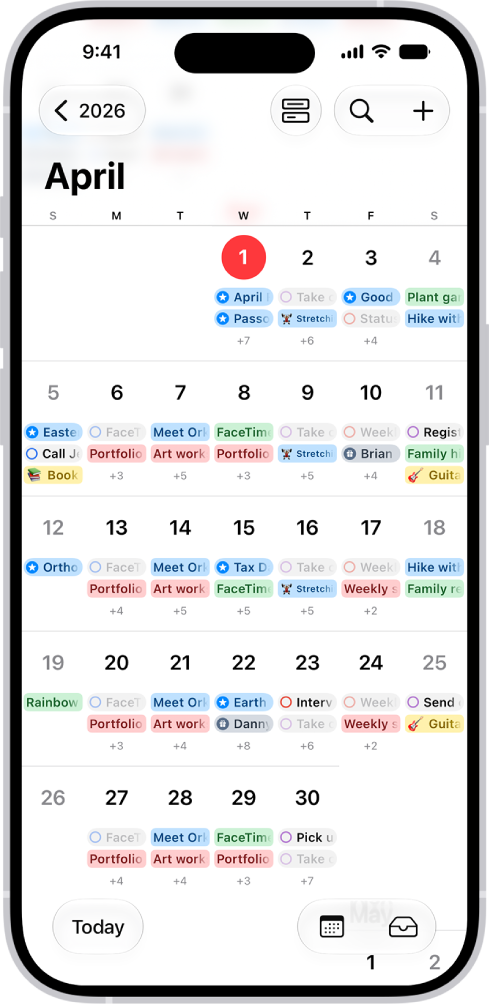
See events in Month view
Your Month view can show either event indicators or details.
- Start the Calendar app on your iPhone.
- In Month view, tap the Month view icon and then do one of the following:
- Show a single bar indicator for the events on each day: Tap Compact.
- Show a bar indicator for each event: Tap Stacked.
- Show event titles: Tap Details.
View events across multiple days
- Start the Calendar app on your iPhone.
- Do any of the following:
- View multiple days: In Day view, tap the Day view icon and choose Multi Day.
- View a weekly calendar: In Month or Day view, rotate iPhone sideways.
View events in a list
- Start the Calendar app on your iPhone.
- Do any of the following:
- View a list of events for each day: In Month view, tap the Month view icon and choose List. Tap each day to see a list of events.
- View a complete list of upcoming events: In Day view, tap the Day view icon and choose List.
Tag: Calendar