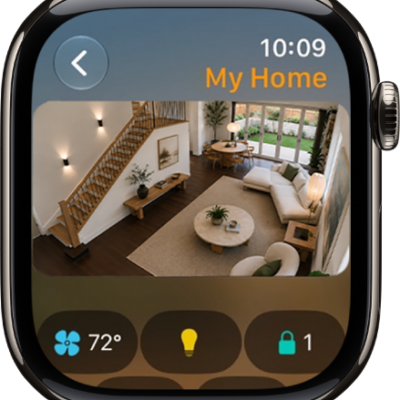
The first time you use the Home app, the setup assistant helps you create a home, where you can add accessories and define rooms. If you’ve already created a home while setting up a different accessory, you won’t need to create one again.
Before you add an accessory, like a light or camera, make sure it’s connected to power and turned on. You can also show accessories in a room and change an accessory’s room assignment.
Add an accessory to Home
Before you add an accessory such as a light or camera, check that it’s connected to a power source, turned on, and connected to a network.
- Open the Home app on your iPhone.
- Tap Home, then tap Add Accessory.
You can also tap the Add button, then choose Add Accessory.
-
If you’re pairing a Matter accessory that was previously paired to another app, tap More options and then select your accessory.
Open the accessory’s app, then generate a pairing code, which will be used to complete pairing with the Home app.
- Follow the onscreen instructions.
Note: For Thread-based accessories, you need a Thread-enabled home hub like Apple TV 4K, HomePod (2nd generation), or HomePod mini, or else a compatible third-party Thread border router. Any Thread-enabled iPhone devices can pair and manage Thread accessories locally too, but that may require an update from the accessory manufacturer.
You might need to scan a QR code, or enter a code: an 8-digit Apple Home setup code, which you’ll find on the accessory itself or on its box or documentation, or an 11 or 21-digit code for Matter-enabled accessories. A QR code to scan appears on an Apple Home-supported smart TV. Once you assign the accessory to a room and give it a name, you can use that name when controlling the accessory with Siri. During setup, you can add suggested automations, too.
When you set up Apple TV 4K in tvOS, you can assign it to a room, and the Home app on iPhone then shows it in that room automatically.
Paired Matter accessories are synced across devices and stored in the Settings app using iCloud Keychain, regardless of which app you used to set them up. You can easily add a previously paired accessory that’s stored in Keychain to another Matter ecosystem app. To manage these accessories, go to Settings > General, then tap Matter accessories.
Show accessories in a room
Along with individual rooms and the scenes assigned to them, you can show a room’s accessories organized by category.
In Room View, do one of the following.
- Tap > next to a room’s name.
- Tap the More button, then choose a room.
Change an accessory’s room assignment
- Open the Home app on your iPhone.
- Touch and hold an accessory tile and tap Accessory Settings.
- Tap Room and choose a room.
Edit a room
Besides removing a room, you can change its name and wallpaper, and more. Remove the room, and the accessories assigned to it move to Default Room.
- Open the Home app on your iPhone.
- On the Home tab, tap > next to a room, or tap the More button and choose a room.
- Tap the More button and tap Room Settings.
Organize rooms into zones
Grouping rooms into a zone makes it easy to control different areas of your home with Siri. In a two-story home, for example, you could assign the rooms on the first floor to a downstairs zone.
- Open the Home app on your iPhone.
- Tap > next to a room on the Home tab or tap the More button and choose a room.
- Tap the More button and tap Room Settings.
- Tap Zone and then tap an existing zone, or tap Create New to add the room to a new zone.