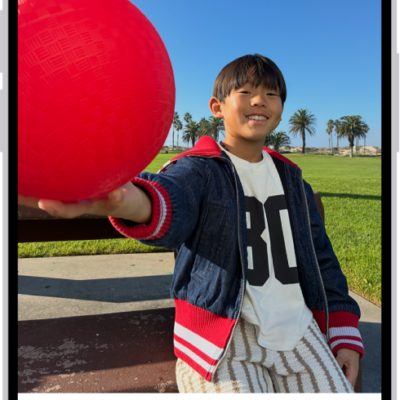
With your iPhone nearby, you’ll never miss a chance to take a photo, record a video, or snap a selfie. After you take photos, use the editing tools in the Photos app to crop, adjust the light and color, and much more.
You can open Camera right from the Lock Screen, and it automatically focuses the shot and adjusts the exposure for you. You can capture photos in low light, too.
Capture the moment
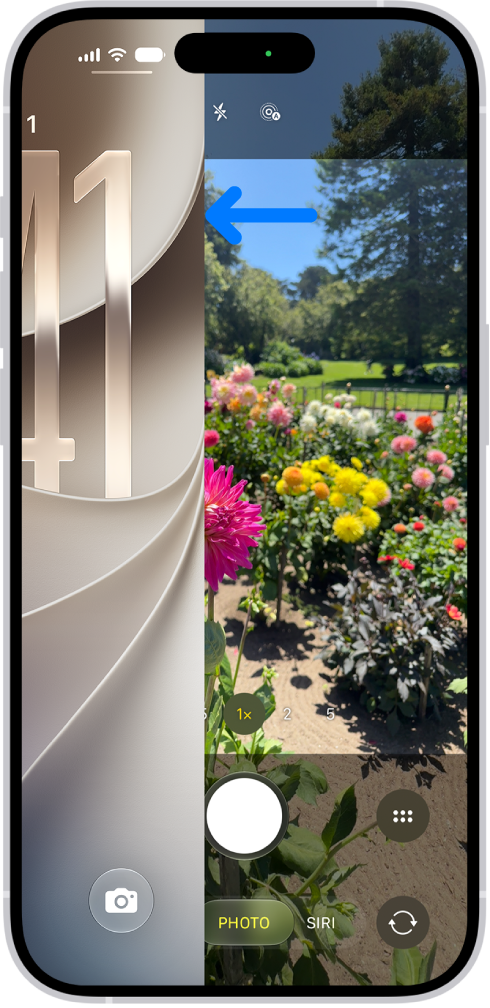
To quickly open Camera , just swipe left on the Lock Screen. Camera automatically focuses the shot and adjusts the exposure. Tap the Shutter button to take a photo.
On supported models, click the Camera Control to open Camera, then click it again to take a photo.
Record video on the go
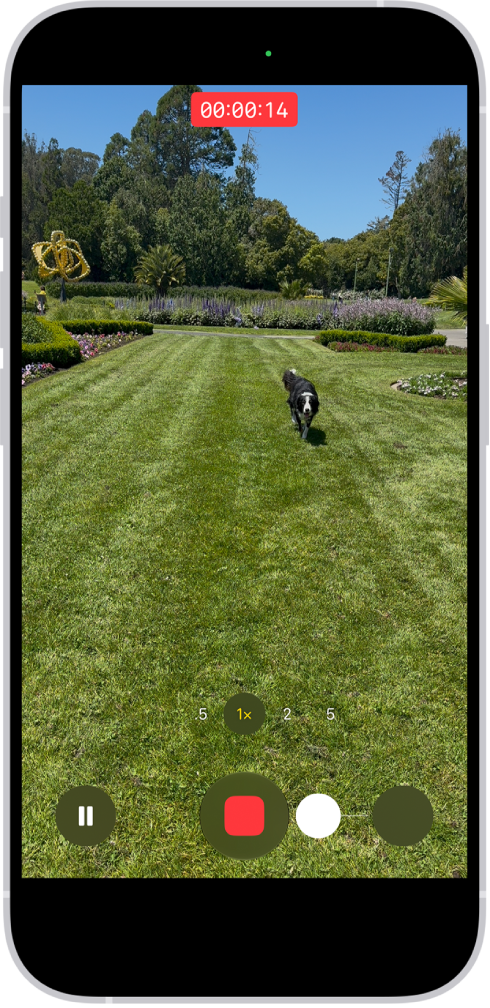
After you open Camera , tap Video to switch to Video mode, then tap the Record button to start a recording. Or stay in Photo mode and just touch and hold the Shutter button to start recording, then release the button to stop recording.
On supported models, click the Camera Control to open Camera, then click and hold the Camera Control to start a recording.
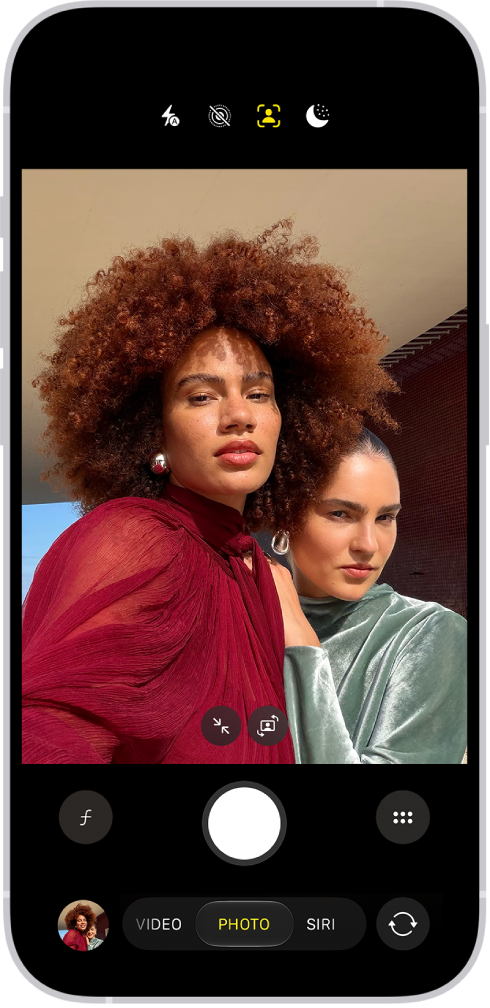
Snap the perfect selfie
To take a selfie, open Camera , then tap the Camera Chooser Back-Facing button. Hold your iPhone in front of you, then tap the Shutter button or press either volume button to take the selfie.
To fit more people in a selfie, the camera frame on supported models can automatically enlarge or rotate.
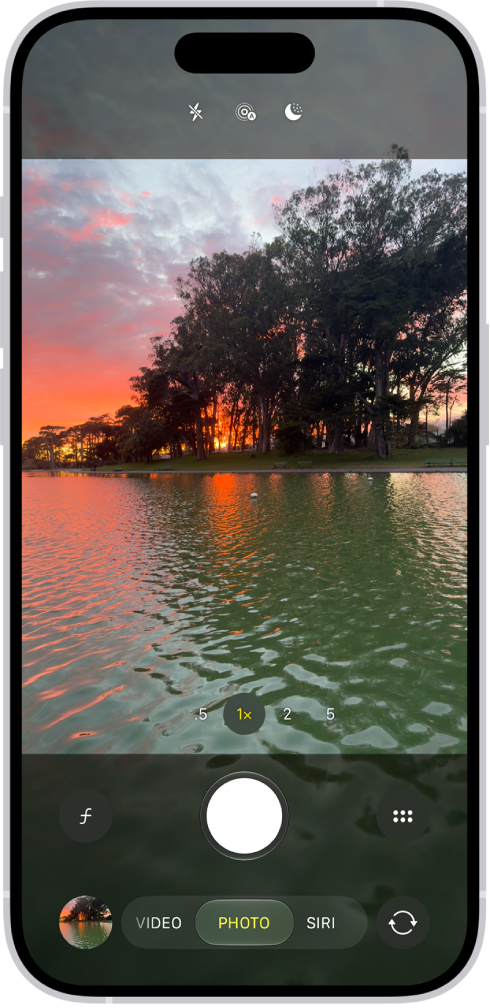
Capture photos in low light
Night mode automatically improves photos taken in low light on supported iPhone models. When you see the Night Mode Off button, Night mode is on. Tap the Shutter button, then hold your iPhone steady for the best results.
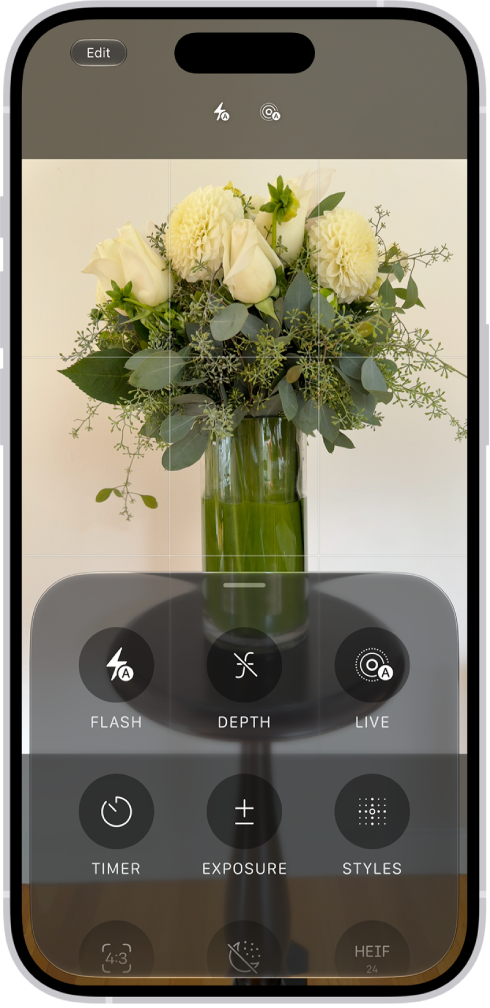
Adjust camera controls
When Camera is open, you can quickly make adjustments to features like Flash or Exposure. Just tap the Camera Controls button, then tap any feature to adjust its settings and improve your shot.
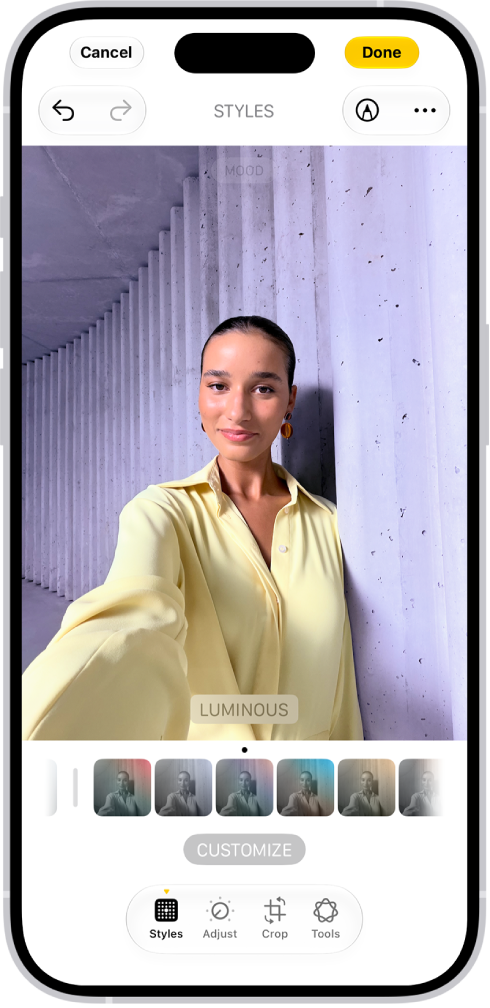
Add the final touches
After you take a photo or video, use the editing tools in the Photos app to make it even better. Open a photo or video, tap the Edit button, then tap the buttons to adjust lighting, add a filter, crop, or rotate. As you make edits, tap the photo to compare your changes to the original.
If you want more, check out the Camera and Photos chapters.
Not all features, Apple says, are available for all iPhone models.