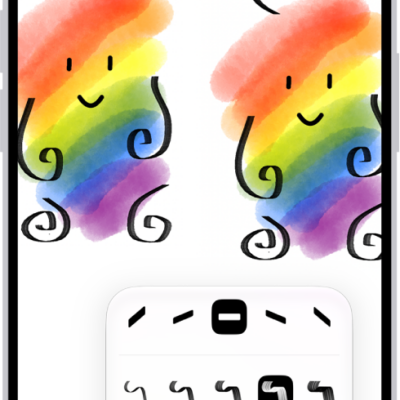
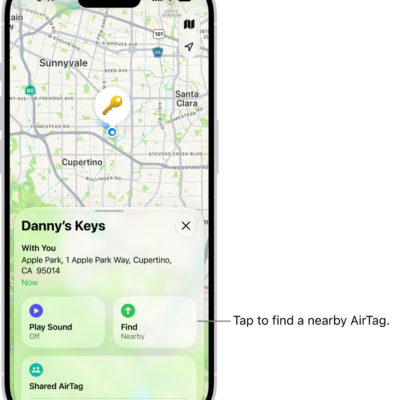
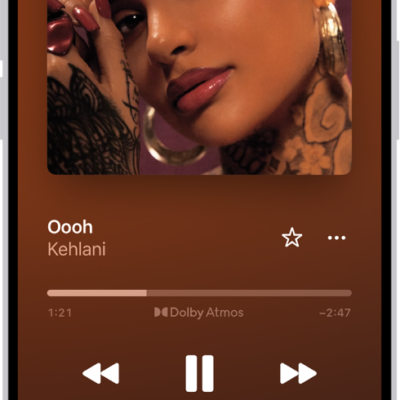
You can add any photo or video to a Freeform board, generate an image, or take a new photo with your iPhone camera. You can also add different types of files to your board by scanning, linking, or inserting them.
You can create original images with Image Playground and paste items from your Clipboard, too. Anyone can use premium Content Hub images. With a subscription to Apple Creator Studio, though, you’ll be able to remove their watermarks.
Available with subscription: Some features require a subscription to Apple Creator Studio.
Add a photo, video, sticker, link, or other file
- Open the Freeform app on your iPhone.
- Open a board, or tap the New Board button to start a new one.
- Do one of the following:
- Tap the Media button, tap an option, then tap the Done button when you’re finished.
- Copy the item to your Clipboard, tap an empty space, then, when a menu appears, tap Paste.
- To add premium images from the Content Hub to your board, tap the Content Hub button in the toolbar, tap an object category at the top of the dialog, then tap a premium image to add it to the board. Anyone can use premium Content Hub images, but you need to subscribe to Apple Creator Studio to remove their watermarks.
Important: Premium images from Content Hub are subject to usage restrictions.
Double-tap any media item—photo, video, or other file—to preview it.
Note: Files saved on your iPhone or in iCloud Drive can be inserted, and for most file types, Freeform makes a copy. Links work differently when they point to a collaborative Keynote presentation, Numbers spreadsheet, or Pages document. In that case, participants in your Freeform board can tap the card and jump straight to the shared file in iCloud. Remember to save the file in iCloud if you want others to collaborate on it.
Create original images with Image Playground
With Apple Intelligence, you can create one-of-a-kind illustrations from a mix of photos of people from your photo library, text descriptions, and more.
Note: Apple Intelligence on iOS 27 or later is available on an Apple Intelligence-enabled iPhone 15 Pro, iPhone 15 Pro Max, or iPhone 16 model or later. Apple Intelligence is not available in all languages or regions. Usage limits may apply.*
- Open the Freeform app on your iPhone.
- Open a board, or tap the New Board button to start a new one.
- Do one of the following:
- Create a new image: Tap the Insert Media button in the toolbar, tap Image Playground, and then follow instructions to create an image.
- Replace an existing image with an image created in Image Playground: Select an image, then tap the Modify Image button. Tap Replace and tap Image Playground. Then follow instructions to create an image.
- Use elements from your board: Select up to six images, drawings, text boxes, sticky notes, or shapes that you want to use, tap the More button in the formatting tools, tap Add to Playground, and follow the onscreen instructions to create an image.
- Tap the Done button or Insert to add the image to your board.
Screen Time settings let you block access to image creation features, like Image Playground.
Generate new images with Apple Creator Studio
If you subscribe to Apple Creator Studio, generative models can transform your existing images, and advanced tools let you create and edit high-quality ones.
Note: This feature is not available in all countries and regions.
- Open the Freeform app on your iPhone.
- Open a board, or tap the New Board button to start a new one.
-
Tap the Content Hub button in the toolbar.
Note: If this is your first time using Image Generation in Freeform, follow the onscreen instructions to share your age range with the app. Image Generation is not available for all ages, so a parent or guardian must enable this feature for children and teens in their family group.
-
Tap Generate Image, then follow the onscreen instructions.
If you’re asked to send an image, select Allow Once or Always Allow. To reset this option, tap the More button, tap Intelligence Features, then tap Reset Permissions.
-
Tap Insert to add the image to your board.
Important: Image Generation is subject to usage limitations. To check your usage status, tap the More button, tap Intelligence Features, then tap Show Usage Status.
Scan and add a document
Without leaving Freeform, a paper document you scan can go straight onto your board as a PDF.
- Open the Freeform app on your iPhone.
- Open a board, or tap the New Board button to start a new one.
- Tap the Media button and then tap Scan Documents.
-
Position the iPhone camera so the document appears on the screen.
iPhone automatically captures the page. To capture the scan manually, tap the Auto Shutter button, tap the Take Picture button or press a volume button, drag the corners to select the area you want in the scanned document, then tap Keep.
- Scan additional pages, then tap the Done button when you’re done.
Your board then shows a card with an image of your scan’s first page.
Quick tip: You can save your scan to iCloud Drive or keep it on your iPhone. Select the card and tap the Preview button, then tap the Share button and tap Save to Files.
Format a photo or video
- Open the Freeform app on your iPhone.
- Open a board with a photo or video in it.
- Tap a photo or video to open its formatting tools and then do any of the following:
- Crop or mask the photo: Tap the Crop Mask button.
- Remove the photo’s background: Tap the Modify Image button and then tap Remove Background. If the background of the photo can’t be made transparent, Remove Background isn’t available.
- Tip: You can also paste an image without a background.
- Add a shadow, round the corners, add a description, and more: Tap the More button and then choose an option.
- Replace the photo or video: Select the photo or video, tap the Modify Image button or the Modify Movie button, tap Replace, and then select a replacement.
- Preview the photo or video: Tap the Preview button, or double-tap the photo or video.
To preview a movie in full screen, double-tap it.
Auto Crop a photo
Subscribe to Apple Creator Studio, and Auto Crop can intelligently generate suggestions that improve image composition.
- Open the Freeform app on your iPhone.
- Open a board with an image, double-tap the image to view the mask controls. Tap Auto Crop to preview cropping suggestions.
- Tap a suggestion to update your image and tap Done.
Increase resolution with Super Resolution
You can also use Super Resolution to increase the resolution of photos and make them clearer, if you subscribe to Apple Creator Studio.
- Open the Freeform app on your iPhone.
- Open a board with an image, tap the image, and tap the Image Inspector button.
- Tap Super Resolution.
Put an image inside a shape
A shape can work as a mask or frame for an image, so you can put your photo inside a circle, for example.
- Open the Freeform app on your iPhone.
- Open a board, or tap the New Board button to start a new one.
- Add a photo or other image to the board.
- Tap the Content Hub button and tap the Add Shape button. Then choose a shape.
- Position the shape over the image. Select both it and the image.
- Tap the More button in the formatting tools and tap Mask with Shape.
Or drag an image onto a shape to use it as a frame.
To remove it from the shape, select the masked image, tap the More button in the formatting tools, then tap Reset Mask.
Quick tip: You can also send a photo, video, file, or link to a Freeform board straight from supported apps such as Notes, Photos, and Safari. In the other app, select the item and tap the Share button. Tap the Freeform app icon, then either tap New Board or the name of a board you already have. If you want others to add items to your board, save it in iCloud.
*Apple Intelligence is available with Siri and device language set to Chinese (Simplified), Chinese (Traditional), Danish, Dutch, English, French, German, Italian, Japanese, Korean, Norwegian, Portuguese, Spanish, Swedish, Turkish, or Vietnamese. Some features may not be available in all regions or languages. Some devices may not be available in all regions. Siri AI is available in beta in iOS 27, iPadOS 27, macOS 27, watchOS 27, and visionOS 27 and requires an Apple Intelligence–enabled device set to a supported language. Available in English to start. Siri AI will not be initially available in the EU on iOS, iPadOS, and watchOS. Certain Apple Intelligence features that rely on server-side models are subject to daily usage limits, including but not limited to Siri AI, Intelligent Photo Editing Tools, Image Playground, and AFM 3 Cloud models in Shortcuts. Daily limits may vary by feature, request complexity, system demand, system policies, and other factors. Expanded access to such features will be available for a fee in the future. Use of these features is subject to the Apple Intelligence Terms and Conditions.