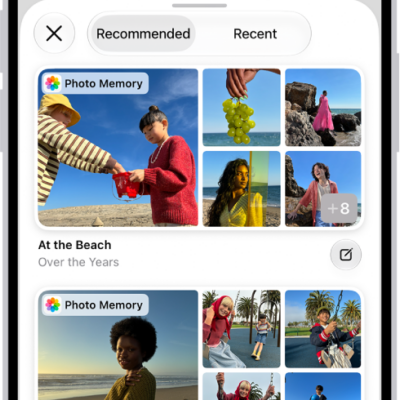
In the Journal app on iPhone, you can edit your entries, modify the entry date, delete or recover entries, and more.
You can also add the same entry to more than one journal, or remove or add a title. Mistakes aren’t permanent, either. If you delete an entry you wanted to keep, you can recover deleted entries for up to 30 days from Recently Deleted.
Here’s how to edit or delete a journal entry on iPhone.
Edit a journal entry
- Start the Journal app on your iPhone.
- Choose a journal or tap All Entries.
- Swipe left on an entry and tap the Edit button.
Add the same entry to multiple journals
- Start the Journal app on your iPhone.
- Choose a journal or tap All Entries.
- Tap the More button below the entry, then tap Choose Journals.
Remove or add a title
- Start the Journal app on your iPhone.
- While composing an entry, tap the More button. Then tap Remove Title or Add Title.
Edit the entry date
- Start the Journal app on your iPhone.
- While composing an entry, swipe down to show the entry date and tap the date to edit it.
Delete journal entries
- Start the Journal app on your iPhone.
- Choose a journal or tap All Entries.
- Swipe left on an entry and tap the Delete button.
Deleted entries are saved for 30 days.
- To delete multiple entries, tap the More button, tap Select Entries, select the entries you want to delete, and tap the Delete button.
Recover journal entries
For up to 30 days, you can recover entries you’ve deleted.
- Start the Journal app on your iPhone.
- Tap Recently Deleted. You may need to tap the Return to Journals button first.
- Tap the More button below the entry and then tap Recover.
- To recover multiple entries, tap Select, tap the entries you want to recover, and tap the Recover button.
Tag: Journal