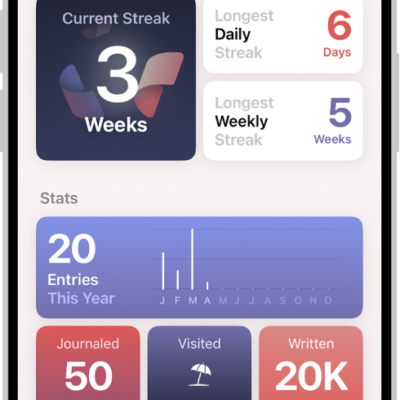
In the Journal app, you can search for text in your entries and filter for details such as photos, drawings, and locations. You can also bookmark entries to revisit later.
You can sort entries by Entry Date or Moment Date, and see your entries based on their location with the map view. Any entry with a location, or with photos that have location information, shows up on the map. You can bookmark several entries at once, too.
Search your journal entries
- Start the Journal app on your iPhone.
- Choose a journal or tap All Entries.
- Do any of the following:
- Find specific entries: Tap the Search button. Choose a category such as Photos or Reflections or type the text you’re looking for.
- Sort entries: Tap the More button, tap Sort By, and then choose Entry Date or Moment Date.
- Find entries for a specific day: Tap the Back button to show your insights, tap the Calendar button, and tap a date on the calendar.
View entries by location
You can see your entries based on their location with the map view.
- Start the Journal app on your iPhone.
- Tap the Journals Back button to show your insights. Then tap Places.
- To return to your journal, tap the Journals Back button.
Entries that include a location, or photos with location information, are added to the map.
Bookmark important journal entries
- Start the Journal app on your iPhone.
- Choose a journal or tap All Entries.
- Swipe right on an entry. Then tap the Bookmark button.
To bookmark multiple entries, tap the More button, tap Select Entries, tap entries to select them, then tap the Bookmark button.
Quick tip: Tap the Search button, then tap Bookmarked, and only bookmarked entries appear.