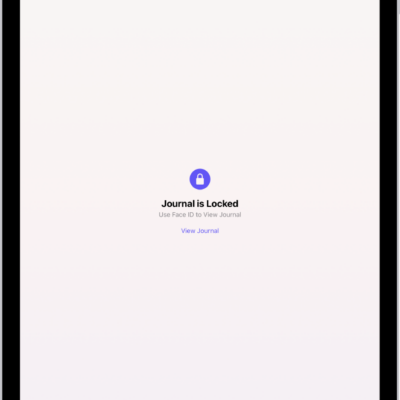
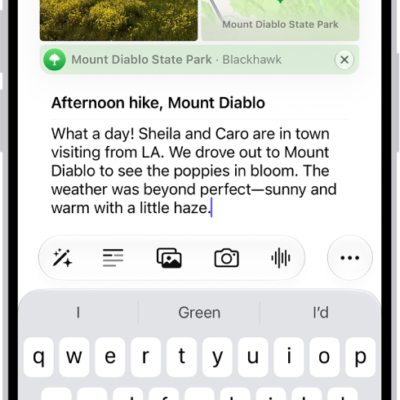
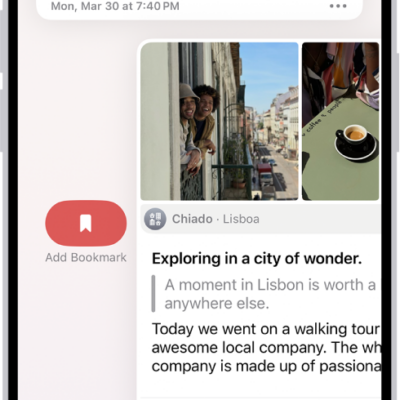
You can customize the settings for the Journal app; for example, personalize the suggestions you receive, set a schedule for journaling, and more.
With Apple Intelligence, Journal can even suggest writing prompts based on what you write. You can add a title, date, or current location to new journal entries, save photos and videos taken in Journal to the Photos app, and turn Journal notifications on or off.
Here’s how to change your Journal settings on iPhone.
Turn Journaling Suggestions on or off
- Start the Settings app on your iPhone.
- Tap Privacy & Security and tap Journaling Suggestions.
Customize Journaling Suggestions
Journal can use Apple Intelligence to suggest customized writing prompts that draw on what you write and the photos or drawings you add to an entry.
Note: Apple Intelligence on iOS 27 or later is available on an Apple Intelligence-enabled iPhone 15 Pro, iPhone 15 Pro Max, or iPhone 16 model or later. Apple Intelligence is not available in all languages or regions. Usage limits may apply.* You must be an adult to use this feature.
If you want to fine-tune how Journal works, here’s what you can change:
-
Customize the privacy settings: Go to the Settings app , tap Privacy & Security, tap Journaling Suggestions, then turn any of the categories on or off.
Suggestions use data from apps and services you turn on; data used for suggestions is private and stored on your iPhone.
- Change the notification settings: Go to the Settings app , tap Notifications, then tap Journaling Suggestions.
- Create new entries without viewing suggestions or prompts: Go to the Settings app , tap Apps, tap Journal, then turn off Show Suggested Moments or Get Writing Prompts.
Add a title, date, or current location to new journal entries
- Start the Settings app on your iPhone.
- Tap Apps, tap Journal, and do any of the following:
- Add a title to new entries: Tap Add Entry Title and then choose Always, Only for Moments, or Never.
- Use the date from the moment as the entry date: Turn on Always Use Moment Date.
- Add current location to new entries: Turn on Add Current Location.
Save photos and videos taken in Journal to the Photos app
- Start the Settings app on your iPhone.
- Tap Apps and tap Journal.
- Turn on Save to Photos.
Turn Journal notifications on or off
- Start the Settings app on your iPhone.
- Tap Notifications, then tap Journaling Suggestions.
*Apple Intelligence is available with Siri and device language set to Chinese (Simplified), Chinese (Traditional), Danish, Dutch, English, French, German, Italian, Japanese, Korean, Norwegian, Portuguese, Spanish, Swedish, Turkish, or Vietnamese. Some features may not be available in all regions or languages. Some devices may not be available in all regions. Siri AI is available in beta in iOS 27, iPadOS 27, macOS 27, watchOS 27, and visionOS 27 and requires an Apple Intelligence–enabled device set to a supported language. Available in English to start. Siri AI will not be initially available in the EU on iOS, iPadOS, and watchOS. Certain Apple Intelligence features that rely on server-side models are subject to daily usage limits, including but not limited to Siri AI, Intelligent Photo Editing Tools, Image Playground, and AFM 3 Cloud models in Shortcuts. Daily limits may vary by feature, request complexity, system demand, system policies, and other factors. Expanded access to such features will be available for a fee in the future. Use of these features is subject to the Apple Intelligence Terms and Conditions.