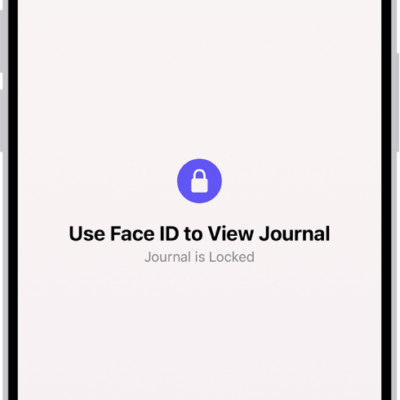
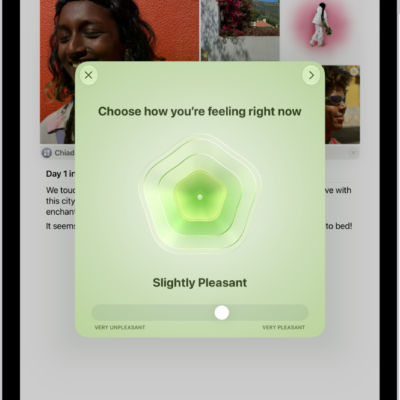
In the Journal app, there are a number of ways you can protect your journal entries. You can lock your journal, sync your journal entries with iCloud, and include them in your iPad backup if you encrypt your backup and store it locally on your computer or external storage device.
Your entries, and any changes you make, show up on your iPad, iPhone, and Mac signed in to the same Apple Account, and Journal entries aren’t included in iCloud backups. With an encrypted backup, you have a copy of your entries in case your iPad is replaced, lost, or damaged.
Keep your entries in sync across your devices with iCloud
Your entries, plus any changes you make to them, show up on any iPad, iPhone, or Mac where you’ve turned on Journal in iCloud settings and signed in to the same Apple Account.
- Open the Settings app on your iPad.
- Tap your name, then tap iCloud.
- Tap See All next to Saved to iCloud, then turn on Journal.
How do I back up my journal entries?
If you want your entries included in a backup of your iPad, your iPad backup has to be encrypted and stored locally on your computer or an external storage device. iCloud backups don’t include Journal entries, but you can check that they sync to iCloud in Settings.
With encrypted backups, you’ve got a copy of your entries to use if your iPad is ever lost, damaged, or replaced.
Lock your journal
Keeping your journal private means only you can access it, using Face ID, Touch ID, or your passcode.
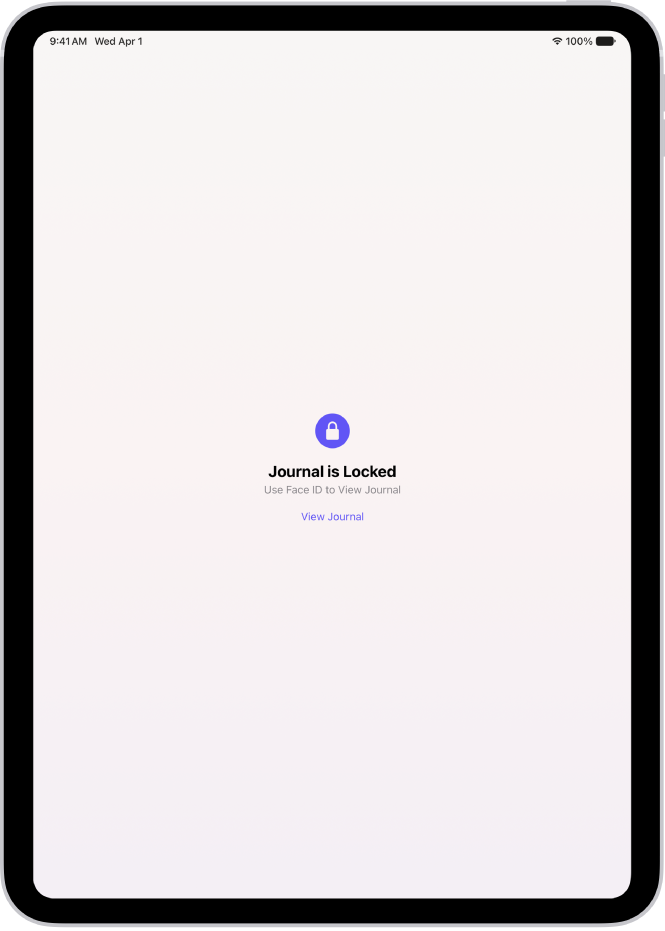
There are a few ways to lock your journal:
- From the Home Screen or App Library: See Lock or hide an app.
- In the Journal app: Above the Insights summary, tap the More button, then tap Lock Journal.
- In the Settings app: Go to Settings > Apps > Journal, then tap Lock Journal.
See also