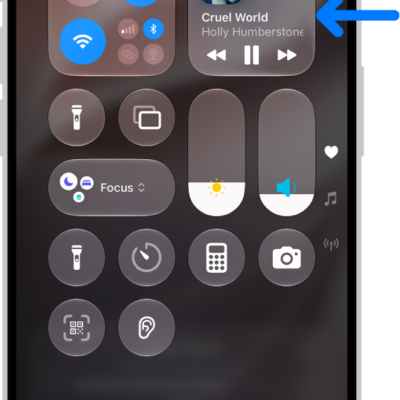
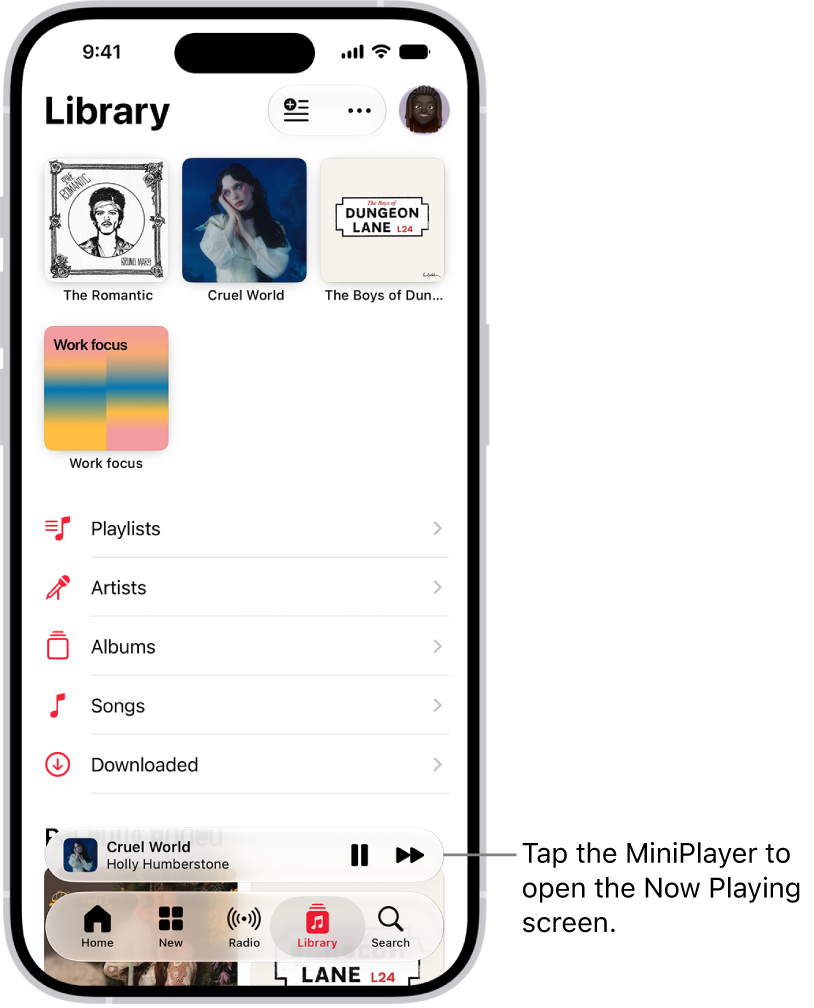
You can play and control music in the Music app in two different ways—the MiniPlayer and the Now Playing screen. The MiniPlayer shows the song that’s currently playing, and the Now Playing screen lets you adjust the volume, scrub to any point in a song, and stream music to Bluetooth® or AirPlay-enabled devices.
Quick tip: To navigate between tracks, swipe left or right across a track’s title in the MiniPlayer or the Now Playing screen.
Use the MiniPlayer
Besides showing the song that’s currently playing, the MiniPlayer can play or pause music and skip to the next track.
Use the controls in the Now Playing screen
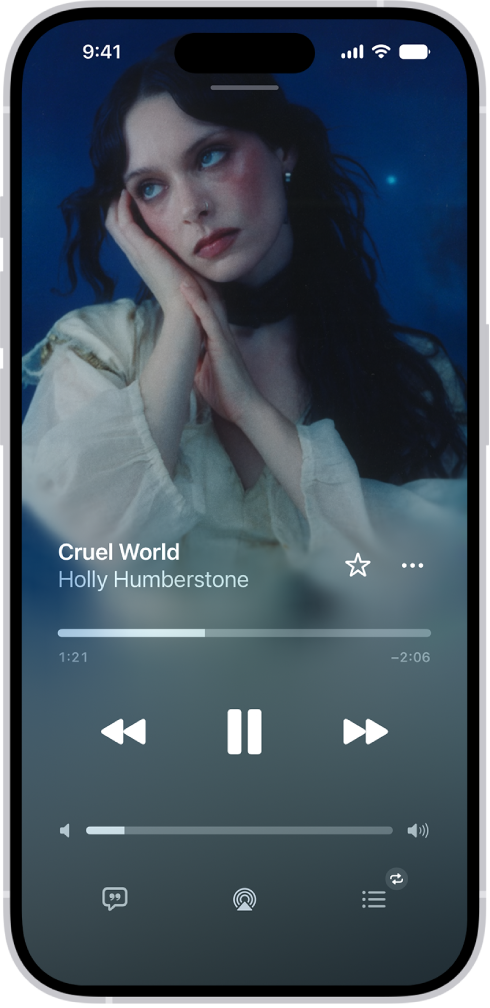
- Open the Music app on your iPhone.
- While a song is playing, tap the MiniPlayer to open the Now Playing screen.
-
Do any of the following:
-
Adjust the volume: Drag the volume slider.
You can also use the volume buttons on the side of iPhone.
- Scrub to any point in a song: Drag the playhead.
- Go to the artist, album, or playlist: Tap the artist name below the song title. Choose an option.
- Turn animated album cover art on or off: Open Settings, tap Apps and tap Music. Tap Animated Art and choose an option.
-
Adjust the volume: Drag the volume slider.
Tap any of these buttons for more control over your music:
| Control | Description |
|---|---|
 |
Dismiss the Now Playing screen. |
 |
Mark the song as a favorite. |
 |
Tap for more options. |
 |
Tap to play your songs in random order (shuffle). |
 |
Tap to repeat an album, playlist, or the entire queue. (Or double-tap to repeat a single song.) |
 |
Tap to use AutoPlay, which adds similar songs and plays them at the end of the queue. |
 |
Tap to use AutoMix, which seamlessly transitions between songs, like a DJ. (Available for Apple Music subscribers.) |
 |
Tap to use Crossfade, which fades in each song (gradually increase its volume) while the previous song is fading out. |
 |
Tap when you need help pronouncing or translating the lyrics. This button only appears when a translation or pronunciation is available that matches your iPhone device’s Preferred Languages list. (You can view this list and add languages directly to it in Settings > General > Language & Region.) Not available in all languages. |
 |
Go back to the beginning of the song. Tap again to play the previous song in an album or playlist. Touch and hold to rewind through the current song. |
 |
Pause playback. |
 |
Play the current song. |
 |
Skip to the next song. Touch and hold to fast-forward through the current song. |
 |
Show time-synced lyrics (lyrics not available for all songs). |
 |
Stream music to Bluetooth or AirPlay-enabled devices. |
 |
Show the queue. |
Stream music to Bluetooth® or AirPlay-enabled devices
- Open the Music app on your iPhone.
- While a song is playing, tap the MiniPlayer to open the Now Playing screen.
- Tap the Playback Destination button and then choose a device.
Note: The same music can play on multiple AirPlay 2-enabled devices, like two or more HomePod speakers. It’s also possible to pair two sets of AirPods to one iPhone so you and a friend can enjoy the same song or movie together.