When you subscribe to Apple Music, you can browse new and noteworthy music, music videos, playlists, and more.
In New, you can browse featured songs and videos, listen to one of the many playlists created by music experts, or look through the albums listed below New Releases. And it’s not just new releases. On any Artist page, you can see upcoming concerts.
Here’s how to find new music with Apple Music on iPhone.
Discover new releases, featured music, and more
- Open the Music app on your iPhone.
-
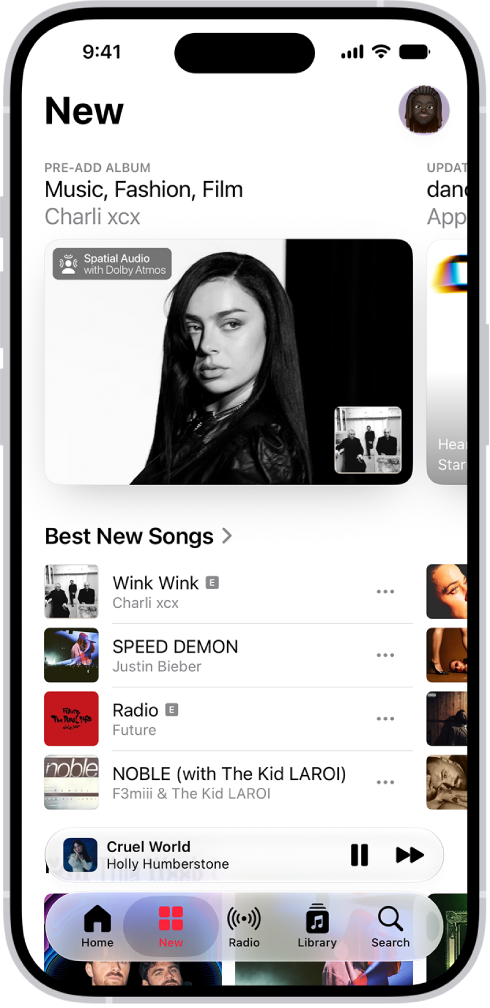
Tap New to find new music and then do any of the following:
- Explore featured music: Swipe through featured songs and videos at the top of the screen.
- Browse playlists created by music experts: Tap one of the many playlists created by music experts.
- Explore new music: Tap a song below the Latest Songs heading or swipe through the albums listed below New Releases.
-
See upcoming concerts: Go to any Artist page to see upcoming concerts. Scroll down to see details under All Upcoming Concerts. To view all upcoming concerts and update your location in the Concerts Hub, tap the Search tab and then tap Concerts.
Note: Concerts isn’t available in China.
- See what’s hot: Tap a song below the Trending Songs heading. Swipe left to see more songs.
- Listen to the top songs from around the world: Tap one of the Daily Top 100 playlists. These playlists reflect the day’s most popular songs in countries across the globe.
- Listen to songs from upcoming albums: Tap an album below Coming Soon and tap an available song to play it.
- Watch music videos: Tap Music Videos and then tap a featured music video or playlist of music videos.
- Play the day’s most popular songs: Tap Charts and tap a song, playlist, album, or music video to play it. Tap All Genres at the top of the screen to see the top songs and music videos in a genre you choose.
- Browse your favorite genres: Tap Browse by Genre, choose a genre, and then tap a featured playlist, song, album, artist, or radio station to enjoy music handpicked by music experts.
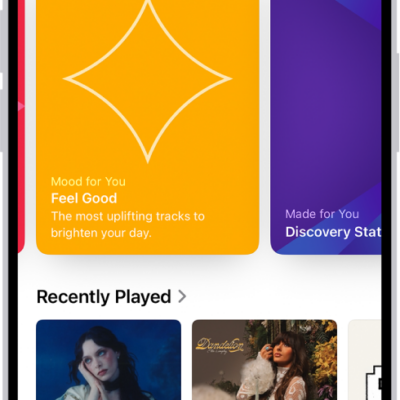
- Play music that matches your mood: Tap Moods and Activities and tap a playlist such as Feel Good, Romance, or Party.
Note: Swipe left on the album art for more music, or tap the Forward button next to a section’s name — New Releases, for example — to see everything in that section.
Discover your most-played music of the year
If you’ve subscribed to Apple Music for a year and played enough music to be eligible, Apple Music creates a Replay personal chart for that year that ranks the songs you’ve played the most.
- Open the Music app on your iPhone.
- Tap Home, swipe down to Replay: Your Top Music, and tap an option (for example, a year).
Throughout the year, you can also see all your insights on your iPhone or at the Apple Music Replay website.
Discover music you’ve never played before
Apple Music uses your listening history and taste profile to recommend music you may like that you’ve never played before.
Siri: Ask Siri something like, “Play my Discovery Station.”
- Open the Music app on your iPhone.
- Tap Home, then swipe down to Stations for You.
- Tap Discovery Station.
Turn on or off new music notifications
- Open the Music app on your iPhone.
- Tap the My Account button or your profile picture.
- Tap Notifications, then turn on (or off) New Music.