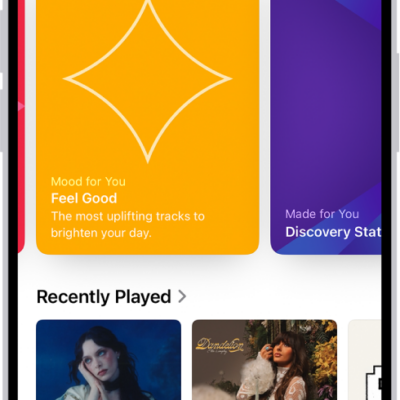
If you subscribe to Apple Music, you can add music you’ve saved and playlists you’ve created in third-party music services to your Apple Music library.
There’s some setup first, like iOS 18.4 or later and Sync Library turned on in Music settings. The transfer itself is provided by a third party, and once it’s done, you can review the transfer.
Here’s how to transfer music from other music services to Apple Music on iPhone.
Note: Transferring music to Apple Music is provided by a third party. Apple Music and transferring music from third-party music services aren’t available in all countries or regions.
Before you begin
Before you start a transfer, confirm that all of the following are true:
- You’re using iOS 18.4 or later and are signed in to your Apple Account.
- Sync Library is turned on in Settings to transfer music. Go to Settings > Apps > Music, then turn on Sync Library if it’s not already on.
Transfer music from third-party music services
- Open the Music app on your iPhone.
- Tap your profile.
-
Tap Transfer Music from Other Services.
If you don’t see this option, you need to sign in to your Apple Account.
- Select a music service. Sign in to the service.
-
Select what you want to transfer (all or selected items) and then tap Add to Library.
Note: Depending on the third-party music service, you may be able to transfer all music or only certain items (for example, only playlists you’ve created).
-
When the transfer finishes, one of the following messages appears at the top of the screen:
- Transfer Complete: The transfer finished successfully and you see a summary of the music that’s been added to your library. Tap OK.
- Some Music Needs Review: The transfer finished, but some music wasn’t transferred. You can review and choose alternate versions, if available (for example, a live version of a song from the third-party music service wasn’t found in the Apple Music catalog, but a deluxe version was). See Review the transfer.
Review the transfer
During the transfer, music from the third-party music service is matched with the same music offered in the Apple Music catalog. (Nothing is removed from the other music service.)
A song, album, or music video from the third-party music service won’t always have a match in the Apple Music catalog. As you review matches, you can pick from the alternates provided or ignore suggestions.
-
On your iPhone, do one of the following:
- Go to the Music app , then at the top of the Library tab, tap Review Now in the Some Music Needs Review message.
- Go to Settings > Apps > Music, then tap Review Current Transfer.
-
In the Review Alternates screen, do any of the following for each of the items that need review:
- Choose an alternate version: Select one of the items shown as a potential match with the original song from the third-party music service. To preview the song, tap the Play button on the album cover.
- Don’t transfer the item: Tap Ignore [item] if you don’t want to transfer an alternate version into your Apple Music library. You can also tap Ignore All to finalize the transfer and start a new transfer.
Music that doesn’t have alternate suggestions is listed in the Not Available section at the bottom of the Review Alternates screen.
- Repeat step 2 until you’ve reviewed all the alternates for each item and tap Add [items] to Library.
Note: If you can’t review all your alternate matches in one session, tap Add [items] to Library to accept the matches you’ve selected so far. The initial transfer stays open for 30 days, so you can come back and complete it, but a new transfer can’t start until you finish reviewing all alternates in that one. And if Review Current Transfer shows up in Music settings, there’s music from an earlier transfer that you still need to review.