With the Journal app, you can keep track of your journaling goals and build new habits.
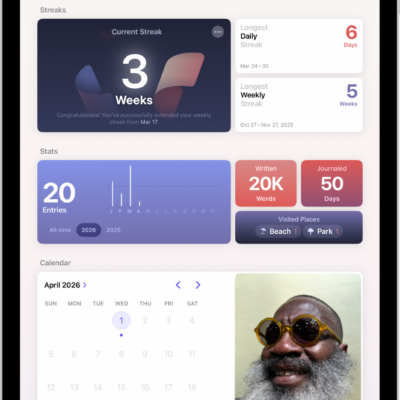
The sidebar shows your current streak, which is the number of consecutive days or weeks you’ve journaled, plus other insights. You can set a journaling schedule to be reminded to write, and add a Journal widget to your Home Screen or Lock Screen with your streak or writing prompts that change throughout the day.
Here’s how to build a habit with Journal on iPhone.
Track your journaling with Insights
- Open the Journal app on your iPhone.
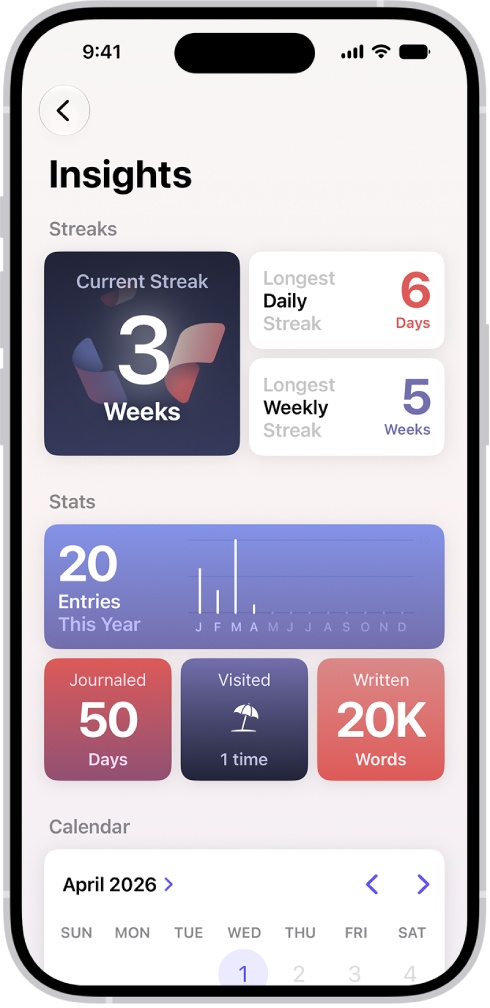
- Tap the Journals Back button to see your current streak—the number of consecutive days or weeks you’ve journaled—along with other insights.
-
Tap Insights. Then tap any tile to see more details.
Set a journaling schedule
Journaling notifications can remind you to write.
- Open the Journal app on your iPhone.
- Above the Insights summary, tap the Journal More button and tap Notifications. You may need to tap the Journals Back button to see the Insights summary.
- Tap Custom to set a weekly schedule or tap Smart to receive notifications based on your routine and location.
Use the Journal widget
To reflect on what’s going on in the moment, put a widget on your Home Screen or Lock Screen that shows your current streak or writing prompts that change throughout the day.
- On the iPhone Home Screen or Lock Screen, add a Journal widget.
- To change the widget, touch and hold the widget and then tap Edit Widget.
- Tap the widget to select from different writing prompts, start a new entry, or see details about your current streak.
Tag: Journal