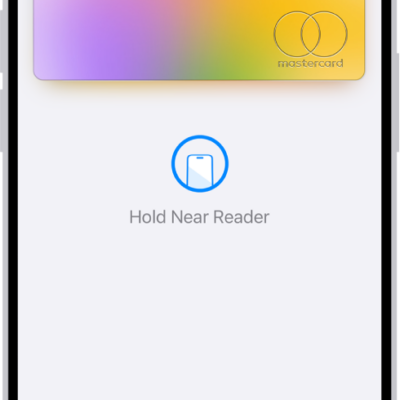
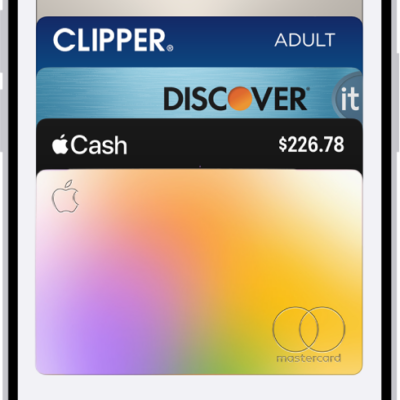
Use the Wallet app to keep your eligible credit and debit cards, passes, transit cards, identity cards, keys, and more, all in a secure and convenient place. Add cards and passes directly from apps, emails, and websites, or add them right in Wallet, then arrange your stack the way you like.
Many cards and passes in Wallet on your iPhone are also available on your paired Apple Watch.
Here’s how to set up cards and passes in Wallet on iPhone.
Note: Apple Wallet requires eligible and supported cards and passes. Apple Wallet, Apple Pay, and their features aren’t available in all countries or regions.
What can I keep in Apple Wallet?
- Payment cards
- Credit and debit cards:
- Apple Cash (U.S. only): Send money in Messages, in Wallet, or with Tap to Cash by simply holding your iPhone near someone else’s.
- Apple Card (U.S. only): Track your spending, schedule payments, and get Daily Cash back on every purchase.
- Connected accounts:
- Flexible payments:
- Identity cards
- Government-issued IDs: Show proof of age or identity in person, online, and in apps at select businesses and venues.
- Employee badges: Use your iPhone or Apple Watch to access your workplace.
- Student IDs: Use your iPhone or Apple Watch to access your dorm and other places around campus.
- Transit and tickets
- Transit cards: On participating transit networks, you can conveniently check and top up the balance and breeze through transit gates by simply holding your iPhone or Apple Watch to the reader.
- Tickets and boarding passes: Add tickets for movies, concerts, and events, or boarding passes for flights, directly from confirmation emails or supported apps. They can also appear on your Lock Screen automatically near your departure or event time.
- Keys
- Home: With a compatible smart lock and a home key in Wallet, you can unlock your door with just a tap of your iPhone or Apple Watch.
- Apartment building or condominium: Follow the instructions from your property company to add a resident key for your apartment building, condominium, or other shared living space to your iPhone or Apple Watch.
- Hotel room: Check in without going to the lobby and use your iPhone or Apple Watch to unlock your room with a room key from a participating hotel’s app.
- Car: Lock, unlock, and start your compatible car with a car key in Wallet.
- Scooter: Lock, unlock, and start your compatible scooter with a scooter key in Wallet.
- Apple Account: Check the balance of your Apple Account, add money, and redeem Apple Gift Cards.
- Physical card numbers: Easily fill in payment information at checkout.
- Order tracking and receipts: View order details, track shipping, and link receipts to transactions when you make a purchase.
To learn more about all the things you can keep in Wallet, go to the Wallet app on your iPhone, tap the More button, then tap Discover.
Add a card or pass
Look for “Add to Apple Wallet” in an app, email, message, or web page.
You can also directly add flexible payment options, custom passes, identity cards, transit cards, and supported credit and debit cards in the Wallet app.
- Open the Wallet app on your iPhone.
- Tap the Add Card button. You may be asked to sign in to your Apple Account.
- Choose a category and then follow the onscreen instructions. This might include receiving a text message, answering security questions, or confirming through the card issuer’s app.
Rearrange your cards, keys, and passes
- Open the Wallet app on your iPhone.
- Touch and hold a card you want to move.
- Drag the card to a new position in the stack.
Quick tip: To make a credit or debit card your default payment card, drag it to the front of the card stack.