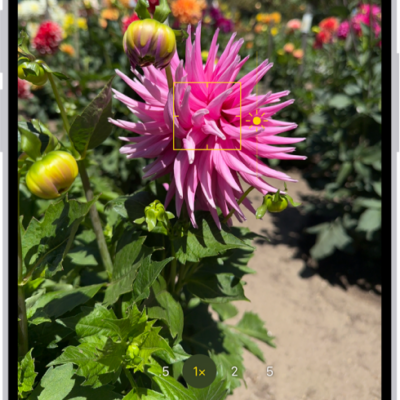
Learn how to take photos with your iPhone camera. Choose from camera modes such as Photo, Video, Cinematic, Pano, and Portrait, and zoom in or out to frame your shot.
To open your iPhone camera, you can use the Camera app on the iPhone Home Screen, the iPhone Lock Screen, or Control Center. On models with an Action button or the Camera Control, those open Camera, too. And with an Apple Watch, the Camera Remote lets you take a photo from your wrist.
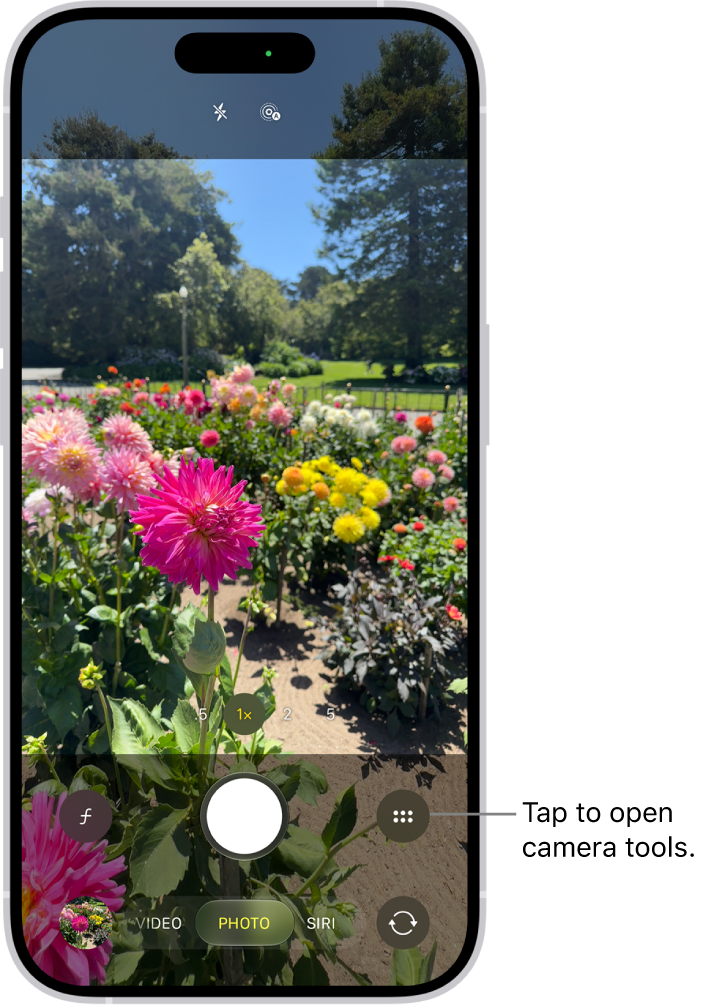
Here’s a look at the iPhone camera basics.
Open Camera
There are a few quick ways to open your iPhone camera:
- Tap the Camera app on the iPhone Home Screen.
- Swipe left on the iPhone Lock Screen.
- Touch and hold the Camera button on the iPhone Lock Screen.
- Open Control Center, then tap the Camera button.
- On models with an Action button, you can assign the Action button to open Camera.
- On models with the Camera Control, click the Camera Control to open Camera.
- Siri: Ask Siri something like, “Open Camera.”
Note: For your security, you’ll see a green dot in the top-right corner of the screen whenever Camera is in use.
Take a photo
- Open Camera on your iPhone.
- Tap the Shutter button or press either volume button to take a photo.
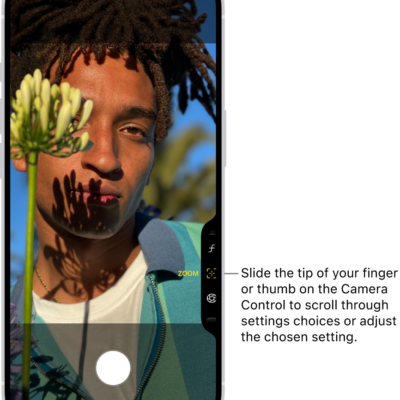
On supported models, click the Camera Control to open Camera, then click it again to take a photo.
With supported models of AirPods and AirPods Pro, you can press the AirPod stem to take a photo.
If you have an Apple Watch, you can use the Camera Remote to take a photo.
Switch between camera modes
When you first open Camera , Photo mode is selected, swipe left or right to choose other modes.
Which modes you can select from depends on your iPhone model:
- Photo: Take still photos, Live Photos, and portraits.
- Video: Record a video.
- Time-lapse: Create a time‑lapse video of motion over a period of time.
- Slo-mo: Record a video with a slow-motion effect.
- Cinematic: Apply a depth-of-field effect to your videos.
- Portrait: Apply a depth-of-field effect to your photos.
- Spatial: Take spatial photos and videos to relive in 3D on Apple Vision Pro.
- Pano: Capture a panoramic landscape or other scene.
- Siri: Search, ask questions, and take action based on what’s in the frame when using Siri AI (Beta)*.
- Reference: On iPhone 18 Pro models, capture a reference image from the Main camera sensor alongside your photo, so you can verify whether it’s been edited or altered.
Zoom in or out
- Open Camera on your iPhone.
- Do one of the following:
- Pinch the screen to zoom in or out.
- Touch and hold the zoom control at the bottom of the frame, then drag the slider left or right.
- On supported models, tap 0.5x, 1x, 2.5x, 3x, 4x, 5x, or 8x to quickly zoom in or out (depending on your model).
- On supported models, lightly double-press the Camera Control to open an overlay that shows the available camera settings. Slide your finger to select the Zoom setting, then lightly press it. Slide your finger again to zoom in and out.
*Apple Intelligence is available with Siri and device language set to Chinese (Simplified), Chinese (Traditional), Danish, Dutch, English, French, German, Italian, Japanese, Korean, Norwegian, Portuguese, Spanish, Swedish, Turkish, or Vietnamese. Some features may not be available in all regions or languages. Some devices may not be available in all regions. Siri AI is available in beta in iOS 27, iPadOS 27, macOS 27, watchOS 27, and visionOS 27 and requires an Apple Intelligence–enabled device set to a supported language. Available in English to start. Siri AI will not be initially available in the EU on iOS, iPadOS, and watchOS. Certain Apple Intelligence features that rely on server-side models are subject to daily usage limits, including but not limited to Siri AI, Intelligent Photo Editing Tools, Image Playground, and AFM 3 Cloud models in Shortcuts. Daily limits may vary by feature, request complexity, system demand, system policies, and other factors. Expanded access to such features will be available for a fee in the future. Use of these features is subject to the Apple Intelligence Terms and Conditions.