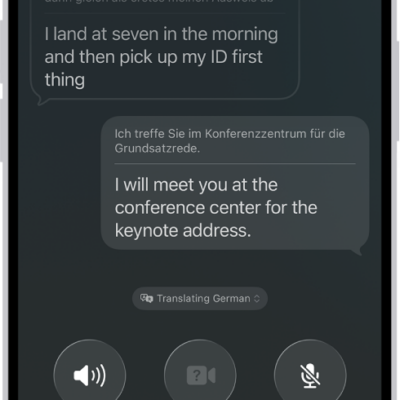
In the Translate app, you can type or simply speak to see translated text in chat bubbles while talking to someone in a different language. In the face-to-face view, each person can see the conversation from their own side.
Conversations work for downloaded languages even without an internet connection, and words are translated as you type or speak. You can also play the audio translation, and with Auto Translate, iPhone can tell when you start and stop speaking.
Translate an in-person conversation
Translated text bubbles from both sides of the conversation appear on iPhone. If you don’t have an internet connection, or you’re using on-device translation, conversations still work for downloaded languages.
- Open the Translate app on your iPhone.
- Tap Conversation.
-
Do one of the following:
- Type: Tap “Enter text,” type a phrase (or paste text), then tap the Done button.
- Speak: Tap the Listen button and then say a phrase.
Note: Words are translated as you type or speak.
- To play the audio translation, tap the Play button. To adjust the playback speed, touch and hold the Play button, then choose a speed.
Quick tip: Tap the More Options button for extra convenience, then choose any of the following:
- Play translations: Automatically play the audio translations.
- Auto Translate: Translate the conversation without tapping the microphone button. iPhone automatically detects when you start speaking and when you stop.
- Detect Language: The languages spoken are automatically detected.
Switch to the face-to-face conversation view
When chatting face-to-face, each person can see the conversation from their own side.
- Open the Translate app on your iPhone.
- Tap View, then tap Face to Face.
Hear translations for in-person conversations using AirPods
Live Translation with AirPods, enabled by Apple Intelligence, can help when someone nearby speaks to you in a different language. You hear their words translated into your preferred language in real time, and the translated dialogue shows up on your iPhone, too.
Note: Live Translation with AirPods is supported on AirPods 4 (ANC), AirPods Pro 2, or AirPods Pro 3 paired with an Apple Intelligence-enabled iPhone. AirPods must have the latest firmware. Live Translation isn’t available in all languages or regions; this feature isn’t available in the EU.*
*Apple Intelligence is available with Siri and device language set to Chinese (Simplified), Chinese (Traditional), Danish, Dutch, English, French, German, Italian, Japanese, Korean, Norwegian, Portuguese, Spanish, Swedish, Turkish, or Vietnamese. Some features may not be available in all regions or languages. Some devices may not be available in all regions. Siri AI is available in beta in iOS 27, iPadOS 27, macOS 27, watchOS 27, and visionOS 27 and requires an Apple Intelligence–enabled device set to a supported language. Available in English to start. Siri AI will not be initially available in the EU on iOS, iPadOS, and watchOS. Certain Apple Intelligence features that rely on server-side models are subject to daily usage limits, including but not limited to Siri AI, Intelligent Photo Editing Tools, Image Playground, and AFM 3 Cloud models in Shortcuts. Daily limits may vary by feature, request complexity, system demand, system policies, and other factors. Expanded access to such features will be available for a fee in the future. Use of these features is subject to the Apple Intelligence Terms and Conditions.